Table of Contents
Finding The Inmate Detail Page
You can search for an existing Inmate Detail page by the inmate's last name or by the Inmate ID number. As you type the name or ID of an inmate, a dropdown list will be displayed with inmate names and IDs that match what you have typed. If you select an inmate from the dropdown list, it will automatically open the Inmate Detail page and there is no need to click Search.
How to Find an Inmate Detail Page by Inmate ID
- To locate the Inmate Search page, go to the Inmate tab and click Inmate.
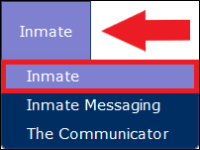
- Begin typing the Inmate ID in the Inmate ID or Inmate Last Name field. As soon as the system receives enough numbers, a dropdown list of active inmates whose Inmate ID begins with those numbers will be displayed.

- If the desired inmate appears in the dropdown list, click their name. This will automatically display their Inmate Detail page.

• The dropdown list only displays Active inmates. If the inmate is no longer Active, enter the Last Name or Inmate ID, then click Search.
• If you select an active inmate's name from the dropdown list, you do not need to click Search, you will be automatically taken to the desired Inmate Detail page.
• If you do not select an inmate's name from the dropdown list, you must click Search to locate the inmate.
How to Find an Inmate Detail Page by Inmate Last Name
- To locate the Inmate Search page, go to the Inmate tab and click Inmate.
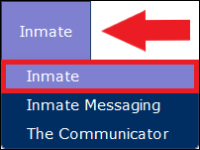
- Begin typing the Inmate Last Name in the Inmate ID or Inmate Last Name field. As soon as the system receives enough letters, a dropdown list of the Active inmates whose Inmate Last Name begins with the entered letters will be displayed.

- If the desired inmate appears in the dropdown list, click their name. This will automatically display their Inmate Detail page.

• The dropdown list only displays Active inmates. If the inmate is no longer Active, enter the Last Name or Inmate ID, then click Search.
• If you select an inmate's name from the dropdown list, you do not need to click Search, you will be automatically taken to the desired Inmate Detail page.
• If you do not select an inmate's name from the dropdown list, you must click Search to locate the inmate.
Click here to return to the top of the page.
How to Limit a Search Using Additional Criteria
If you are looking for an inmate with a certain set of criteria instead of a specific Inmate name or ID, there is an option to use More Search Criteria without the input of an Inmate name or ID.
If you make new selections in the More Search Criteria dialog box and then click Close, any selections you made will be saved and displayed the next time you open it during your current browsing session. If you log off, your selections will be cleared.
- To view additional criteria, click More Search Criteria on the Inmate Search page.

- Select as many criteria as needed to limit the search. See Selecting More Search Criteria for additional information on selecting search criteria.
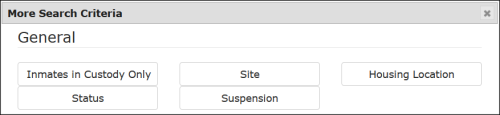
- When you have selected all the desired search criteria, click Search.

- The Inmate Detail records you requested will be displayed. If the desired inmate appears on the list, click the inmate ID.
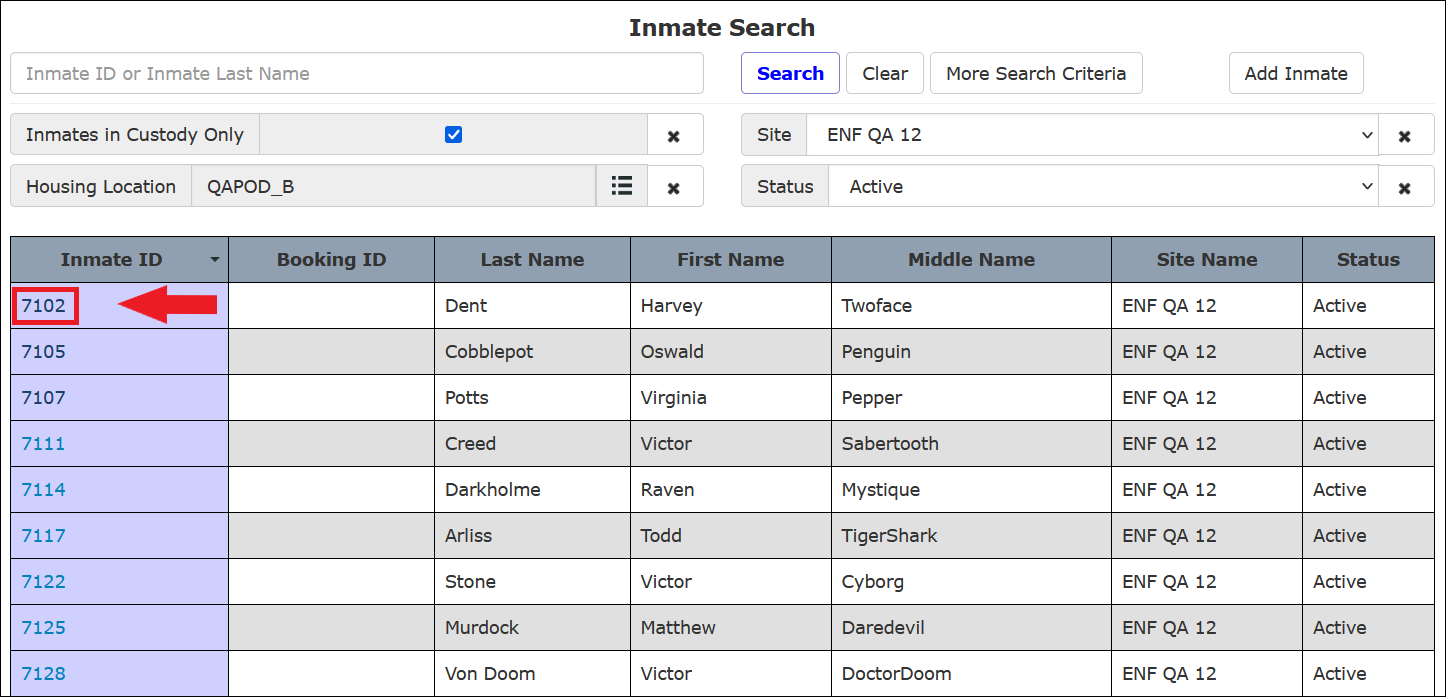
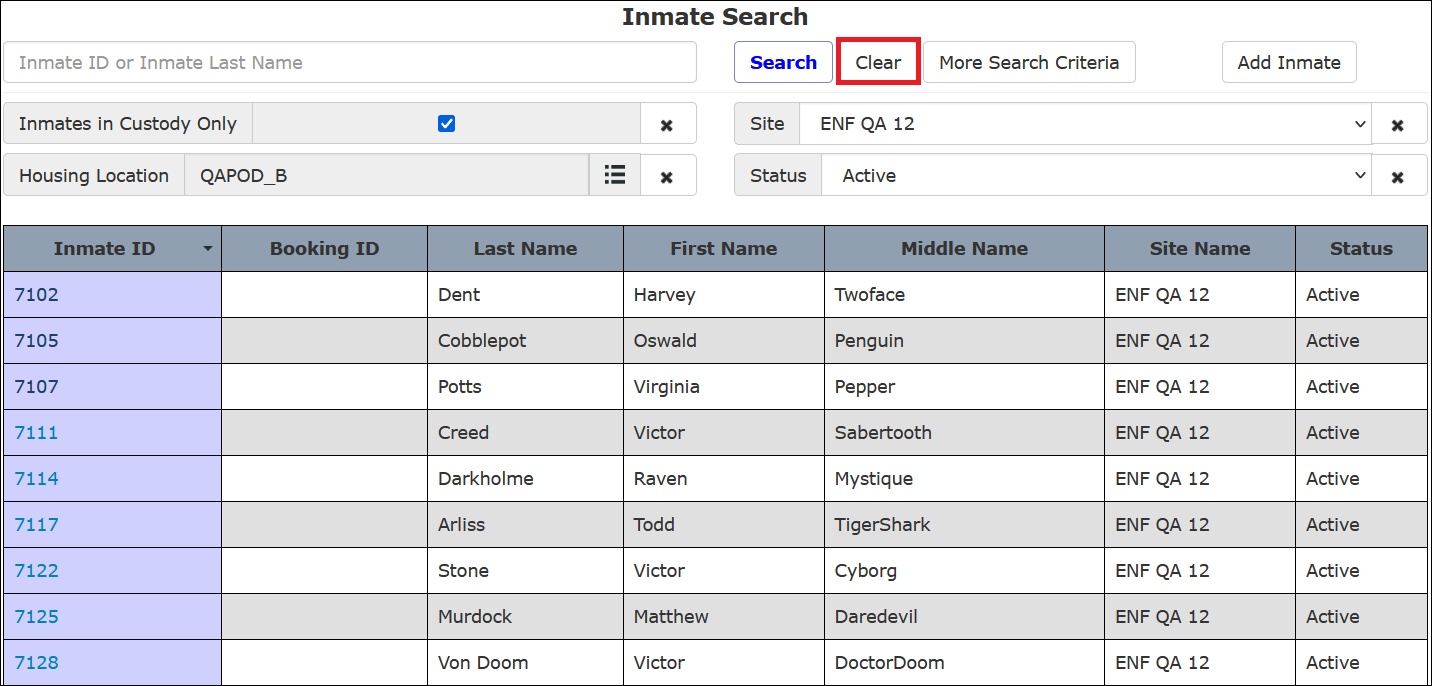
- TheirInmate Detail page will be displayed.
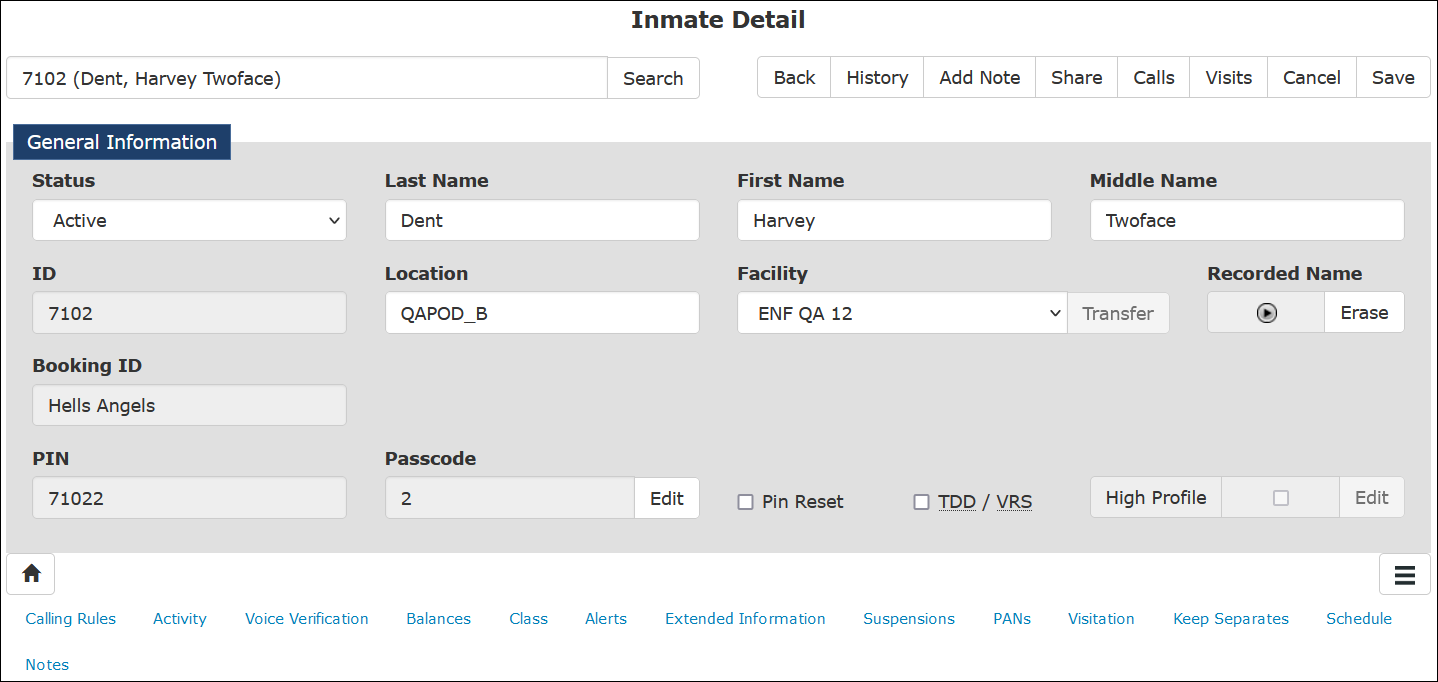
- Alternatively, to cancel the criteria you selected and start a new search with different criteria, click Clear.
Click here to return to the top of the page.
Table: Inmate Search More Search Criteria Options
| Option | Description |
|---|---|
| Inmates in Custody Only | Limits the search to Inmates in Custody Only or all inmates. |
| Site | If an agency has multiple sites, this limits the search to inmates located at a specific Site or all Sites. |
| Housing Location | Limits the search to inmates located at one or more Housing Locations. |
| Status | Limits the search to only inmates with the selected Status. The Status is defined using the Status dropdown list in the General Information section of the Inmate Detail page. |
| Suspension | Limits the search by Suspension Type. If not selected, this search option defaults to all Suspension Types. |
Click here to return to the top of the page.
Selecting More Search Criteria
This section describes how to use each search criterion available in the More Search Criteria dialog. 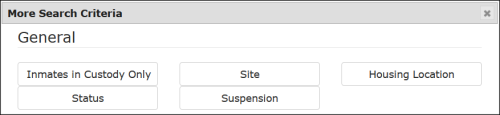
Inmates in Custody Only
- If you select Inmates in Custody Only, the option will be displayed on the Inmate Search page. By default, this option is enabled when the search criterion is selected.

- To disable the selection, click to deselect
 . To close the criterion, click
  .
. 
Site
- When Site is selected, a dropdown list will be displayed on the Inmate Search page.

- If you have a multi-site agency, you can select to search by specific Site.

When a criterion has a dropdown list, you can only select one option.
Housing Location
- If Housing Location is selected, a location picker will be displayed on the Inmate Search page.

- Click
 to view the selection list.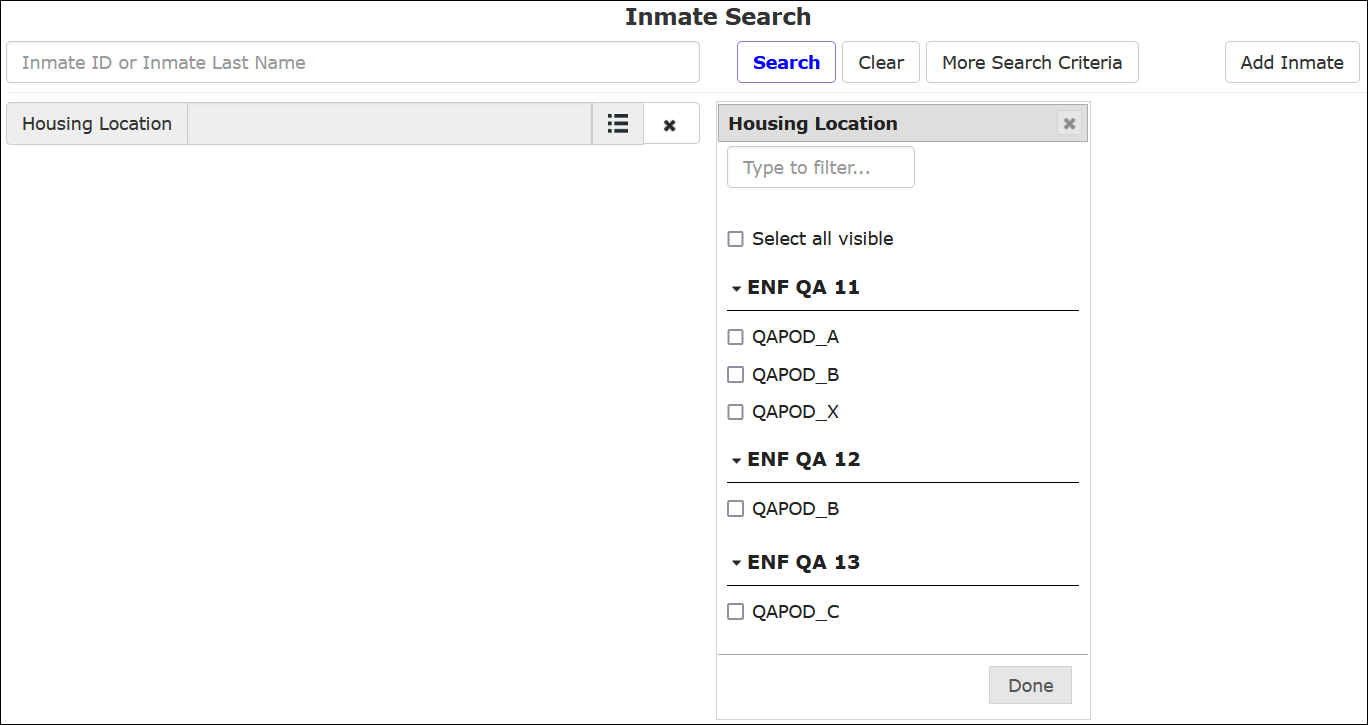
Housing Location allows you to enable multiple selections.
Status
- When Status is selected, the dropdown list will be displayed on the Inmate Search page. By default, Active is selected from the dropdown list when this search criterion is selected.
- Click the dropdown list to view and select the inmate status you wish to include in your search.
When a criterion has a dropdown list, you can only select one option.
Suspension
- When Suspension is selected, the dropdown list will be displayed on the Inmate Search page. By default, Any is selected from the dropdown list when this search criterion is selected.
- Click the dropdown list to view and select the inmate status you wish to include in your search.
When a criterion has a dropdown list, you can only select one option.
Click here to return to the top of the page.
How to Perform an Inmate Search Using Additional Search Criteria
- Go to the Inmate Search page located at Inmate > Inmate.
- Click More Search Criteria. You may specify as few or as many criteria as you wish to limit the search.
- Select or specify options or values for each additional criterion you selected.
If you make selections in the More Search Criteria dialog box and click Close, any selections you made will be saved for the next time you open it during your current browsing session. If you log out, your selections will be cleared.
- Click Search. The Inmate Detail records you requested will be displayed.
- Click on the row for the desired inmate to select and display the Inmate Detail page.
- To cancel the criteria you entered and start over, click Clear.
Click here to return to the top of the page.