Table of Contents
Attorney Registration
If enabled at your facility, the Attorney Registration function provides an automated method for inmates to request the registration and addition of their attorney’s phone number as a Privileged call in the Global Numbers library. This function enables an authorized ENFORCER® user at the correctional facility to review and then either approve or reject each attorney phone number requested by an inmate.
How to Register an Attorney Number
Complete the following steps for Attorney Registration:
- The inmate identifies an attorney they want to be represented by.
- The inmate calls The ENFORCER® IVR, then selects option 5 - register your attorney number from the Inmate Calling menu. To view a call flow diagram for an Attorney Registration Request call, click here.
- By following the prompts, the inmate provides the phone number of an attorney. This action places the phone number on a pending Attorney Registration list.
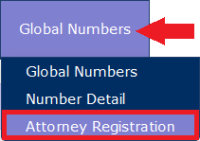
- An authorized ENFORCER® user can then click Attorney Registration under the Global Numbers tab to locate the number, add notes during the evaluation process, and approve or reject the inmate’s request.
- After an attorney number has been approved for an inmate, The ENFORCER® automatically creates a new Number Detail Record for the number in the Global Numbers library and sets the appropriate settings for an attorney number.
Locating an Attorney Registration Request
When you access the Attorney Registration module, The ENFORCER® displays a search dialog that enables you to:
- Search for a request by the attorney’s phone number.
- Search for a request by the Inmate ID of the inmate who requested it.
- Search all requests by status. For example, Pending, Approved, Rejected, or All.
The blocked and invalid/not registered statuses are not used.
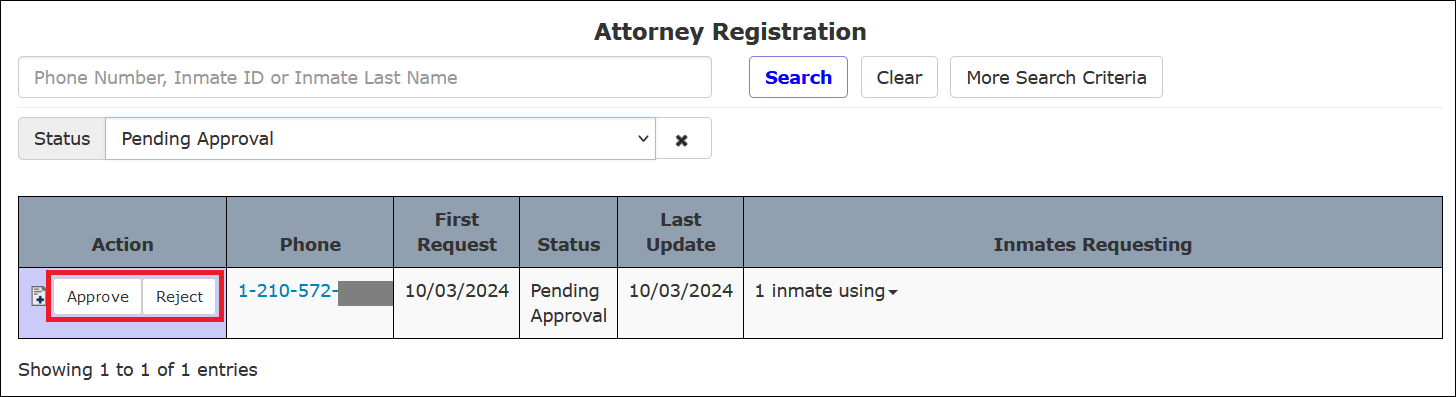
The following example shows that the search defaults to search for attorney number registration requests with a Pending Approval status and returns search results automatically.

Any Pending Approval requests are displayed in the following example. The Approve and Reject buttons are displayed in the Action column by default.
Approving or Rejecting an Attorney Registration Request
To approve or reject an Attorney Registration request, find the number on the Pending Approval list, then click Approve or Reject in the Action column above.
By default, only requests that are Pending Approval will be displayed. After approving a request, it is removed from the displayed list. You may search for All requests before clicking Approve, and the request will be updated but still displayed. You may also search for Approved requests to verify the value in the Status column has changed to Approved.

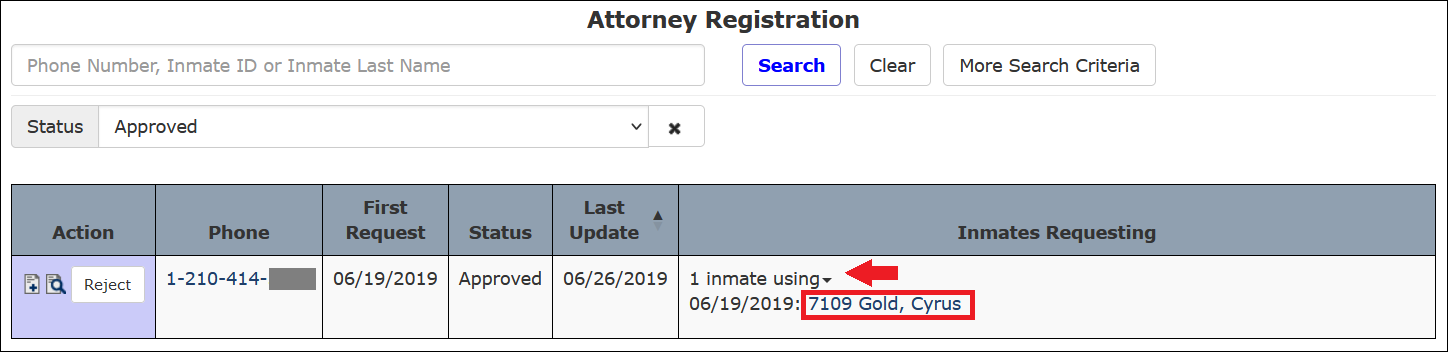
Once approved, the phone number in the Phone column is now displayed as a blue hyperlink to indicate that a new Number Detail Record was created in the Global Numbers library. You can click the phone number hyperlink to open the Number Detail page for the phone number, as shown in the following example.


Additionally, you can click  next to the words 1 inmate using in the Inmates Requesting column to open the Inmate Detail page for the inmate who requested the attorney phone number.
Adding Notes to an Attorney Registration Request
You can add Notes to an Attorney Registration request to make it a more useful historical record. Depending on the accepted procedures at your facility for evaluating an Attorney Registration request, you may want to add notes to log the following information:
- Each attempted call to the attorney’s office.
- Any conversation with the attorney regarding the inmate’s request.
- Brief details regarding approving or rejecting the inmate’s request.
- Name of attorney and attorney’s state bar ID or license number.
You can add a note to an attorney registration request before or after you approve or reject it.
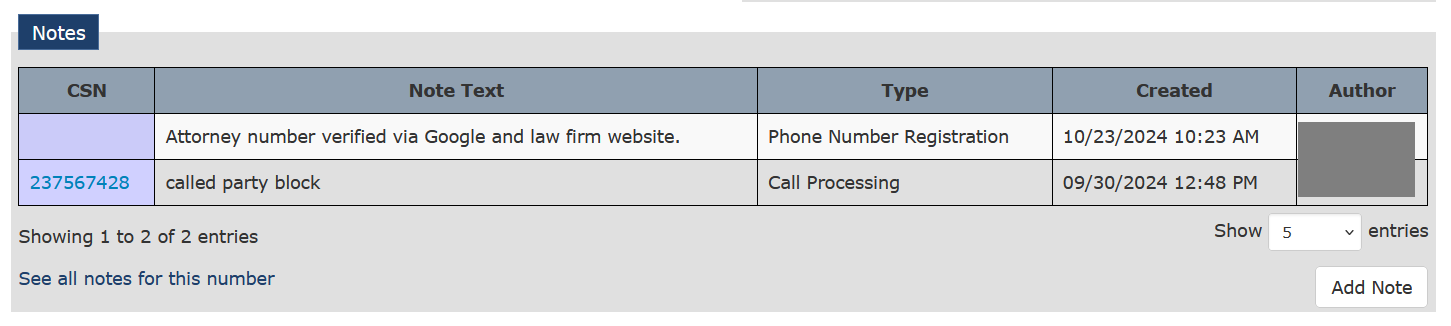
Alternatively, these notes can be accessed by performing a Global Numbers search to access the Number Detail Record for the approved number and scrolling down to the Notes pane, as shown in the following example.
How to add and view notes for an Attorney Registration request
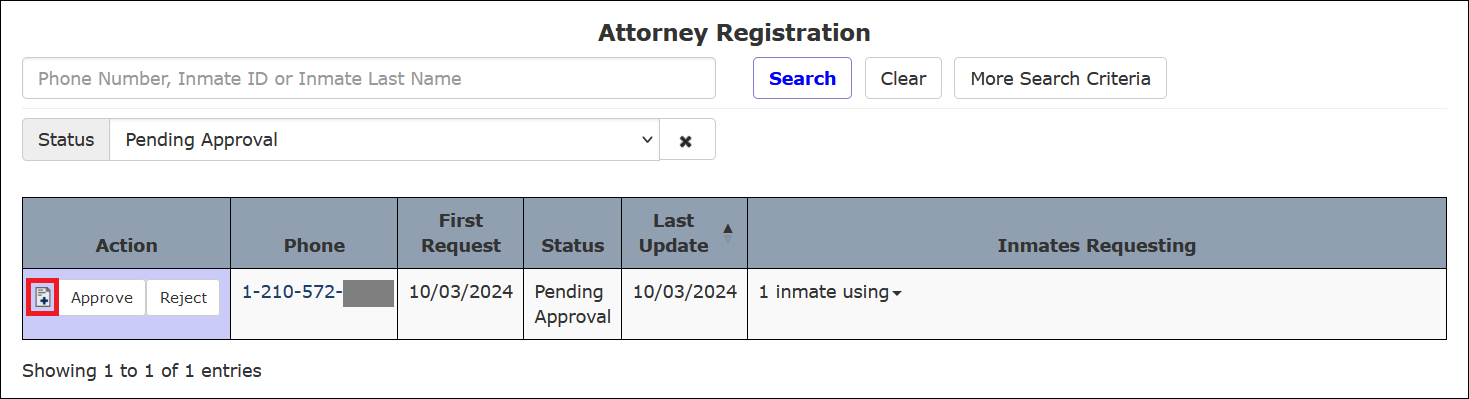
- Search for the phone number in the list or search directly by phone number or inmate ID.
- On the row for the request, click
 in the Action column.
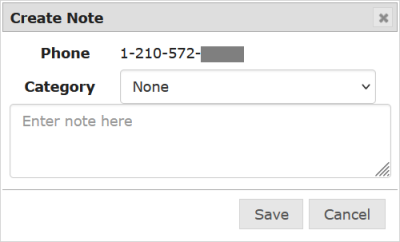
- The following dialog is displayed.
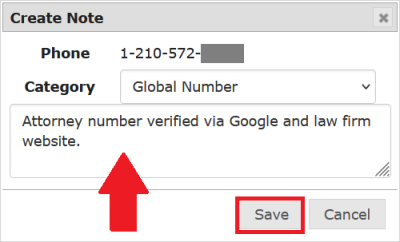
- Enter a detailed note, then click Save.
- After you save the note,
 is displayed in the Action column for the line item.
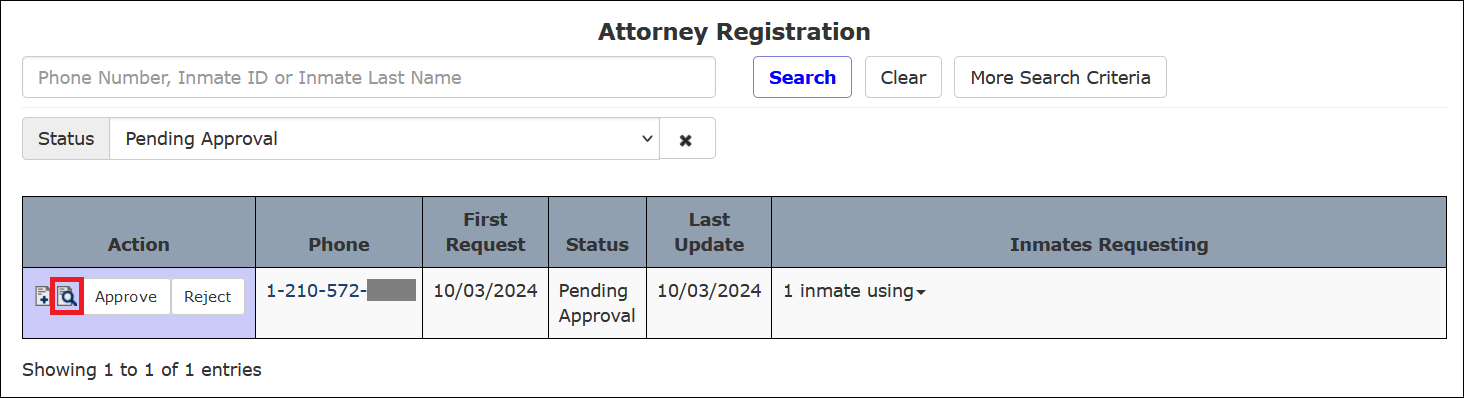
- Click to view the note you just added. A dialogue opens to display the note.
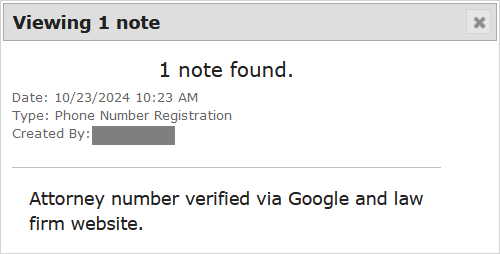
- The following dialogue is displayed if you click on a request line item for which more than one note has been saved.
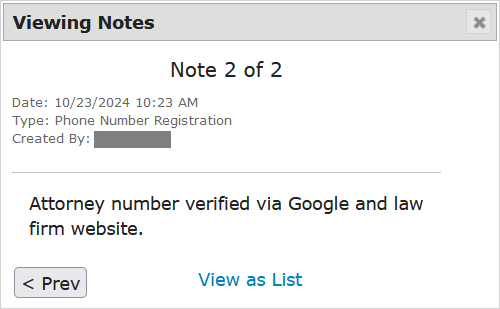
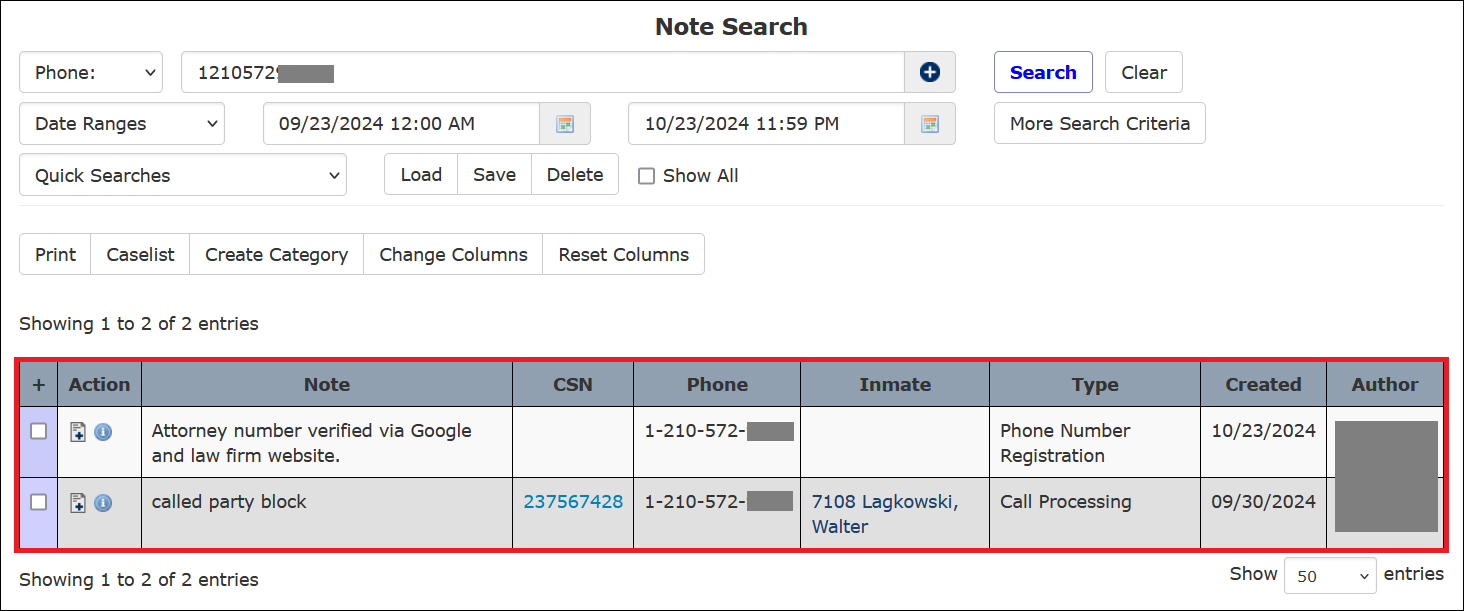
- Alternatively, you can click View as List to view all notes saved for the entry. The ENFORCER will display the notes on the Notes search results page.
Effects of an Approved Attorney Registration Request
After an authorized ENFORCER® user approves an Attorney Registration request, The ENFORCER® automatically establishes a Number Detail Record for the phone number in the Global Numbers library. The ENFORCER® also takes the following actions on the record:
- The Category field is automatically marked as ATTORNEY – attorney.
- The Description field is automatically populated with Entered from Attorney Registration form.
- The Do Not Record checkbox is checked to prevent the number from being recorded per attorney-client confidentiality rights.
- The Do Not Record checkbox is checked to prevent the number from being recorded per attorney-client confidentiality rights.
- Any notes the user enters during the approval process are automatically added to the Notes section of the Number Detail Record.
The following example shows a Number Detail Record that was completed automatically for an approved attorney number registration. Shown are fields completed automatically when the Number Detail Record was created.
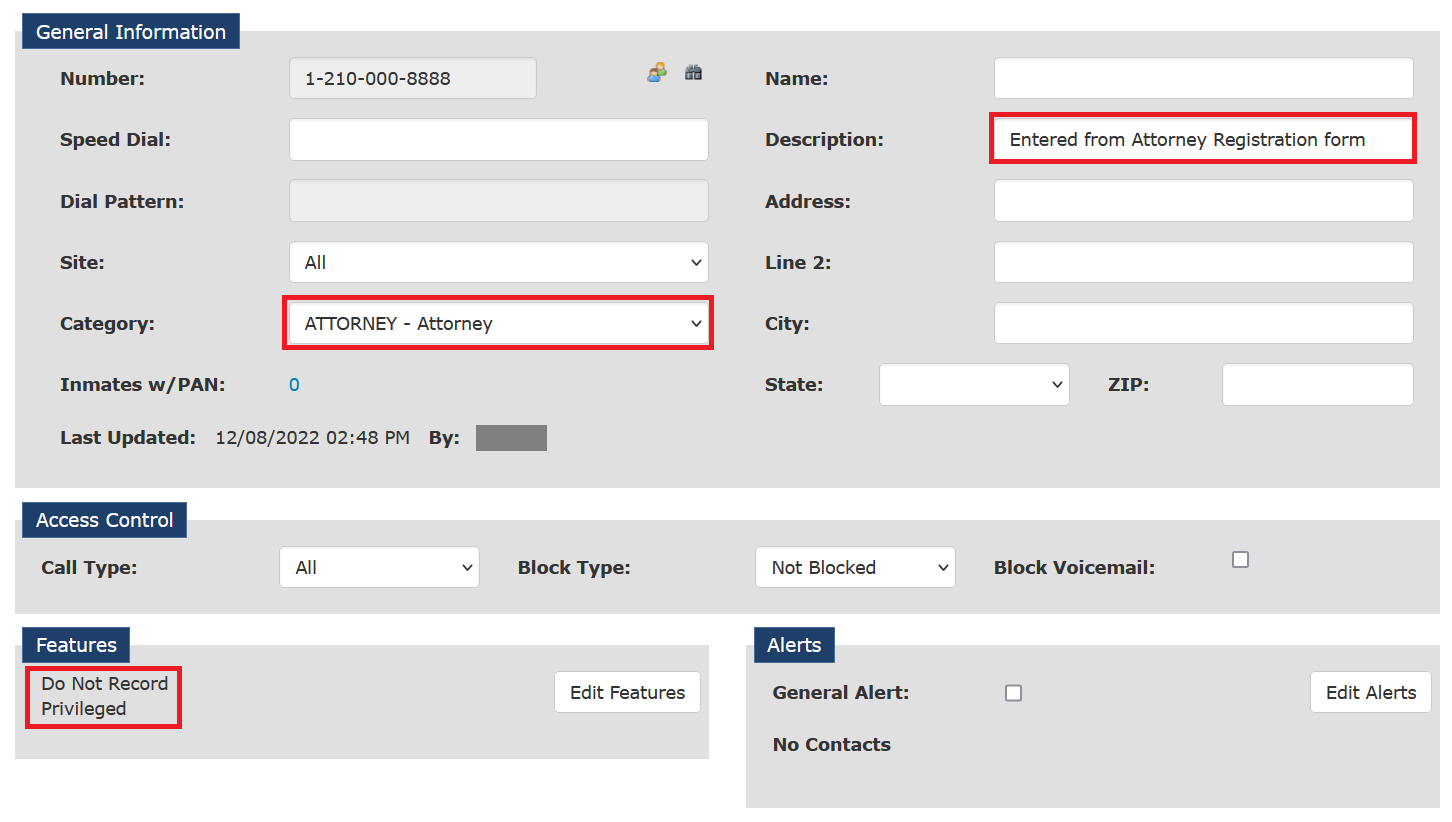
After a Number Detail Record is created for the newly registered attorney number, you may edit the General Information pane shown in the example above to complete any additional information for the attorney.
Depending on state regulations or facility restrictions, inmate calls to a registered attorney may or may not be free (made at no cost to the inmate). Although The ENFORCER® automatically sets an approved attorney number as Privileged in the Number Detail Record, it does not automatically set it as free. To make free calls to the number, you must access the Access Control pane in the Number Detail Record and select Free call from the Call Type dropdown list.
Accessing an Attorney Registration Request for Historical Information
If you know the approved attorney's phone number, you can search for it using the Global Numbers function or the Number Detail function. If you do not know the approved attorney's phone number, you can still perform a search by the inmate’s ID at the top of the Attorney Registration page and select Approved as the Status.
If the inmate has requested an Attorney Registration under the Status you selected, the search will return a record for the request.