Table of Contents
The Verifier℠
Overview
The Verifier℠ is an optional inmate voice verification module in The ENFORCER® that matches an inmate’s voiceprint with their spoken voice at the beginning of each phone call. The voiceprint for an inmate is completed through a mandatory enrollment process, which may take place in one of two ways:
- During the initial setup of The Verifier℠ at a facility, incumbent inmates must enroll in a designated area.
- During intake for a new inmate, the inmate must enroll as part of the intake process.
The Verifier℠ requires each inmate to speak a phrase before placing a call to an outside party. For the inmate to place the call, the inmate’s spoken voice must match the voiceprint stored in The ENFORCER®.
If The Verifier℠ is activated at your facility or site, The Imposter℠ is another optional ENFORCER® feature that provides real-time analytics for voices other than the PIN-authorized inmate. For more information on The Imposter℠, click here.
Inmate Voice Enrollment
The inmate must complete an initial self-enrollment process to store a usable voice print in The ENFORCER® prior to placing any calls. The inmate follows the phone prompts to complete this process by selecting the Press 2 to enroll prompt when attempting to place a call. Next, the inmate must speak the phrase United States of America three times for The ENFORCER® to record and store a voice print.
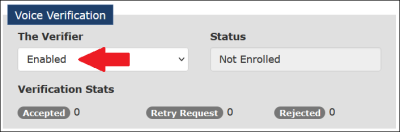
Following activation of The Verifier℠, the Voice Verification pane will be displayed on the Inmate Detail page, and the mode is set to Enabled as shown in the following example.
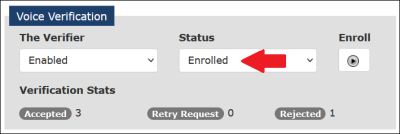
Following a successful enrollment by an inmate, the inmate’s status automatically changes to Enrolled in the Voice Verification pane, as seen in the following example. The inmate must speak the phrase United States of America at the beginning of each call to place the call to an outside party.
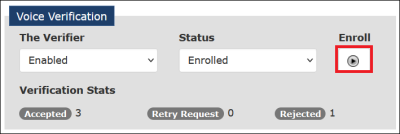
Additionally, a  button is displayed in the Voice Verification pane after the inmate has enrolled, as shown in the example below. enables you to listen to the voice recording created by the inmate while enrolling for The Verifier℠.
Post-Enrollment Maintenance
The information in the bottom half of the Voice Verification window pertains to the inmate’s enrollment and usage of The Verifier℠, as shown in the red box in the following example.
The Verifier℠ dialog box enables you to accomplish several tasks:
- Change an inmate’s Mode or Status in The Verifier℠, as discussed on the following page.
- Click the to listen to (playback) the recording made by the inmate during voice enrollment.
- Select ‘Force Re-Enroll’ from the Status drop-down list to force the inmate to re-enroll, which may require facility assistance.
- Monitor the number of times that the inmate has been required to make multiple attempts to pass voice verification (i.e., speak the required phrase) to place a call, as well as the number of times the inmate failed the voice verification (i.e., The ENFORCER® did not get a match on the inmate’s voice to the voice print after three attempts by the inmate).
The following table describes each drop-down option and field in the Voice Verification pane, how it affects how voice verification functions for the inmate, and the circumstances under which you should change a drop-down value for Mode or Status.
The Verifier℠ Dropdown Options and Field Descriptions
| The Verifier℠ Option/Field | Purpose |
|---|---|
| Mode – Defines how an inmate is set up in the system for voice verification as well as how The ENFORCER® will handle voice verification for an inmate. | |
| Enabled | The Verifier℠ module has been enabled for the inmate and the inmate will be required to pass voice verification to make a call. |
| Disabled | The Verifier℠ module is disabled for the inmate. Use this setting when an inmate, such as a deaf inmate making calls using a non-speech device such as a TDD, is exempt from voice verification and does not need to enroll. |
| Flag Only | The Verifier℠ will flag all calls where PIN abuse is detected (an inmate PIN was entered, but the voice verification process failed to match the voice print with the inmate’s recorded voice). When Flag Only is set, the inmate is allowed to place the call even if the inmate fails voice verification. |
| Refused | This setting will be available for user selection only when the Status field displays Not Enrolled. Use this setting to manually indicate the inmate has refused to complete enrollment. After you select Refused from the drop-down list and click Save Changes, the inmate cannot place calls. However, the inmate can still enroll later and will be allowed to make calls after successful enrollment. The mode will change to Enabled, and Status will change to Enrolled. |
| Enroll Only | The inmate is only allowed to enroll but is not able to place calls. |
| Status – Refers to the status of the inmate’s voice enrollment. | |
| Not Enrolled | The inmate has not been enrolled to use The Verifier℠ and will not be able to place calls. |
| Enrolled | The inmate has completed the enrollment process for The Verifier℠ and will be required to pass voice verification each time a call is placed. |
| Force Re-Enroll | The recording made by the inmate is not acceptable. This is a current status, and may be set either manually by an ENFORCER® user, or automatically by The ENFORCER®. When set, the inmate must re-enroll and record another voice print. Use this setting to manually force an inmate to complete enrollment. Facility staff may be required to escort the inmate to an enrollment phone. |
| Verification Stats – Displays the inmate’s usage statistics for voice verification. | |
| Accepted | The number of times the inmate’s voice has been identified successfully prior to making a call. |
| Retry Request | The number of times that the inmate has been required to speak the required phrase again to make a call. |
| Rejected | The number of times the inmate failed voice verification. For example, The ENFORCER® did not get a match on the inmate’s voiceprint. |
The Verifier℠ Mode and Status
In the Voice Verification pane on the Inmate Detail page, an ENFORCER® user can change either or both the Mode and Status fields. The following table describes the effect of the various combinations of Mode and Status.
The Verifier℠ Effect of Mode/Status Combinations
| Mode | Status | Effect |
|---|---|---|
| Disabled | Enrolled | • The inmate can place calls without having to pass voice verification. |
| Disabled | Not Enrolled or Force Re-Enroll | • Inmate can place calls without having to pass voice verification. • Inmate is not required and not allowed to complete enrollment and is exempted from having to enroll. |
| Enabled | Enrolled | • The inmate can place calls, but only if they pass voice verification. |
| Enabled | Not Enrolled or Force Re-Enroll | • No calls are allowed until the inmate completes the enrollment process. |
| Refused | Not Enrolled | • Inmate has refused to enroll, and cannot make calls until they complete enrollment. |
| Enroll Only | Not Enrolled or Force Re-Enroll | • Inmate is not allowed to make calls until they complete enrollment or re-enrollment. |
Retrieving Inmate Voice Verification History
From the Call Records page, you can obtain The Verifier℠ pre-call verification (PCV) status, the pass/fail information, by adding the column PCV Result to the search results using Change Columns and selecting the PCV Result checkbox.
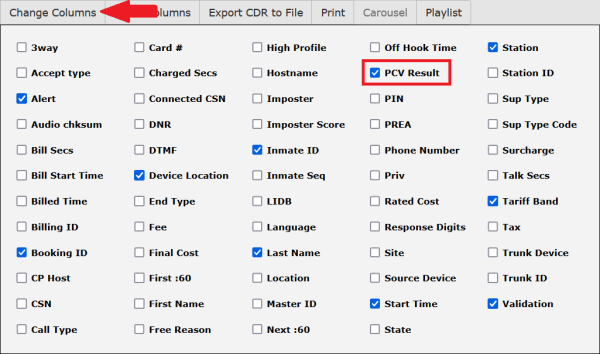
After you perform these tasks, a PCV Result column is displayed on the Call Records search results page.
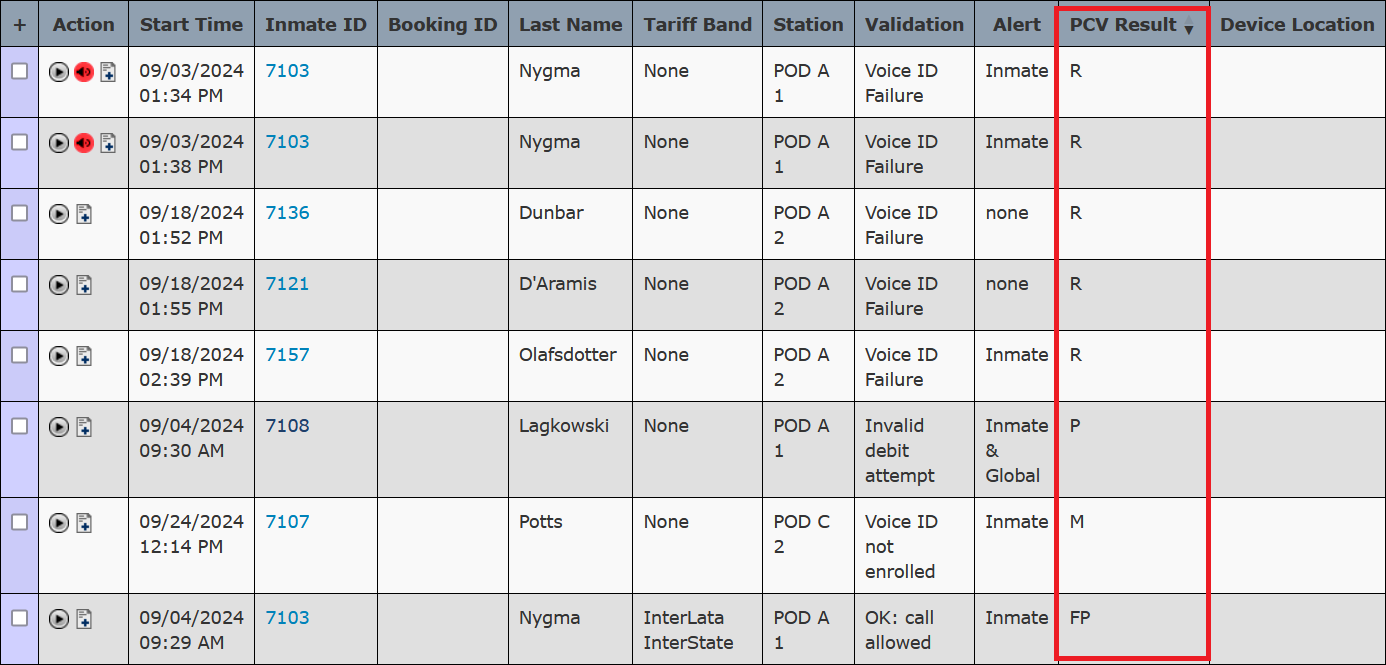
The following table describes the result codes that may be displayed in the PCV Result column after a Call Records search has been performed. The number of codes displayed for a given call indicates how many voice verification attempts the inmate made.
The Verifier℠ Pre-Call Verification (PCV) Codes
| Code | Description |
|---|---|
| # | System error. |
| P | Passed – Inmate passed voice verification and was allowed to make the call. |
| R | Rejected – Inmate failed voice verification and was not allowed to make the call. |
| F | Retry – The inmate failed voice verification but was allowed to try again. |
| M | No voice print is available for the inmate. |
| V | Volume – The inmate attempted voice verification but was not speaking loudly enough. The system allowed the inmate to retry. |
Examples
| Code | Description |
|---|---|
| FFP | • Indicates that the inmate made three voice verification attempts. Retry, Retry, Passed. |
| FVP | • Indicates that the inmate made three voice verification attempts. Retry, Volume, Passed. |
| FP | • Indicates that the inmate made two voice verification attempts. Retry, Passed. |
| FR | • Indicates that the inmate made two voice verification attempts, and was not allowed to make the call. Retry, Rejected. |
| P | • Indicates that the inmate passed voice verification on the first attempt. Passed. |