The Imposter℠
Overview
The Imposter℠ module provides comprehensive, real-time voice detection and analysis capabilities that enable you to reduce and/or control fraudulent calling activity by inmates. For example, when an inmate places a call on behalf of another inmate and hands the phone off after the call has connected, The Imposter℠ will identify and log the event for real-time and future use by The ENFORCER® user.
The Imposter℠ uses the same inmate voice enrollment recordings required at facilities that use The ENFORCER® voice verification module, The Verifier℠. For all calls placed by inmates at the facility, The Imposter℠ module compares stored inmate voice enrollment recordings to voices on live calls to detect any voice mismatches, identifying potential imposters on the call.
When fraudulent activity is suspected on an inmate call,  is displayed in two locations in The ENFORCER®:
- On The Observer℠ live call monitoring page while the call is in progress.
- In the saved call record for the call after completion.
When is clicked from either location, the Web Player opens the call recording and displays detailed information regarding any suspected imposters for user analysis.
The Imposter℠ Events
The following table provides an overview of the events that take place when the possibility of imposter activity is detected on an inmate call. In this table, the rightmost column describes the actions available to an authorized user to analyze and save information about imposter activity on a call.
The Imposter℠ Events Table
| Call Event | The Imposter℠ Result | Available User Actions |
|---|---|---|
| Possible imposter presence detected on an inmate call in progress. | is displayed in the Action column for the call in The Observer℠ live call monitoring screen while the call is in progress. | On The Observer℠ live call monitoring page: • Open The Observer℠ to locate the call in progress. • Click  to monitor the call in progress. to monitor the call in progress.• Option to terminate the call if imposter activity is suspected or confirmed. |
| • Call completed normally.\\ OR • Call terminated by monitoring user if imposter suspected. | is displayed in the Action column on the call record after the call is completed or terminated. | In the Call Records search function: • Retrieve the call record using The ENFORCER® Call Records search, in one of three ways: ⇒ Search by inmate ID or inmate name. ⇒ Search by CSN. ⇒ Limit search using More Search Criteria > Validation type > Imposters only. • Click in the Action column on the call record to open the Web Player for The Imposter℠. |
| Call record saved for call. | Displays detailed imposter analytics for the call recording to the Web Player window. | In the Web Player for the call recording: • Listen to offsets in calls where imposter activity is suspected. • Play back voiceprints for suspected imposters to manually compare voiceprints with offsets for suspected imposters in the recording. • Identify and save the identity of the actual imposter. • Annotate The Imposter℠ dialog with a verdict. |
Suspected Imposter Calls in The Observer℠
If suspected imposter activity is detected on a call in progress, is displayed immediately on The Observer℠ page in the Action column to indicate a suspected imposter has been identified.
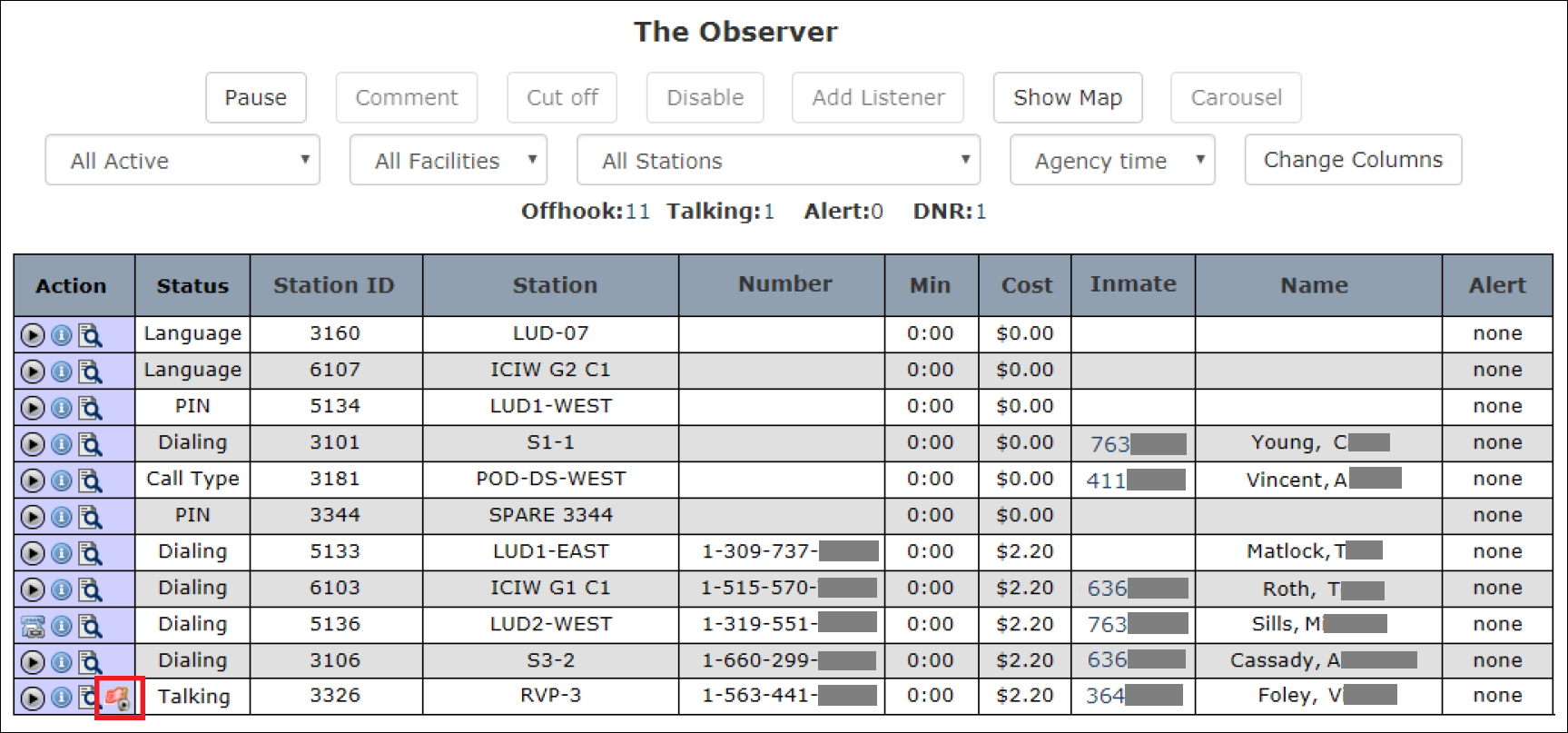
On a line item where is displayed for a call in progress, you can click in the Action column to open the Web Player and listen to real-time playback of the conversation.
If a call has been identified as a suspected imposter call, you can click to launch the Web Player with The Imposter℠ information incorporated.
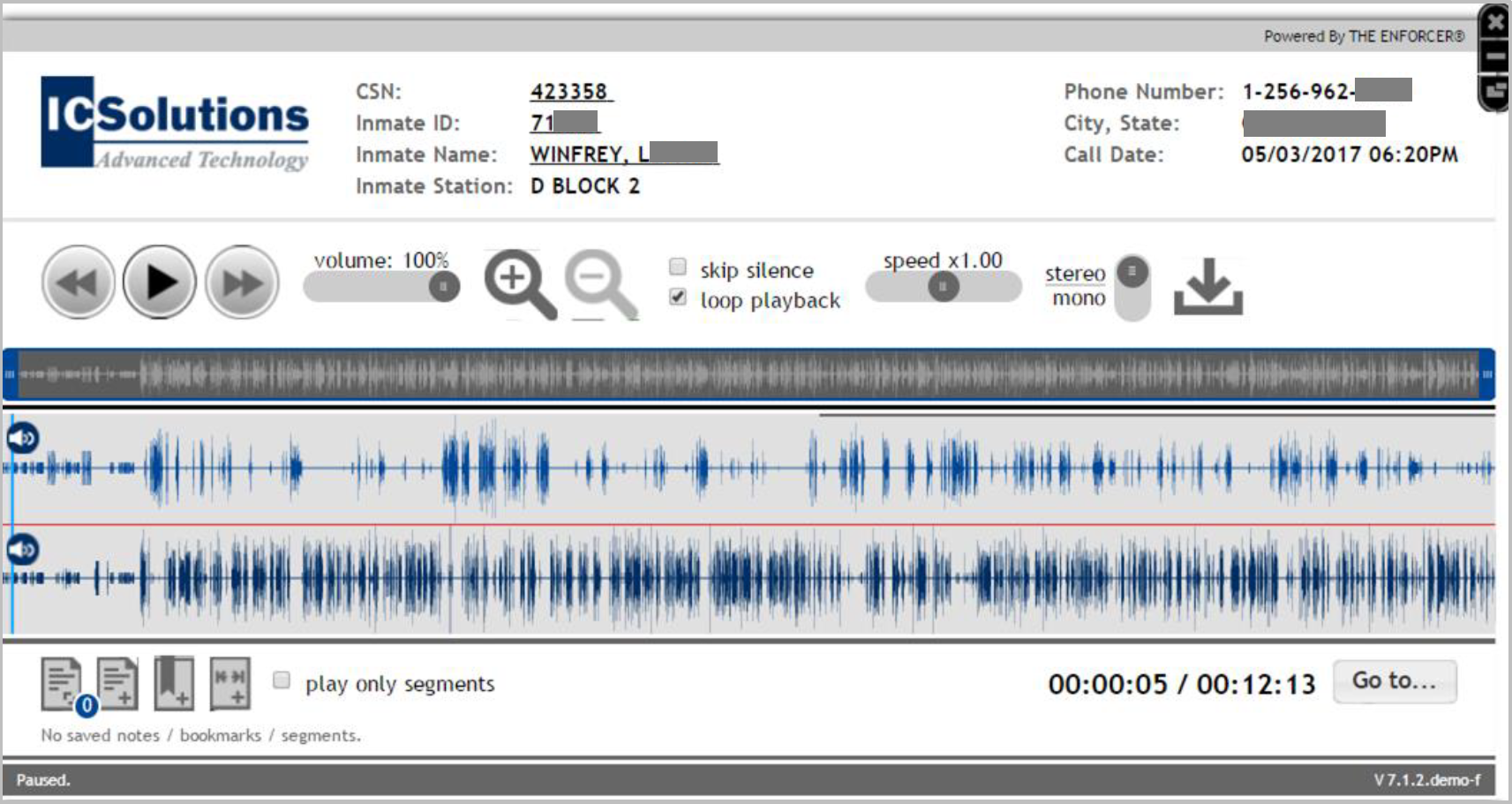
If you click  to pause the playback of the call, the conversation will continue. For example, if you click
  and wait 15 seconds before clicking , you will miss 15 seconds of the conversation.
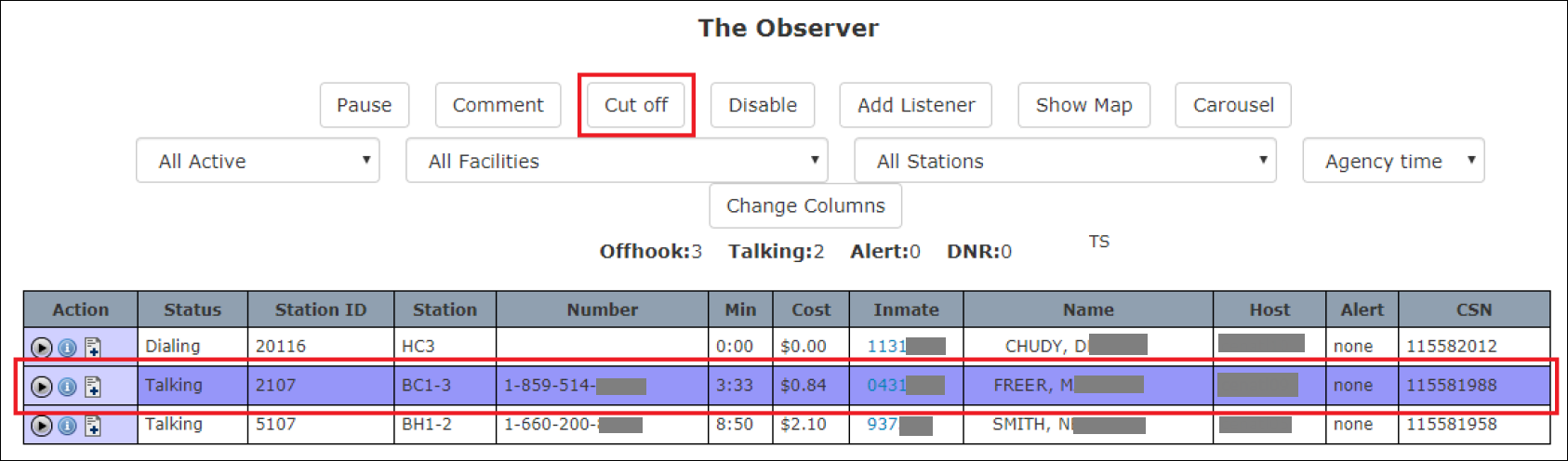
Depending on your user access role, if listening to the call provides you with adequate audio information to cause you to want to terminate the call based on an imposter’s suspected presence, you can select a call in progress and click Cut Off at the top of theThe Observer℠ page to terminate the call.
Suspected Imposter Calls in Call Records
On the Call Records page, any suspected imposter calls are identified by displayed in the Action column on the call record.

If a call has been identified as a suspected imposter call, you can click to launch the Web Player with The Imposter℠ information incorporated. If you click , the Web Player will launch without The Imposter℠ information.
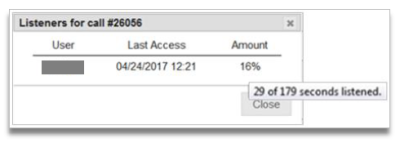
When you click  in the Action column on a suspected imposter call, the pop-up window displays the username(s) with the date and time the call recording was previously accessed. Additionally, because a suspected imposter has been identified, the pop-up window will also include the percentage of the total duration of the call you or another user(s) listened to.
Call Records Search for Imposter Calls
You can also perform a Call Records search specifically for suspected imposter calls.
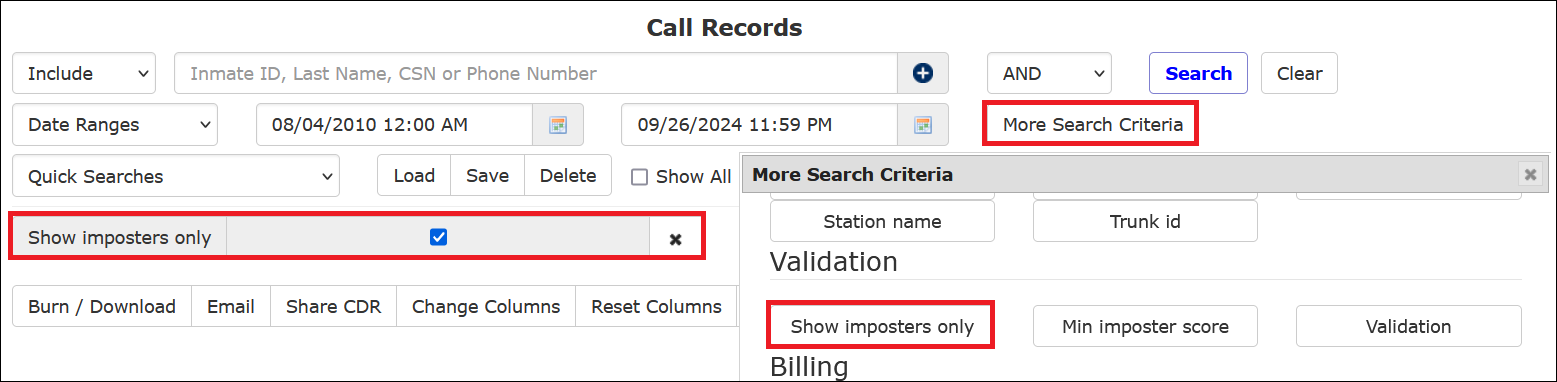
The search results only include call records identified with in the Action column, which indicates a suspected imposter call.
How to perform a Call Records search to locate suspected imposter call records
To successfully use the following procedure set to locate suspected imposter call records, you must determine a general date/time range in which the call or calls occurred.
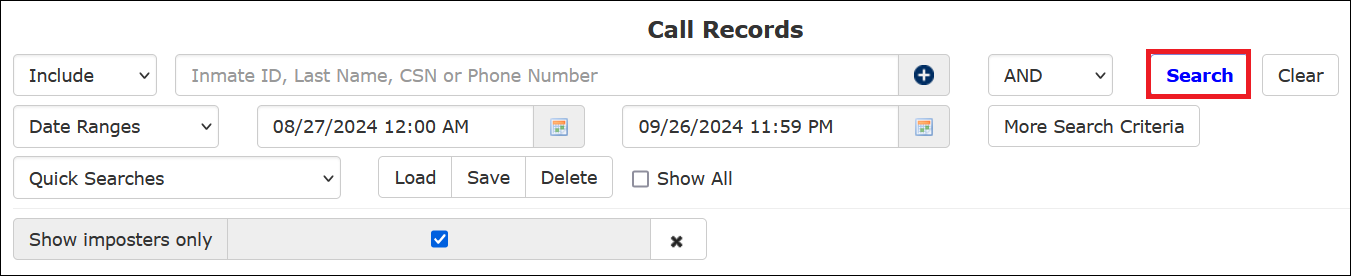
- Select Call Records from the Call Detail tab. The following search dialog is displayed.

- If you monitored a suspected imposter call recording in progress through The Observer℠, you may have determined the inmate's identity on that call. If you want to search by that inmate, enter the Inmate ID in the main search field or type in the inmate’s last name in the main search to select the inmate from the dropdown list.
- Click
 to the right of the date/time fields to select a date/time range for the search. The default is for the previous calendar week, beginning at midnight of this range and ending at the current date and time.
Based on your facility’s ENFORCER® configuration, the default may be set differently.
- Optionally, you can click Date Ranges to select a frequently-used date range.
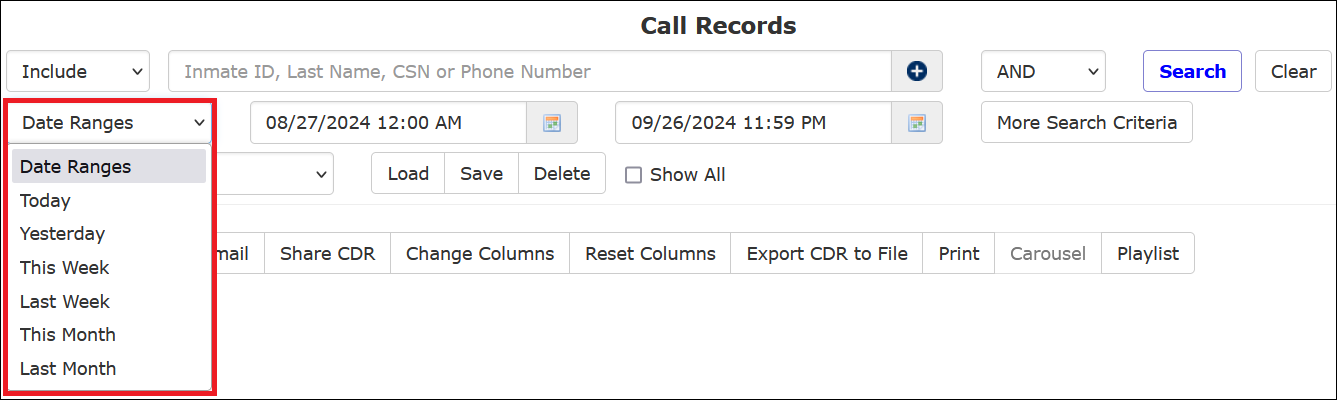
- To limit the search to a specific CSN, enter it in the main search field. The CSN is the unique identifier for each call record.
- To limit the search to display all suspected imposter calls in the specified date range, click More Search Criteria. The More Search Criteria dialog is displayed.
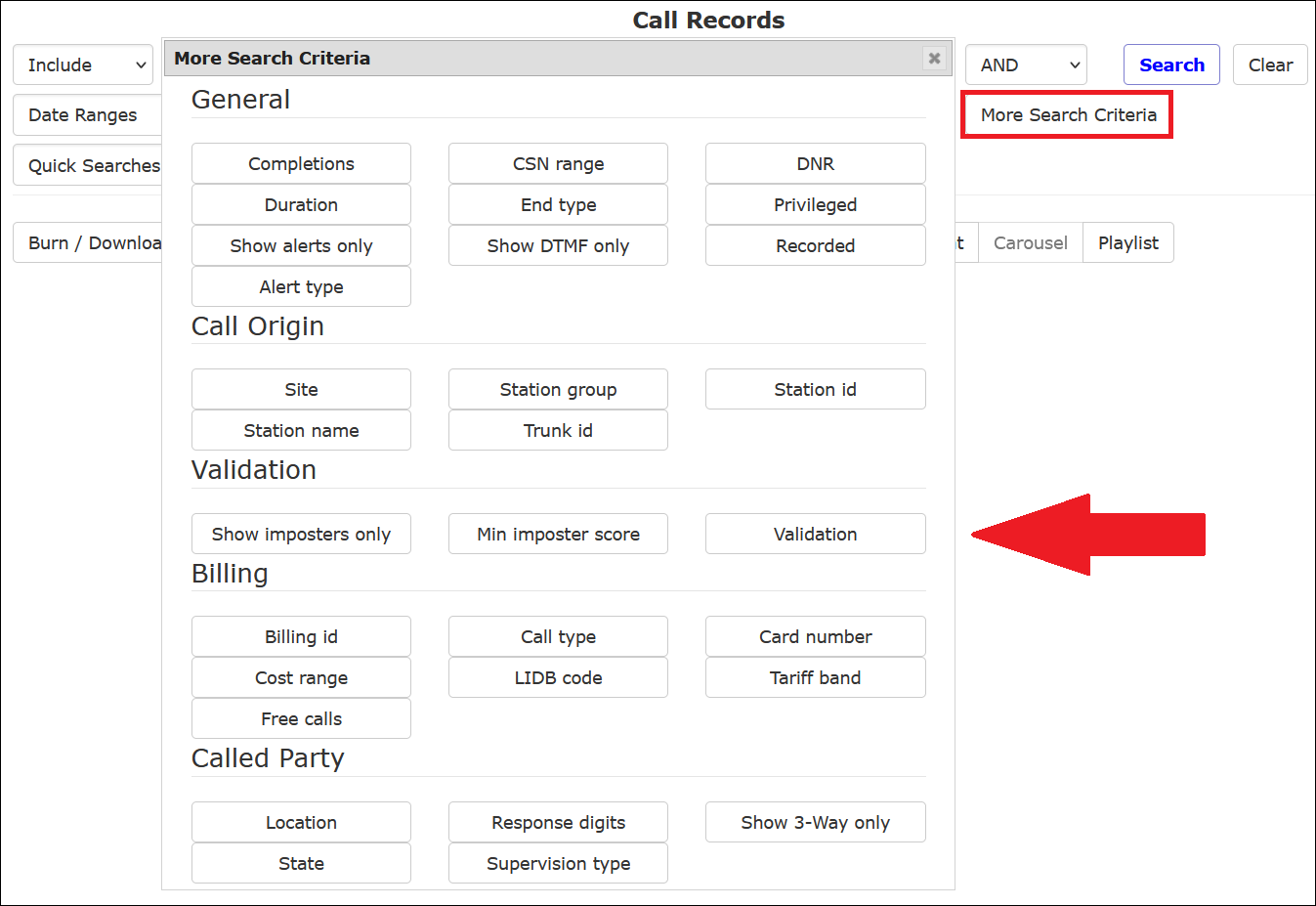
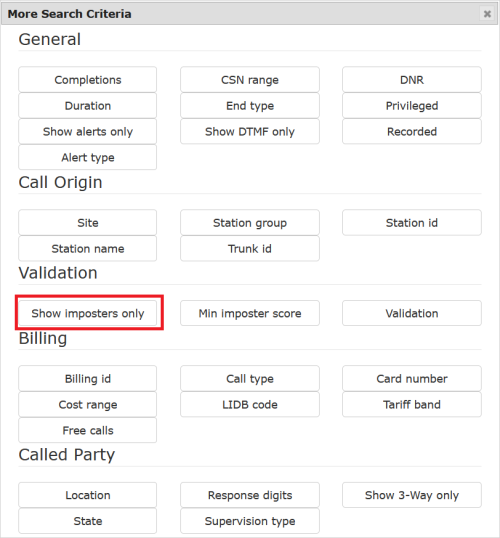
- Click Show Imposters only.
- Click Search.
- The call records you requested are displayed in the following example. All displayed call records show in the Action column.
- To launch the Web Player to view special suspected imposter information, click for the desired call.
When you click for a call, The Imposter℠ opens the Web Player and begins playback of the call.
In the Web Player window, additional imposter-related information is displayed as described in the section below.
Imposter Information in the Web Player
If a call has been identified as a suspected imposter call, you can click to launch the Web Player with The Imposter℠ information incorporated. If you click , the Web Player launches without The Imposter℠ information.
If you click , the Web Player with The Imposter℠ information opens. You can perform any of the following actions directly from the Web Player:
- Listen to playback only of offsets in the recording where a suspected imposter was detected.
- Review the inmate voice prints stored in The Verifier℠ for any potential imposters identified.
- Compare potential imposter offsets and voice prints.
- Select and save the name of the imposter that you believe to be present on the call.
- Make and save a final determination of whether imposter activity occurred on the call.
After you perform the action described in the bullet shown immediately above, you are permanently saving this information in the Web Player for the call.
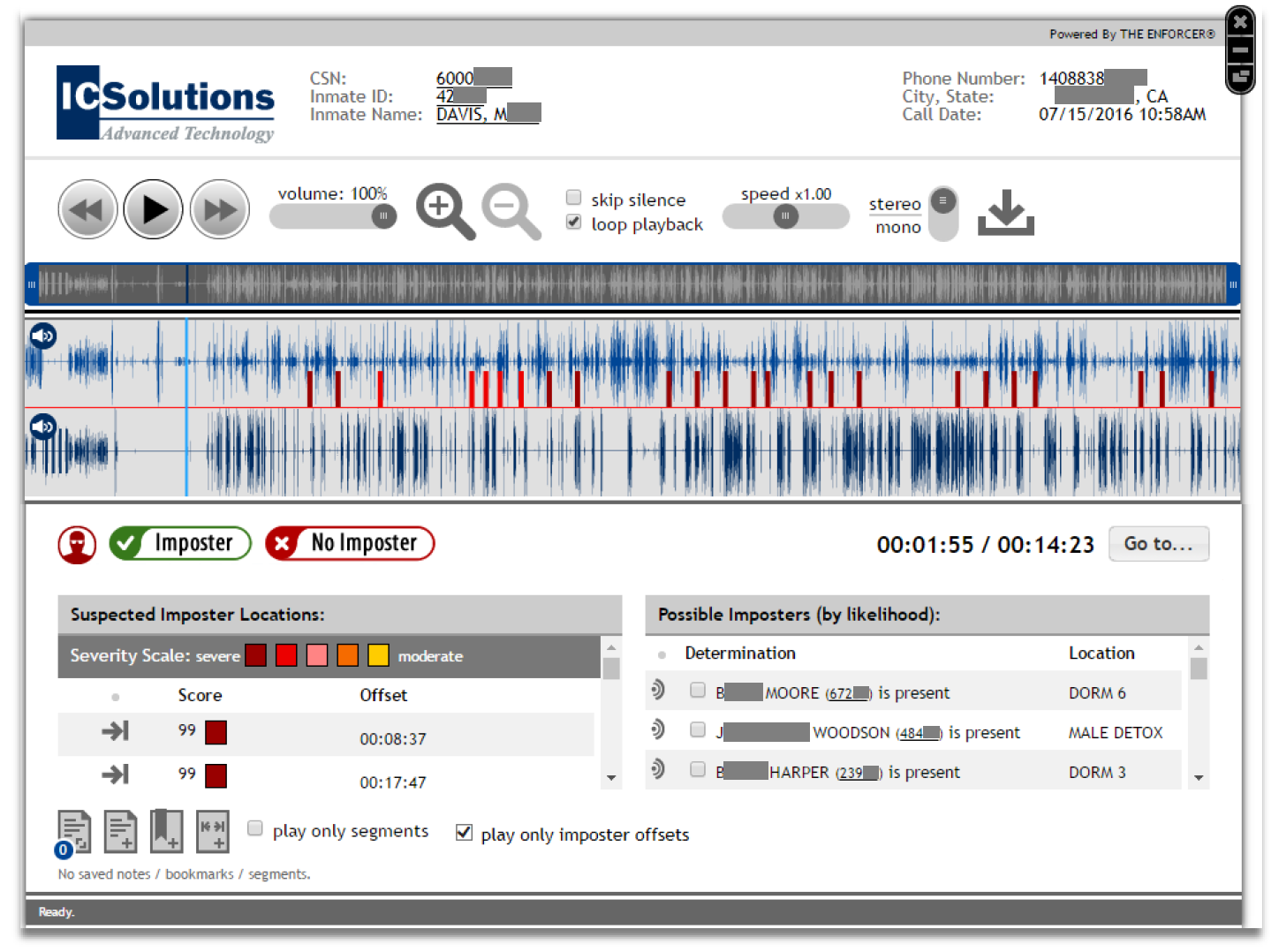
Breakdown of The Imposter℠ information in the Web Player
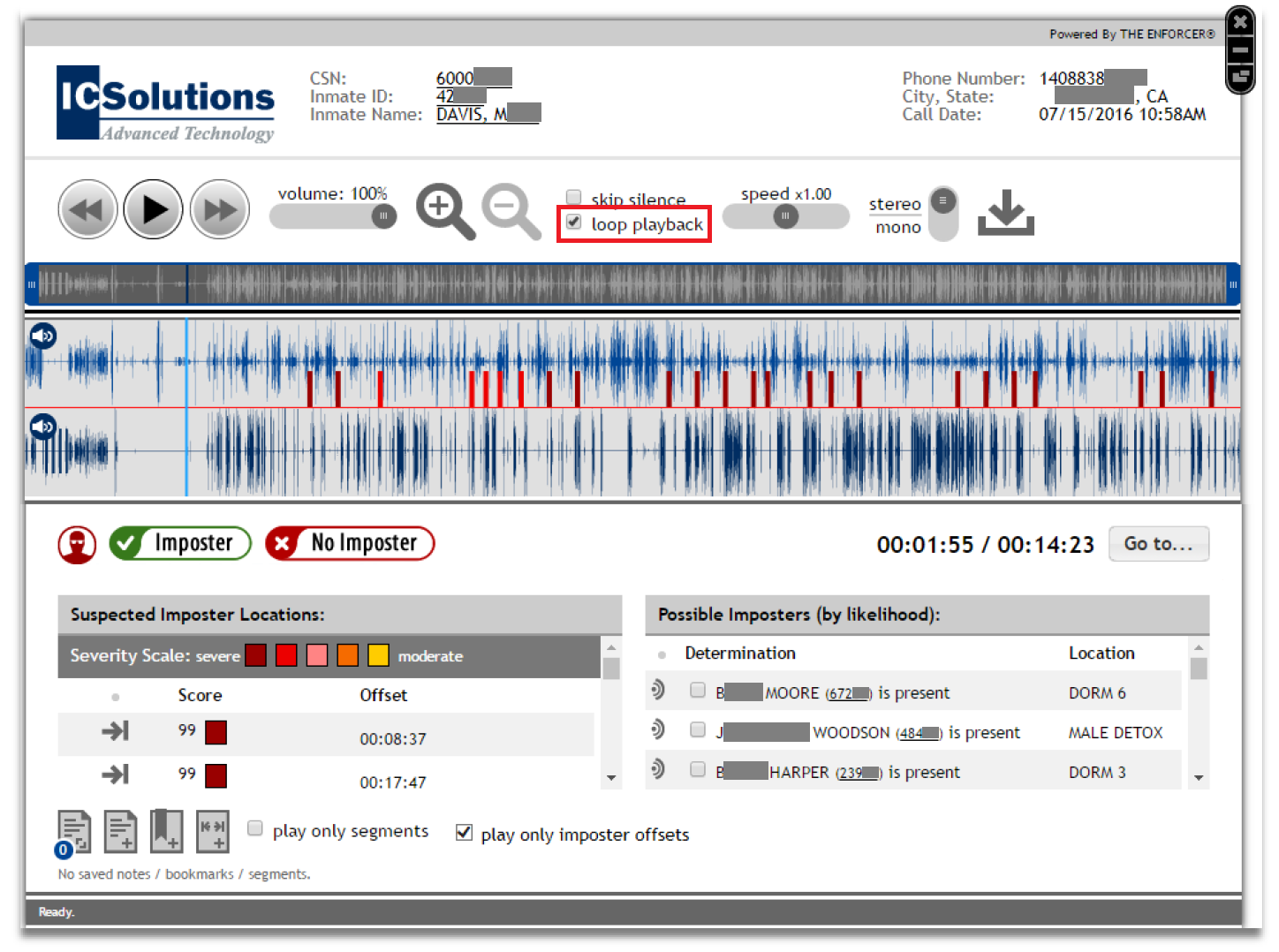
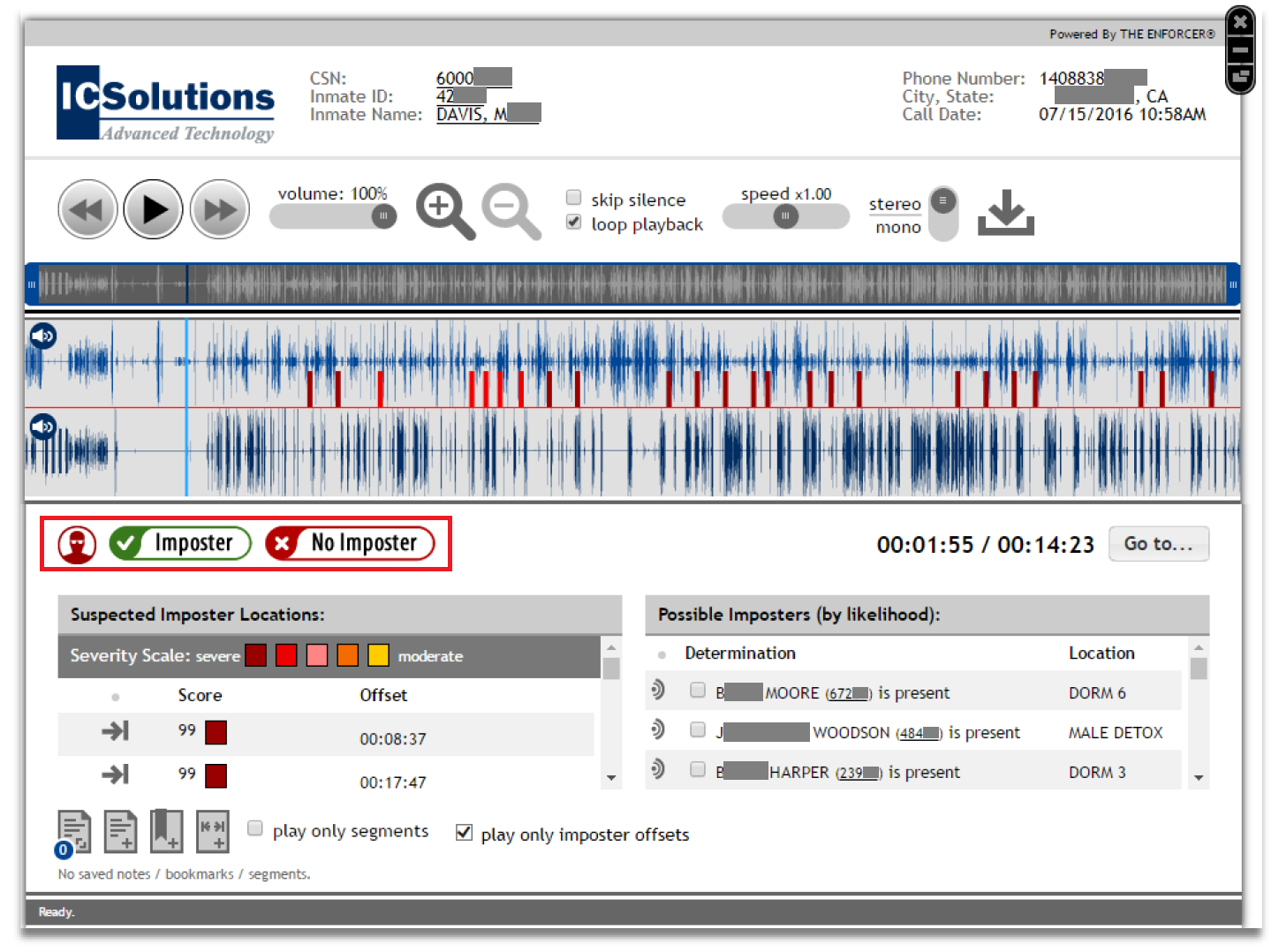
Theloop playback checkbox is selected by default. You may deselect it.
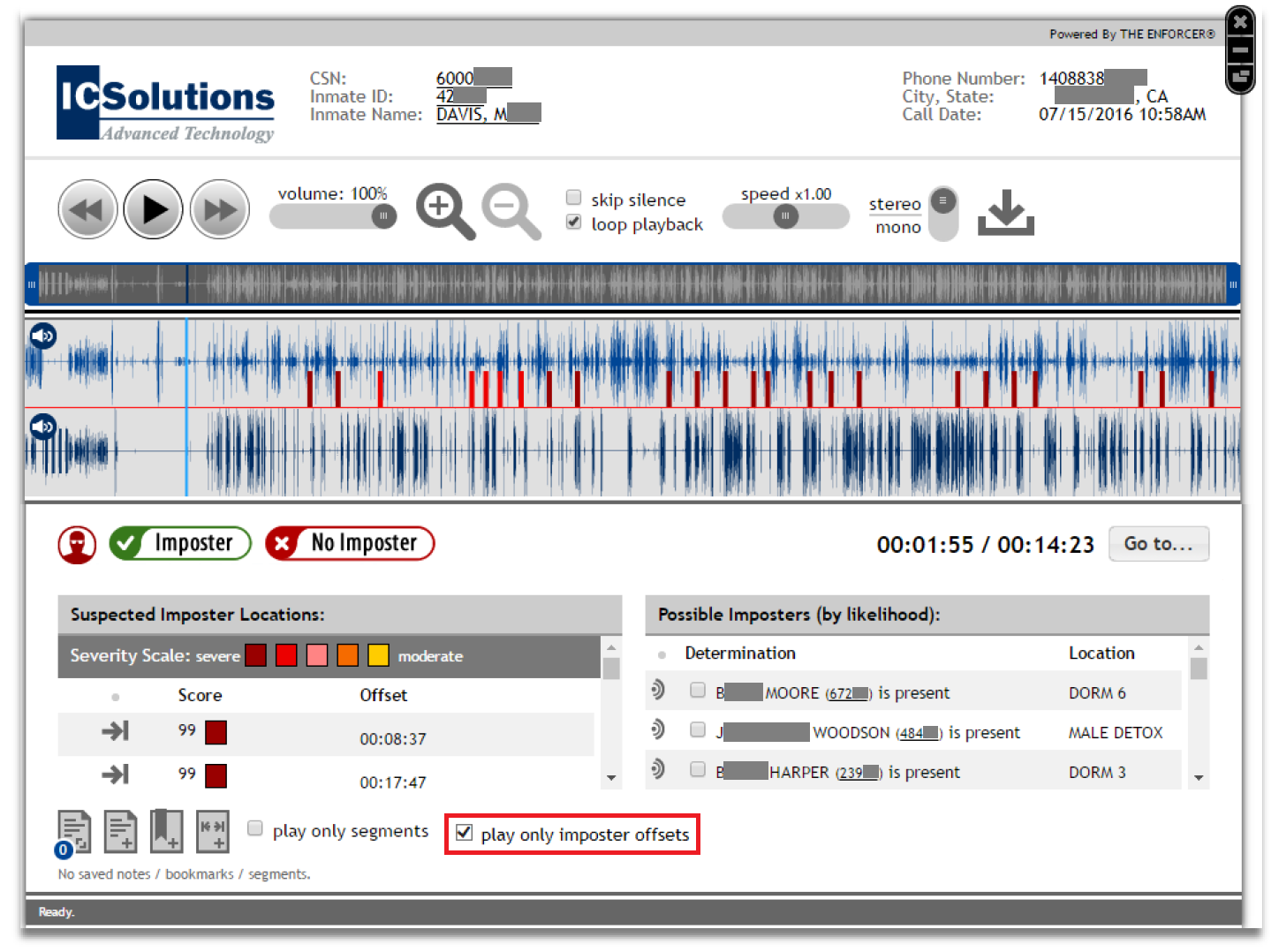
You may select the play only imposter offsets checkbox to play only the portions of the recording where suspected imposter activity was detected. If selected, the Web Player will begin playback at the first offset and then play each subsequent offset. If loop playback is selected, each offset will continue to play through from the first. To listen to other parts of the recording, deselect the checkbox for play only imposter offsets.
The top waveform, the inmate waveform, marks each offset where a potential imposter's voice is detected with a color corresponding to the Severity Scale. In the following example, the probability of imposter activity has a probability score of 99 and is Severe.
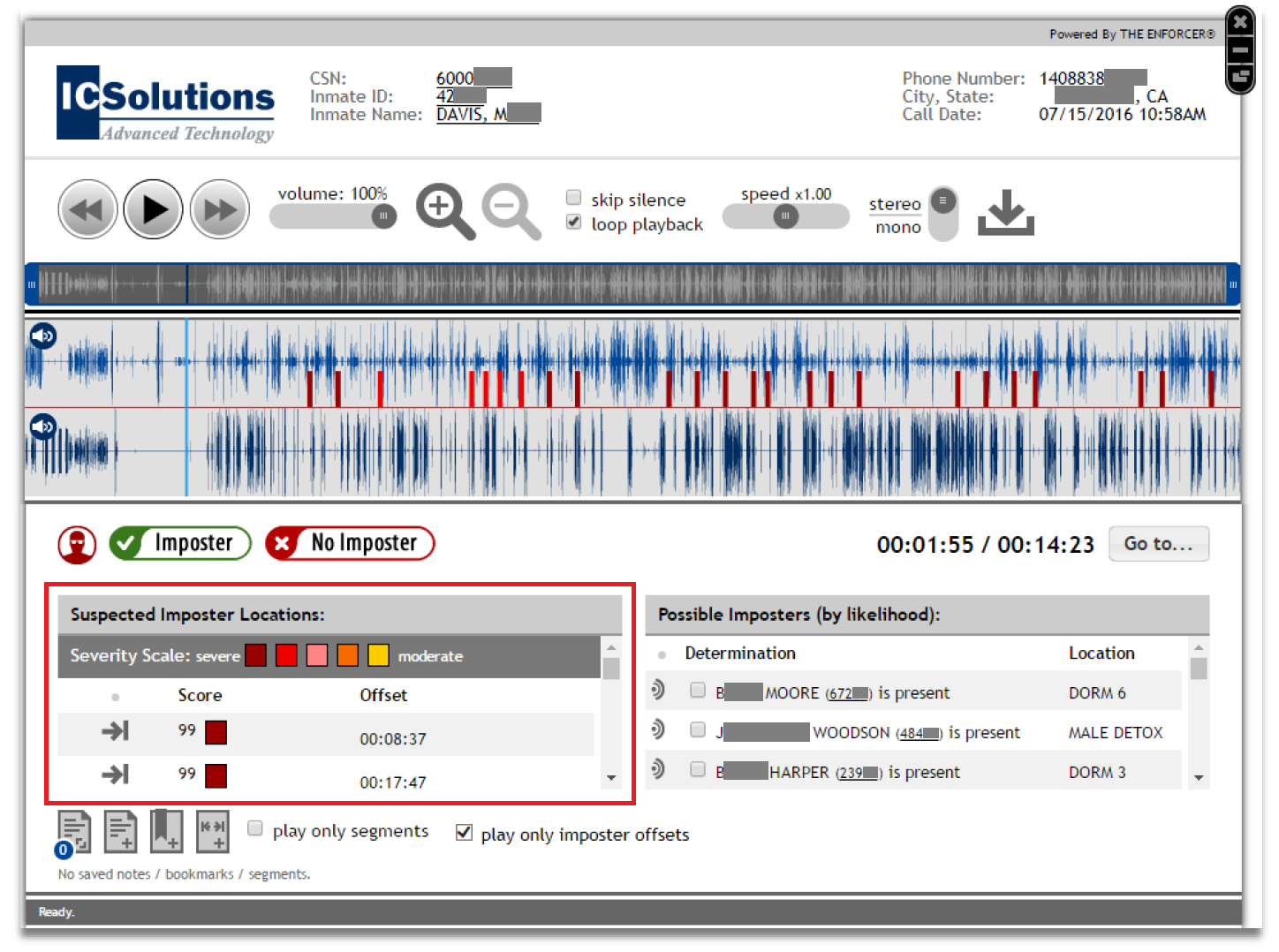
The colors in the Severity Scale correspond to the severity level of the suspected imposter, ranging from severe to moderate. These colors correspond to the probability of imposter activity in the inmate waveform.
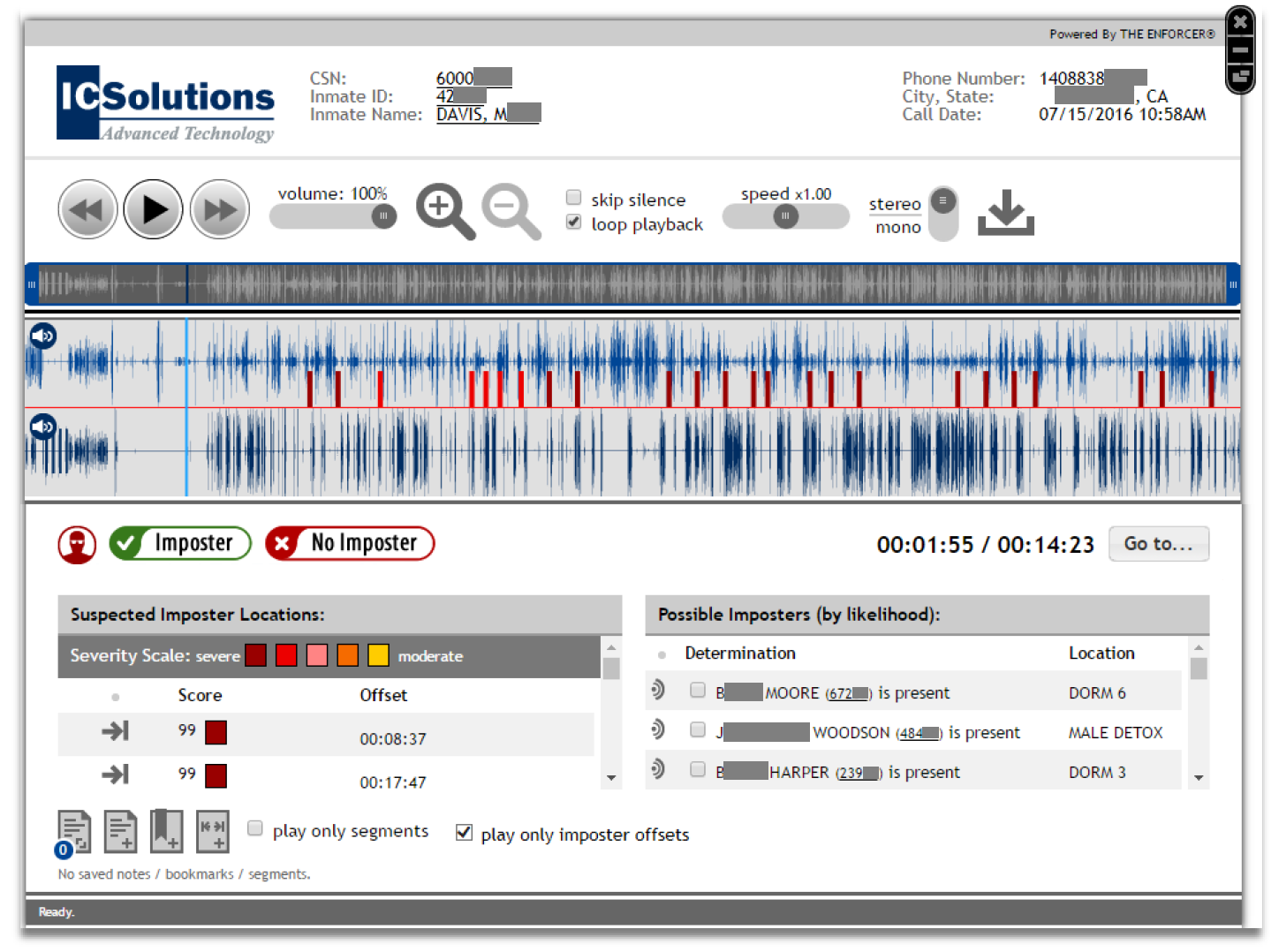
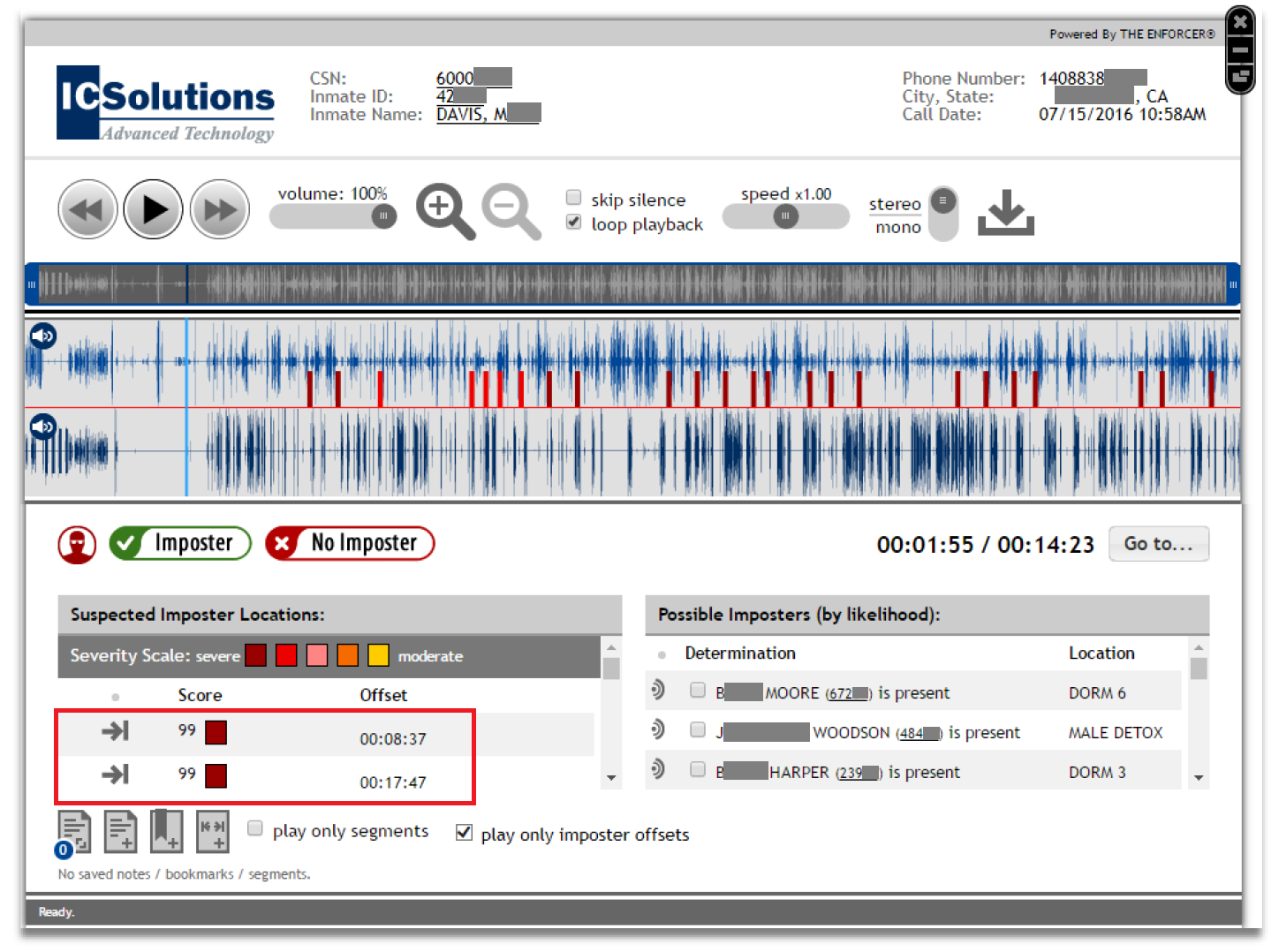
Suspected Imposter Locations displays the probability score for imposter offsets and the offset's timestamp. You may click  to play the specific offset.
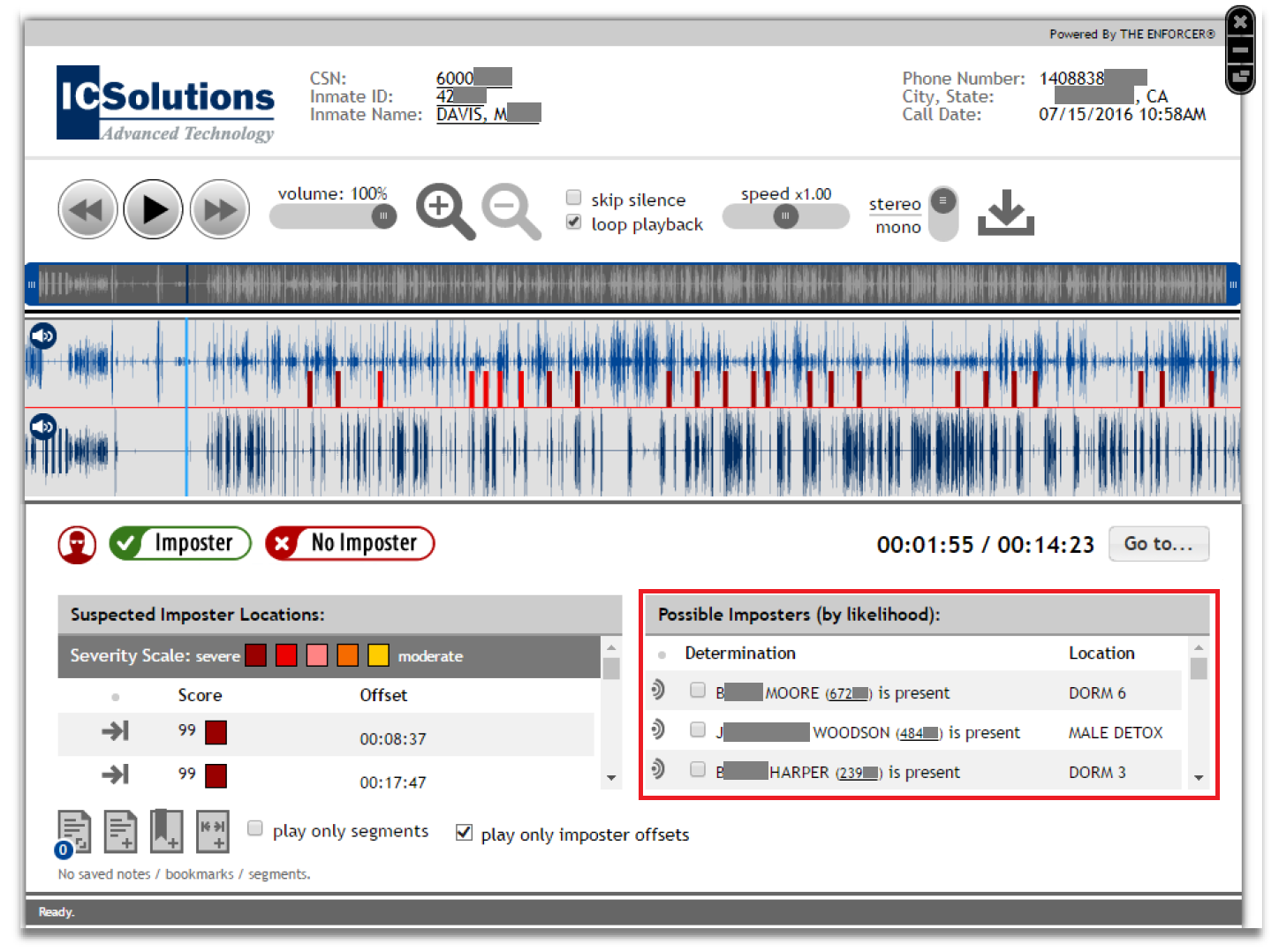
Possible Imposters (by likelihood) lists each potential imposter's name and inmate ID in descending order from most likely to least likely.
Using the Possible Imposters list
From the Possible Impsters list, you can perform the following:
- Listen to the voiceprint for the suspected imposter.
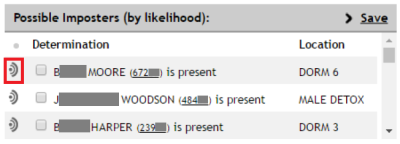
- Select the checkbox next to the inmate's name to identify one or more inmates as the suspected imposter based on your analysis.
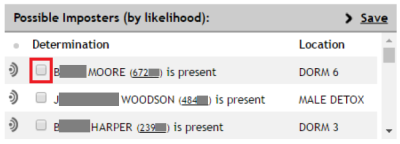
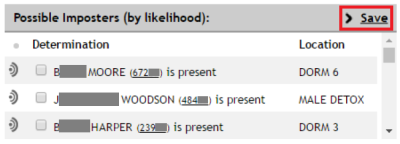
- After any suspected imposters have been selected, a
 option is displayed. Click to save the inmate(s) as the suspected imposters.
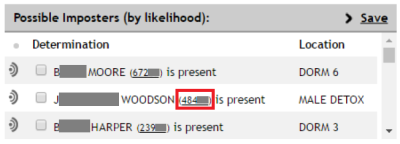
- Access additional inmate information. Click the inmate ID to the right of the inmate's name to view the Inmate Detail page.
- Select your verdict regarding imposter activity on the call. Click Imposter or No Imposter to save all imposter information on the Web Player.
After a verdict has been reached and selected, you cannot change your selection.
How to analyze imposter activity in the Web Player
Steps 2-5 are presented in a suggested chronological order; however, you may perform any or all these actions in any order.
- Locate the call record on the Call Records page and click in the Action column to open the Web Player.
- Play the offsets to listen for the voice of a suspected imposter.
- For your convenience, you may select the Play only imposter offsets checkbox to skip other parts of the conversation.

- Listen to the voiceprints for the suspected inmates by clicking
 next to the inmate's name.
 - If desired, identify one or more suspected inmates by selecting the checkbox to the left of the inmate's name.
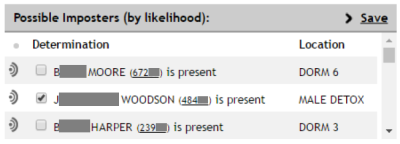
- Click to save any inmates you checked as selected imposters.

- Save your verdict regarding imposter activity by clicking Imposter or No Imposter.

You cannot undo this action.