The Inmate Detail Page
Overview
The Inmate Detail page is divided into panes that represent logical groups of information about the inmate. The following article describes the purpose of each pane on the Inmate Detail page.
Depending on the way The ENFORCER® is customized for your agency, some of the panes described in the following article may not be displayed on the Inmate Detail page. Additionally, certain panes or buttons may not be displayed or may not be editable based on your user role.

Click here to return to the top of the page.
Inmate Detail Search and Action Buttons
Allows users to search for a specific Inmate Detail Record, add notes, share inmate details, and review the inmate call records.

Click here to return to the top of the page.
General Information
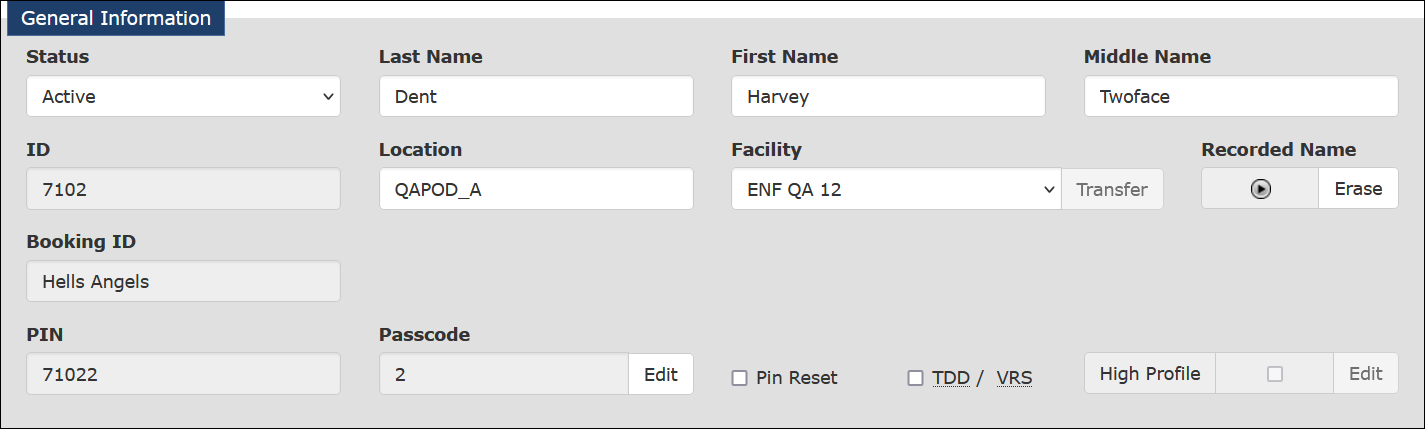
Displays inmate-specific information and is the most frequently used pane for users when manually creating a new Inmate Detail page or updating inmate information. For information on manually creating the Inmate Detail page, see Creating an Inmate Detail Page.
Click here to return to the top of the page.
Quick Access Links
Click on any of the hyperlinks to go immediately to the section needed. Click  to return to the top of the page. Click
  to choose which sections of the page to display.
If you have permission to do so, you may also edit the page layout by clicking and then dragging the item where you want it. This allows you to position the panes you use most often at the top of the page.

Click here to return to the top of the page.
Calling Rules
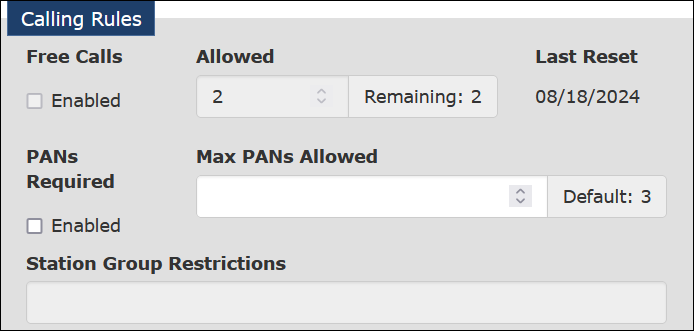
Displays all rules related to inmate calling privileges.
Click here to return to the top of the page.
Activity
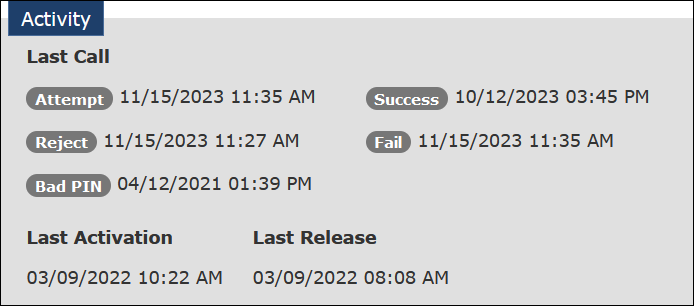
Lists dates and times for significant calling events such as the last attempted call, the last successful call, the last rejected call, the last failed call, and the last bad PIN entered. This section also lists the inmate's last activation and last release.
Click here to return to the top of the page.
Balances
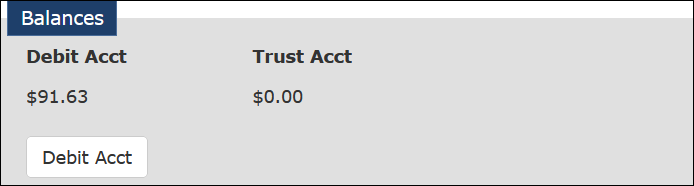
Displays the balance for the inmate funding account set up for inmate calls. Click the button for the funding account to open the Account page in a separate tab. If the inmate has a trust account and we receive the information from the agency, that balance can also be displayed. For information about Inmate Accounts, see Inmate Accounts.
Click here to return to the top of the page.
Voice Verification
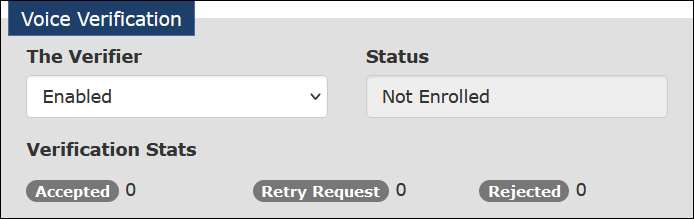
This is displayed if your Agency has an inmate voice verification tool activated such as The VerifierSM. This section includes the activation status of The VerifierSM, the inmate's current enrollment status, and verification statistics. For information about The VerifierSM, click here.
Click here to return to the top of the page.
Class of Service
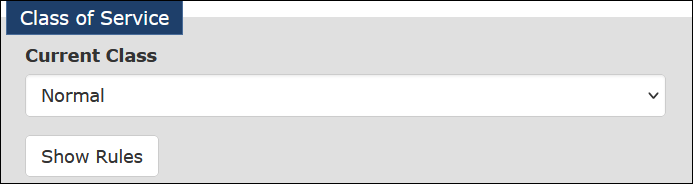
Is displayed only if your agency uses service classes to assign bundled privilege/restriction groups related to inmate calling and video visitation.
Click here to return to the top of the page.
Alerts
Enables you to define a new alert recipient and select an alert type to trigger notification of inmate calls, account funding, scheduled visits, and connected visits. This section also displays all currently defined alerts.

Click here to return to the top of the page.
Extended Information
Is displayed only when you have Extended Information fields visible. To make this feature available, contact an ICS System Administrator to configure the Extended Information fields you would like to include and assign access at your facility. An example of some information that can be included is shown below. There are many choices not included in this example.

Click here to return to the top of the page.
Suspensions
Displays details about any current or upcoming suspensions of calling privileges imposed on the inmate. You can also click Add Suspensions to initiate a new suspension or click History to access the inmate's suspension history.

Click here to return to the top of the page.
Personal Allowed/Blocked Numbers (PANs)
If Inmate PAN Registration is activated for the Agency, this section displays details on the Personal Allowed Numbers (PANs) and blocked numbers currently defined for the inmate. If Inmate PAN Registration is not activated for the Agency, this section displays only blocked numbers currently defined for the inmate. Click Edit PANs to add, edit, or delete a PAN. Click PDF Report to view the Inmate PAN List. Click History to access the inmate's PAN history.

Click here to return to the top of the page.
Notes
Displays every note associated with this inmate. This includes notes created automatically when information on the Inmate Detail page is changed. This also includes notes created manually on the Inmate Detail page or Call Records page and notes created during an audio recording or video.

Click here to return to the top of the page.
Viewing an Inmate Detail Screen Change History
An authorized user can access a change history log for an inmate record (the Inmate Detail page) by clicking the History button at the top of the Inmate Detail page for the desired inmate.

The History page is opened in a new browser tab, as shown in the following example. This page displays a detailed line item for each change made to an inmate record, including user changes and changes applied by a Jail Management System feed, where applicable.

The History page shown in the above example opens in a separate tab in your browser. After viewing it, you must close it manually.
To save information shown on the History page, click either Export or Print. If you click Export, the file may display in minimized format at the bottom of your screen, or you may have to select what you want to do with the file. If you click Print, a standard print dialog opens where you can print the displayed History.
Click here to return to the top of the page.