Call Records
The Call Records function enables you to search the entire historical database of call records and voice recordings based on numerous criteria you can specify. You can also play and download call voice recordings.
Performing a Call Records Search
The Call Records function is accessible by selecting Call Records under the Call Detail tab.
You can perform a basic Call Records search to view call records for a specific inmate, called number, CSN (call sequence number), and date range. The following example shows the main search field, in which you can request one or more of the following:
- Inmate name
- Inmate ID
- CSN of the call record
- Called phone number

If you do not specify anything in the specific main search field, the search returns all calls made during the default date range.
Specifying Multiple Criteria in the Main Search Field
When you specify multiple search criteria in the main search field, you should separate each entry with a comma. Alternatively, enter one search criterion and click  . Each time you click , another field displays where you can enter additional criteria.

When you search for multiple criteria and leave the default as AND, the search results will include only call records containing all your specified criteria, as described in the following section.
Searching for Multiple Criteria with And/Or Specified
There is a dropdown list immediately to the right of on the Call Records page. You can make one of two selections from this dropdown list to apply an any or all designation for a search that contains multiple search criteria, as described in the following sections.
Using the AND Specification
When you open the Call Records search page, AND is selected by default on the dropdown list displayed immediately to the right of .

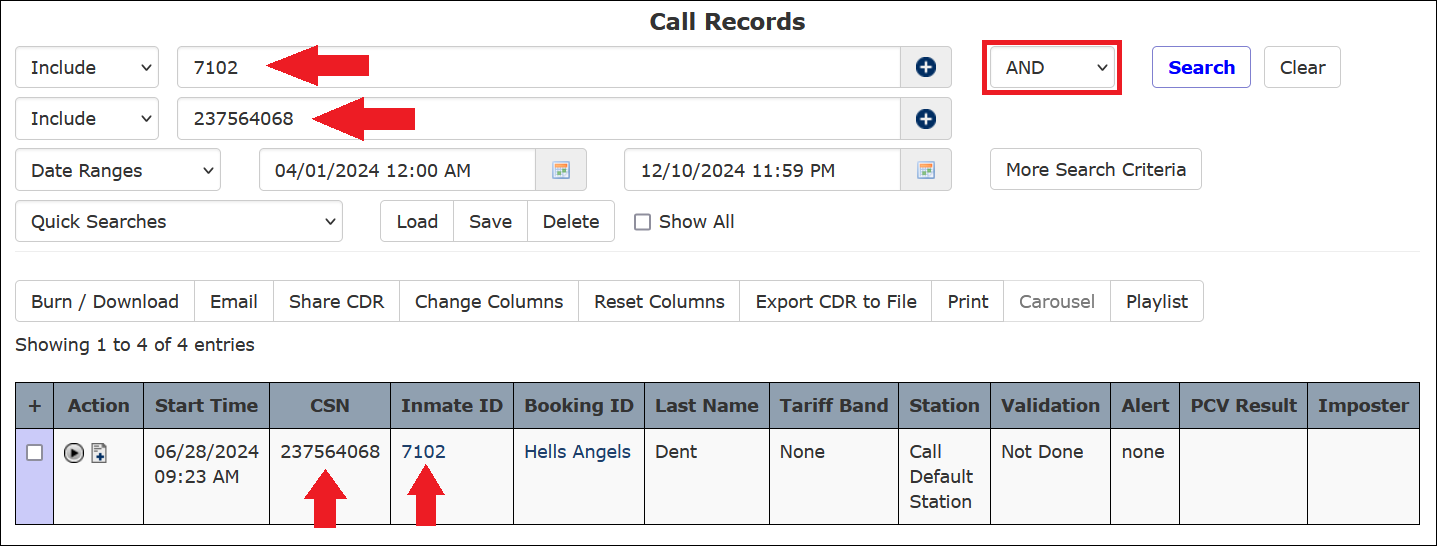
When you leave AND as the selection, click to add one or more lines, specify multiple search criteria, then click Search, the Call Records search will return only results that contain all the criteria you selected. Every criterion you specified must be included for each record to be displayed on the Call Records results page.
For example, if you enter a phone number on the first line, click , and enter a CSN on the second line, both criteria must be detected in a call record for it to be included in the search results. In the following example, the Call Records search returned only the call records containing the specified phone number and CSN.
Using the OR Specification
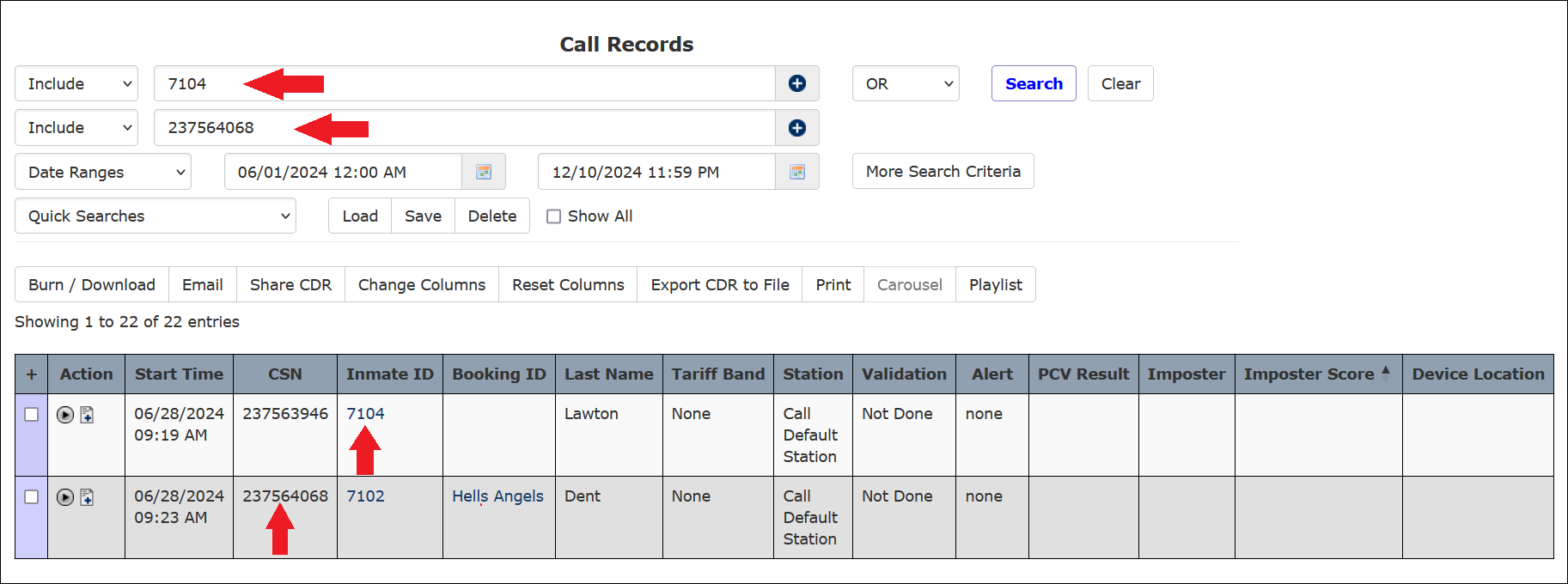
You can also select OR from the dropdown list immediately to the right of . When you perform a search with this setting, the search results will include all call records that contain any of the search criteria you specify using the main search field.

For example, if you enter a phone number on the first line, select OR, click , and select an inmate on the second line, the search results will include all records in which either criterion was found. In the following example, the Call Records search returned all call records containing either the specified phone number or inmate.
Using Prefixes in a Search
If you want to clarify one or more search criteria, you can add a prefix to each entry as follows:
- For an inmate ID, enter id:xxxxxx, where xxxxxx is the inmate ID.
- For an inmate name, enter name:inmate name.
- For a CSN, enter csn:xxxxx, where xxxxx is the call sequence number.
- For a called phone number, enter phone:xxxxxxxxxx, where xxxxxxxxx is the 10-digit phone number.
Prefixes are not required when you use multiple criteria. If you do not enter prefixes on numeric values, the search may use numeric values to search for more than one thing, such as a CSN and an Inmate ID. For example, if you type in a short number, the search will look for records with a CSN or an inmate ID that matches it.
As another example, if you type in a 10-digit number, it the search will look for records with that value as a phone number, a CSN, or an inmate ID. In some cases, undesired results may be returned in the search results. By using prefixes, you assist the search in narrowing down what to look for and to not return matches on any other fields.
Performing a Basic Call Records Search
- Enter the inmate’s ID or last name in the Inmate field to limit search results to a specific inmate. If you enter an inmate’s last name in the Last Name field, the search returns results for all inmates with the last name you entered.
- Click
 to select a date/time range (start time and end time) for the search. The default is for the previous calendar week, beginning at midnight of this period and ending at the current date and time.
Based on your facility’s ENFORCER® configuration, the default time range may be set differently.
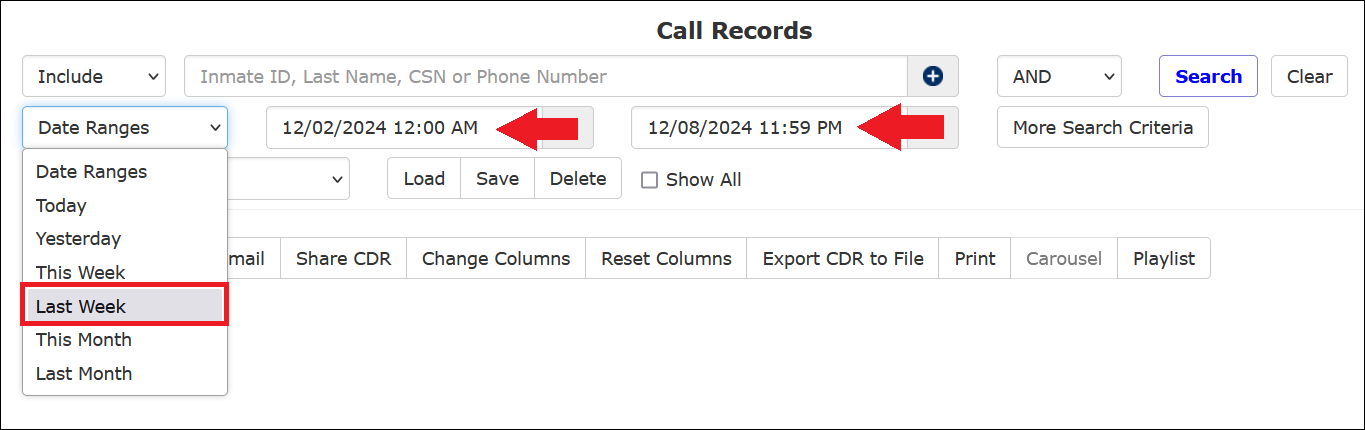
- You can optionally select a frequently used date range in the Date Ranges dropdown menu.
- To limit the search to a specific called number, enter the 10-digit number in the main search field. Optionally, you can use a wildcard (*) in the number to limit the results to a group of phone numbers, such as an area code, by entering the 3-digit area code followed by an *.
- To limit the search to a specific CSN, enter it in the main search field. The CSN is the unique identifier for each call record.
- If you want to specify multiple criteria in the main search field, add a prefix to each entry as follows:
• For an inmate ID, enter id:xxxxxx, where xxxxxx is the inmate ID.
• For an inmate name, enter name:inmate name.
• For a CSN, enter csn:xxxxx, where xxxxx is the call sequence number.
• For a called phone number, enter phone:xxxxxxxxxx, where xxxxxxxxx is the 10-digit phone number.
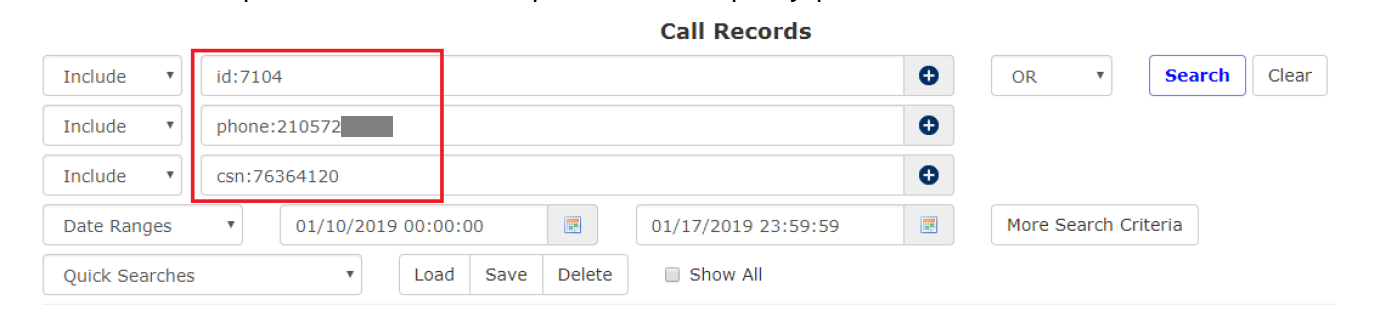
Alternatively, you can place desired criteria on separate lines by specifying OR and clicking to place each criterion on its own line. The following example shows a specific Inmate ID, a specific CSN, and a specific called party phone number.
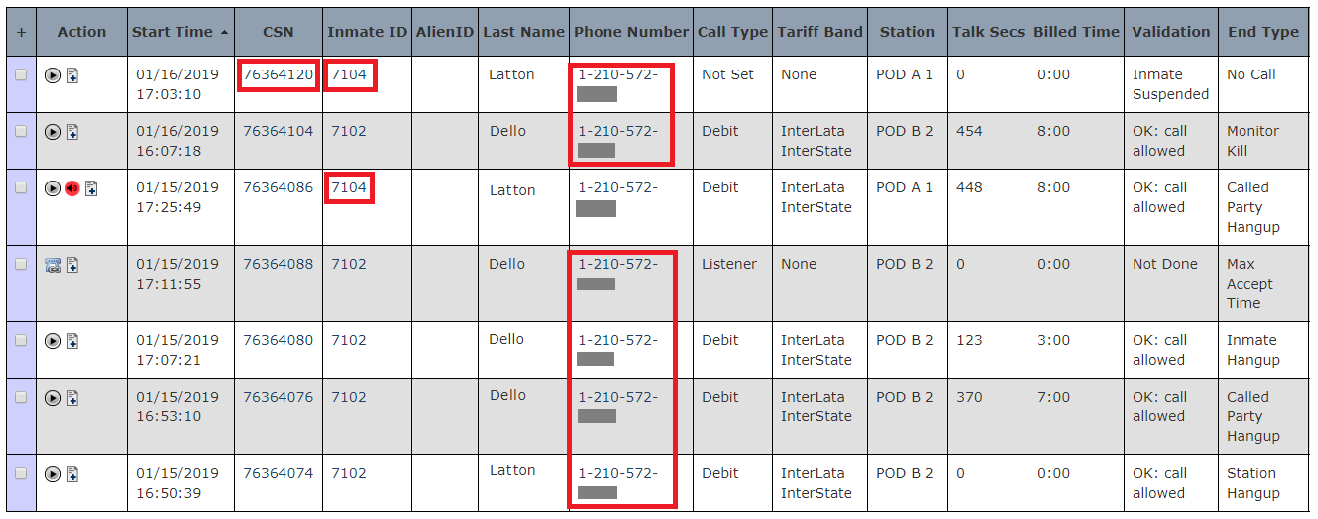
- Click Search. The call records you requested are displayed in the bottom half of the screen, as shown in the following example.
For more information about customizing and working with the displayed results, click here.
- If you want to cancel the criteria you entered and start over, click Clear.
Excluding Selected Search Criteria
If you have one or more criteria that you want to exclude from a Call Records search, you can use the optional Exclude dropdown option to specify one or more inmates, phone numbers, or call records for exclusion. For example, you can perform a search to locate all call records for a specified inmate but exclude one or more selected phone numbers from the search results, or vice versa. When you perform such a search, you should leave the default as AND on the line for the first criterion you specify.
To exclude an inmate, phone number, or call record, click  in the dropdown list on the leftmost side of the screen and select Exclude.

After you select Exclude, it will display in the field to indicate that the inmate, phone number, or call record you specify on that line will be excluded from the search results.
![[[placeholder | screenshot]]](/custwiki/_media/enforcer:11_call_detail:11.1.1_call_records_search:exclude_lawton.png "[[placeholder | screenshot]]")
As you click to add lines for additional search criteria, you can either leave the default as Include or change it to Exclude to specify whether you want to include or exclude each inmate, call record, or phone number you specify.
Although you can specify OR on the first line item, it is recommended that you use AND on a search that contains separate criteria for inclusion and exclusion. If you specify OR, the Call Records search may return many records.
In the following example, the Call Records search returned all call records for the specified inmate but did not return any records for the specified phone number because it was excluded.
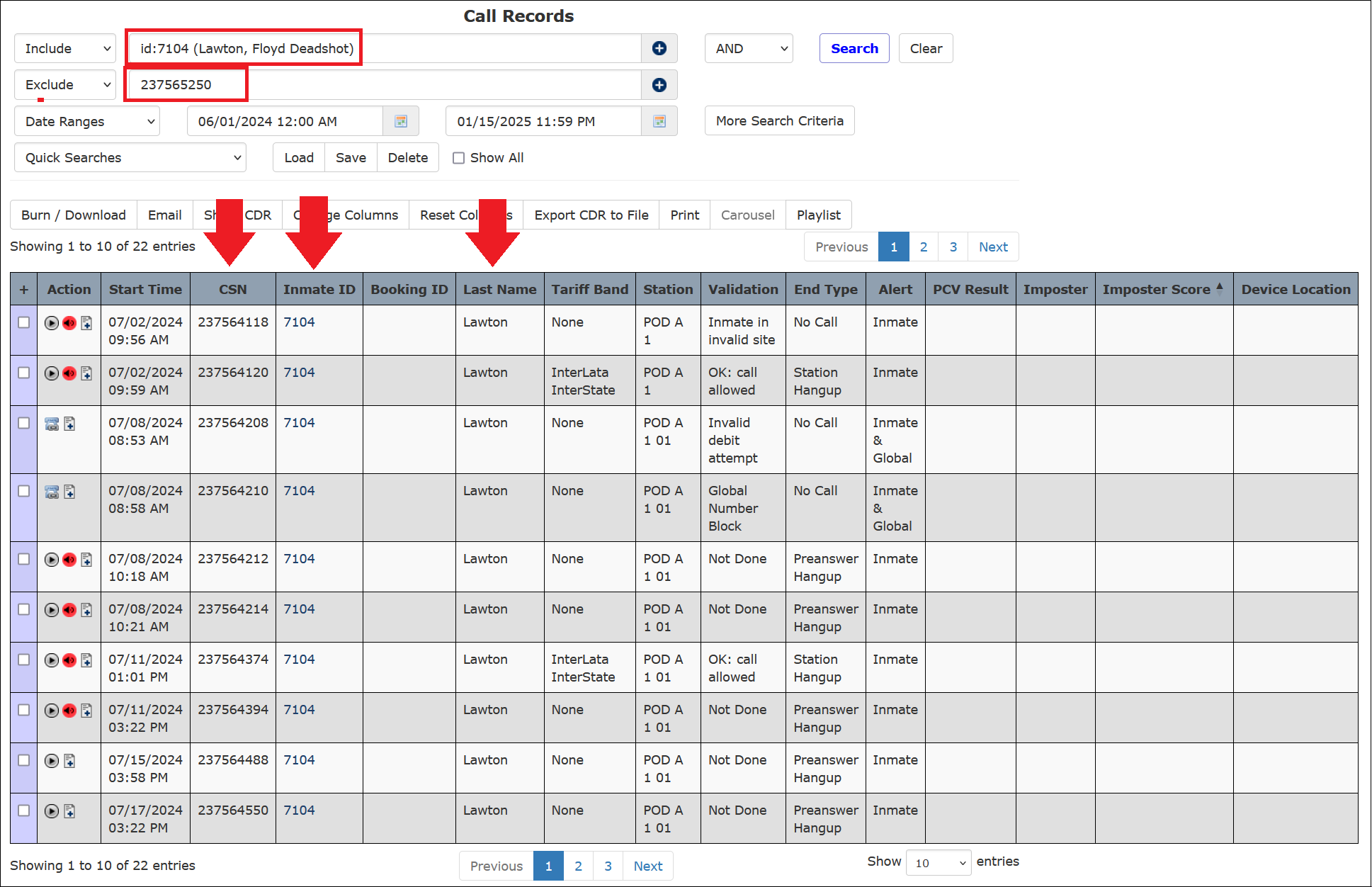
You can also perform a Call Records search with a single Exclude only, without an Include. When you perform a search in this manner, the Call Records search results return all call records in the specified time range except for records containing the specified inmate, call record (CSN), or phone number.
Searching by Date/Time Range
When you open the Call Records search page, the date range for the search defaults to the previous seven days up to the current date. For the start date, the time defaults to 00:00:00 or 12:00 AM on that day. For the end date, the time defaults to 23:59:59 or 11:59 PM.
The default date range is configurable by the ICS Administrator and may be set to a time range that is different than the last seven-day default.
You can specify a more detailed date range for a search by adding the time of day to the selected start and end dates. You must manually make the time changes in the displayed start time and end time fields shown in the following example.
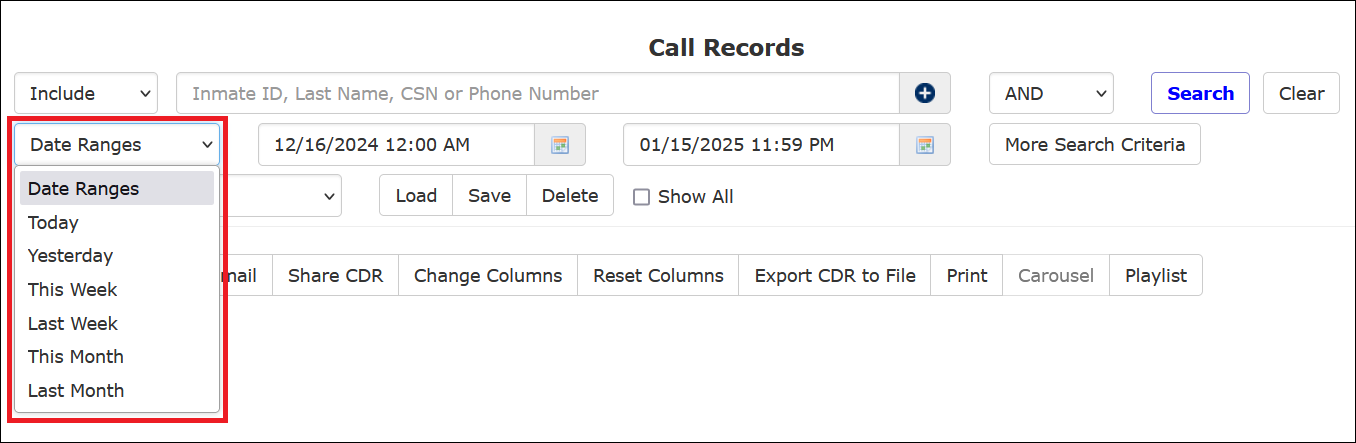
Also, a selection list of frequently used date ranges can be displayed by clicking on the Date Ranges field on the left side of the screen.

When you click a date range option on the selection list (such as last week), the start and end dates automatically populate with the date selections. For the start date, the time defaults to midnight on that day. Depending on your User Settings, the end date defaults to 23:59:59 or 11:59 PM. The user selected Last Week from the Date Ranges dropdown in the following example.
The This Week option refers to the previous Monday through the upcoming Sunday based on the current date. Last Week refers to the seven days leading up to the calendar date of the most recent Sunday.
Searching by Inmate Name
When you want to search by inmate name, The ENFORCER® makes it easy to locate a specific inmate by providing a dropdown list. This list displays all inmate names containing what you enter. In the following example, the dropdown list displays all inmates whose names contain the characters wal. Click on the desired name in the list to select it.
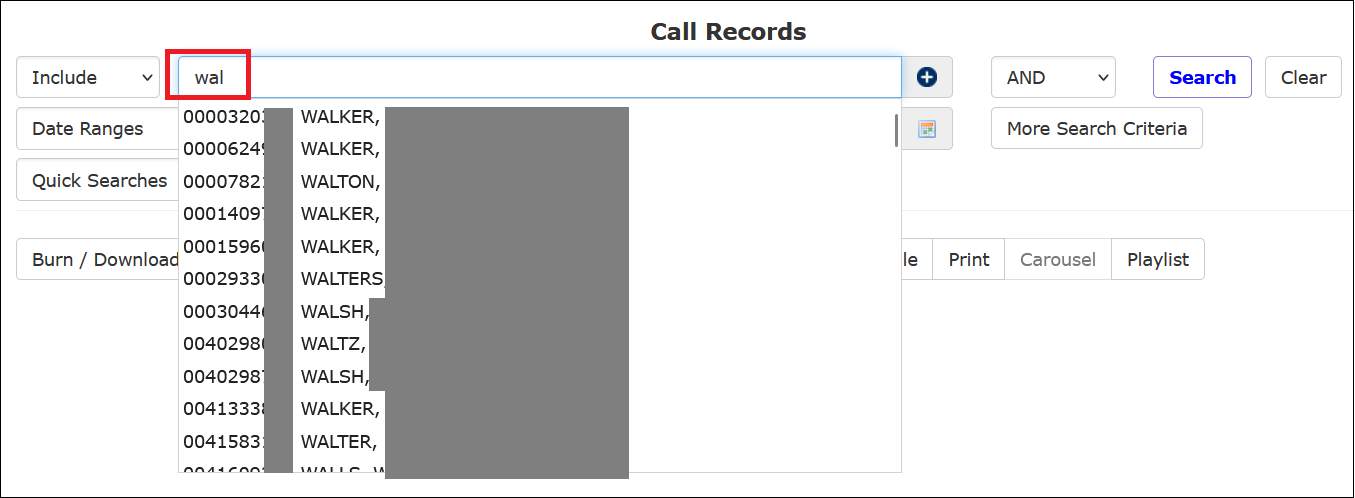
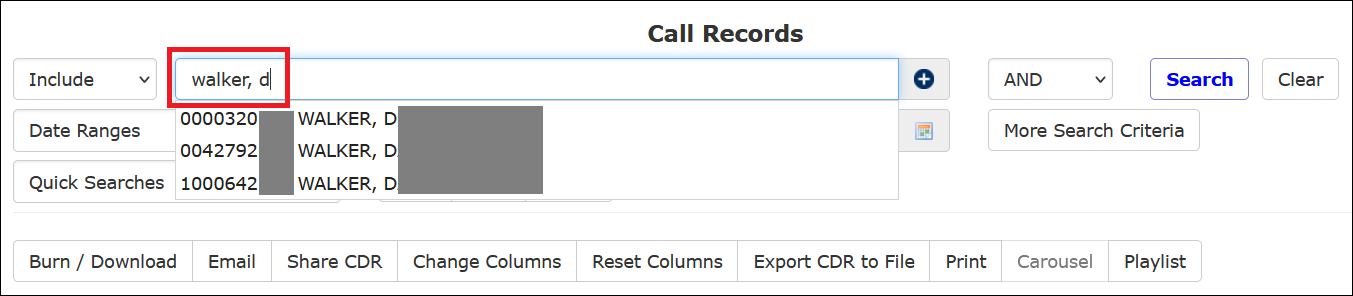
You can also type in a last name followed by a comma and one or more additional characters to locate an inmate by last name and first name.