Inmate PIN and Passcode
Overview
When The ENFORCER® is initially set up at your facility, the generation of PINs (Personal Identification Numbers) is configured by an ICS Administrator based on the level of security desired by the facility. Depending on this PIN configuration, the following fields may populate differently when creating an Inmate Detail page.
• Most ICS facilities have a four-digit passcode, but there are some with a six-digit passcode.
• The ICS Phone PIN default is the Inmate ID plus Passcode. The inmate must dial all digits in the PIN together to make a call.
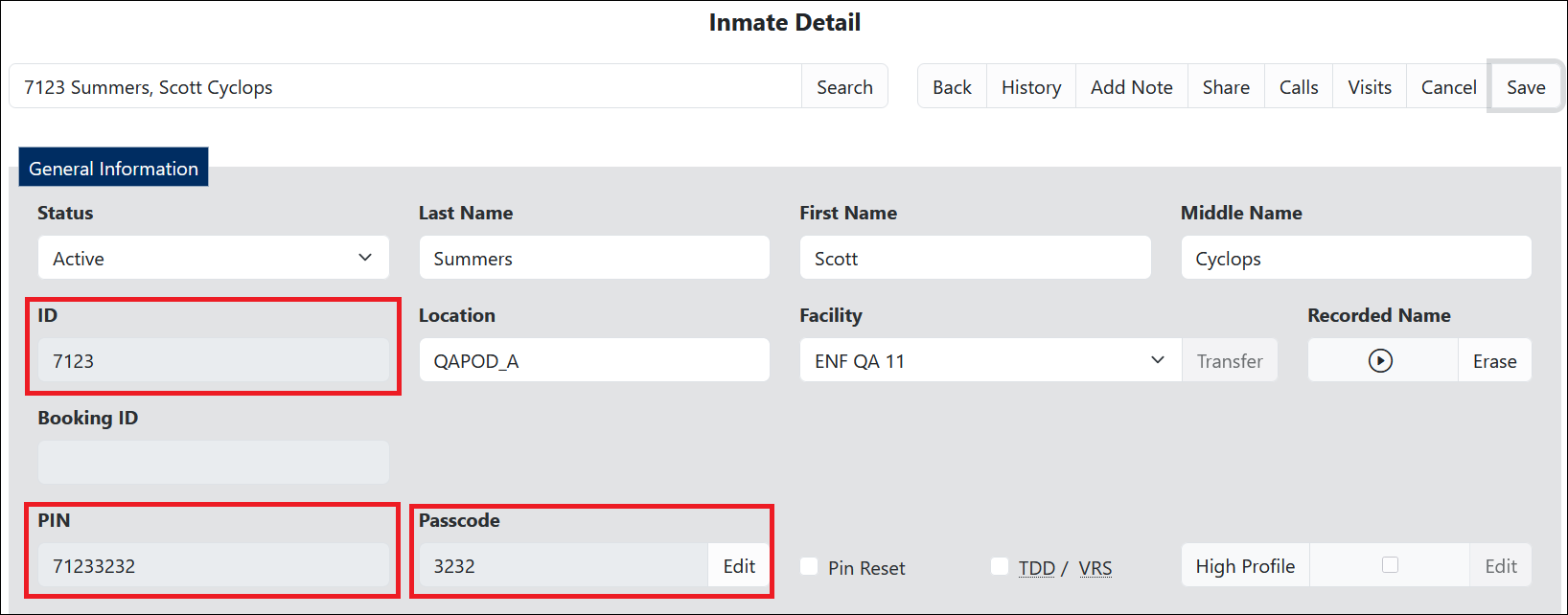
- ID: This is the Inmate ID, which is the unique identifier for the inmate. The number of digits in the Inmate ID is based on a configuration set by the ICS Administrator according to the facility standards.
This is typically the Permanent ID and not the Booking ID.
- PIN: The PIN (personal identification number) is the phone PIN the inmate must use to make a phone call through The ENFORCER® or to access the ICS Kiosk and tablet applications.
- Passcode: By default, this is a four-digit code the inmate selects during enrollment to be added to the ID as a phone PIN. This is configurable and many have six-digit Passcodes.
In the example shown above, the inmate's PIN is comprised of the Inmate ID and the Passcode.
If you are authorized to change an inmate PIN, your Site Administrator will notify you of how PINs are configured at your facility.
How PINs are Created
When setting up a new facility, the ICS Administrator sets a numeric value that establishes how an inmate’s PIN is generated based on facility requirements. These options are described in the following table.
This table is included for information purposes only to help you understand how the PIN and Passcode fields function on the Inmate Detail page.
Available Inmate PIN Types
| PIN Type Setting | Inmate ID | Passcode | Inmate PIN | Effect on fields of the Inmate Detail page |
|---|---|---|---|---|
| No PIN used | n/a | n/a | No PIN | PIN and passcode fields are blank because the facility does not require PINs for inmate calls. |
| InmateID = PIN | 12345 | n/a | 12345 | All fields are read-only, and the ID and PIN fields both display the same number. The Inmate ID is the PIN. |
| Passcode = PIN | 12345 | 6789 | 6789 | Passcode field populates with the number entered by the inmate during the initial enrollment call. Users can delete PIN/passcode and can request an automatic PIN/passcode change. |
| InmateID + passcode = PIN | 12345 | 6789 | 123456789 | Passcode field populates with the number entered by the inmate during the initial enrollment call. Passcode field is editable by an ENFORCER® user. Editing the Passcode field changes the PIN. For example, changing the Passcode to ‘7777’ changes PIN to 123457777. |
| Numeric portion of InmateID + passcode = PIN | J12345 | 6789 | 123456789 | Same as setting 3 above, but if an alphabetic character is used in the Inmate ID, it is not included in the PIN. |
In all cases, the inmate PIN is a unique identifier of the inmate to The ENFORCER® system. In most cases, the inmate must enter a valid PIN to make calls.
Changing an Inmate PIN
If you are authorized to change inmate PINs, the Edit button immediately to the right of the Passcode field changes to a white background.
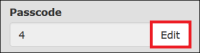
When you click this button, the ENFORCER® displays a dialog where you can change a passcode for an inmate. This changes the PIN.
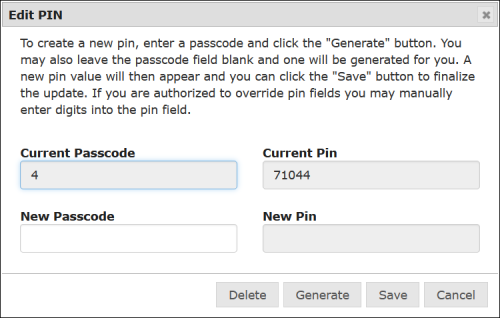
How to change an inmate PIN/Passcode
- Open the Inmate Detail page for the inmate. The number displayed in the PIN field indicates the PIN type used at the facility.
- Click Edit immediately to the right of the Passcode field.
- You can enter a passcode in the New Passcode field or leave it blank. If you enter a passcode, it should contain the same number of digits as the previous passcode. If you leave the New Passcode field blank, the ENFORCER® generates a random passcode for you.
- Click Generate. The New Passcode field now displays the new inmate passcode and the New PIN field now displays the new inmate PIN.
- Click Save above the General Information pane. The following message is displayed.

- Provide the new PIN to the inmate.
Unblocking an Inmate PIN
If multiple incorrect password entry attempts have been made through The ENFORCER® for a specific inmate ID, The ENFORCER® will block the PIN for the inmate. This block can be turned off by an authorized ENFORCER® user in the General Information pane of the Inmate Detail page. When an inmate PIN block has been set, a notification message is displayed immediately above the General Information pane, as shown in the following example. An Unblock button is also displayed in the row of top buttons, as shown in the following example.
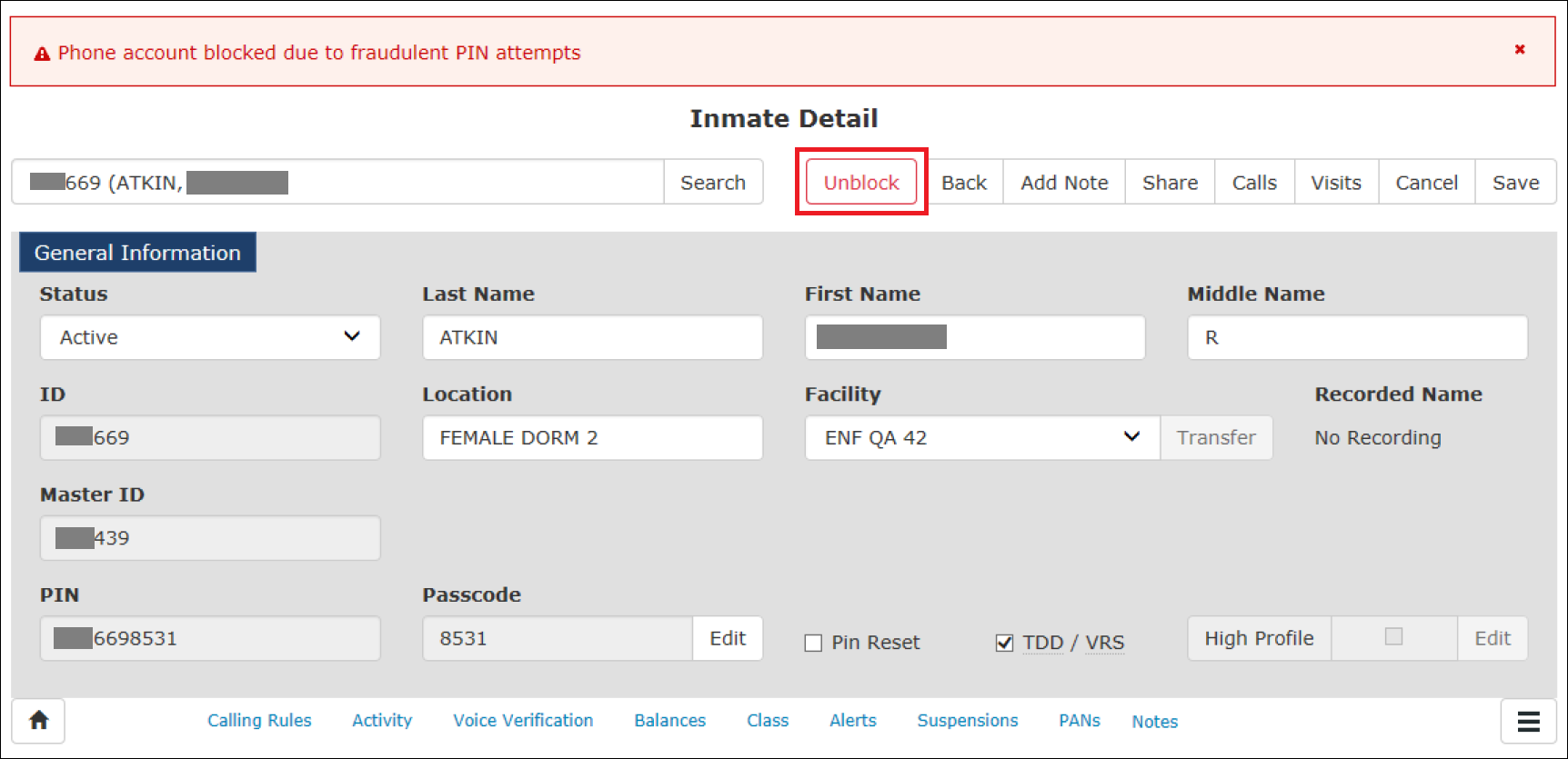
If you have the required permission associated with your user role, you can reset the block by accessing the Inmate Detail page for the inmate and clicking Unblock. This action resets the block in The ENFORCER® IVR, which enables the inmate to make calls when the correct password is entered.