Debit / Commissary Transfers
At selected agencies only, inmates may place an internal phone call to request that funds available in their commissary account be transferred or applied to their Inmate Debit Account in The ENFORCER®. If this function is activated at an ENFORCER® site, the Debit / Commissary Transfers menu item is displayed under the Accounts tab.
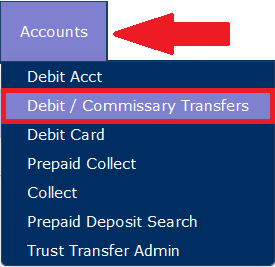
If the Debit / Commissary Transfers function is not used at your agency or facility, the Debit / Commissary Transfers menu item is not displayed under the Accounts tab.
At each facility, a designated administrative resource can use the Debit / Commissary Transfers function to apply these requested funds to Inmate Debit Accounts in The ENFORCER®. This administrative resource is also responsible for the manual reconciliation or debiting of approved funds from the facility’s Commissary system.
The steps below summarize the request process by the inmate, as well as the approval or rejection of each inmate funds transfer request.
Process for inmate request and approval or rejection of each inmate funds transfer request
- The inmate logs in to The ENFORCER® IVR and then selects option 5 to access the facility’s commissary ordering system from The ENFORCER® Main Menu.
- In the IVR, the inmate is prompted to enter a requested dollar amount for the funds to be applied to their Inmate Debit Account.
- The request is automatically added to a request in The ENFORCER®.
- An authorized ENFORCER® user can then click the Debit / Commissary Transfers menu item under the Accounts tab to view the list of inmate requests and reject or approve each request. Additionally, the user can also click one of two report buttons to request a report listing of accepted requests or rejected requests.
Debit / Commissary Call Flow
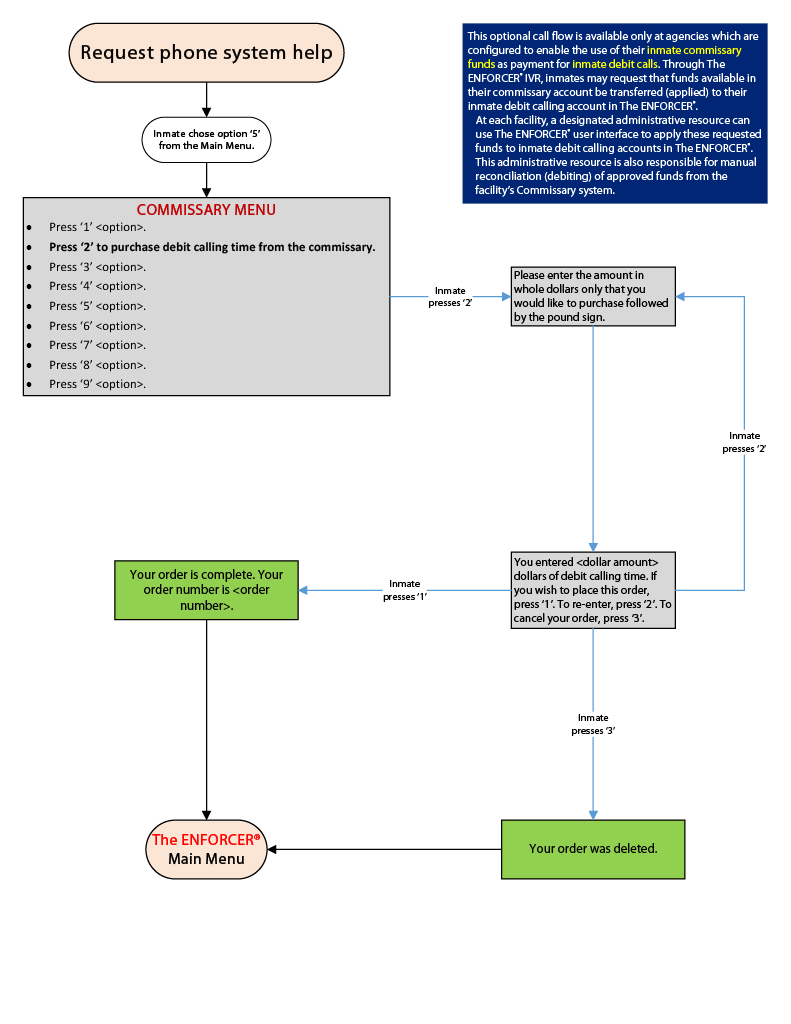
The following diagram shows the prompts that are heard by the inmate when the inmate places a request to purchase debit calling time through your site’s commissary system. From The ENFORCER® Main Menu, the inmate begins the process by selecting Option 2 to access the site’s commissary system. The diagram shows all prompts that an inmate may hear during the process of requesting the purchase.
Call Flow: Debit / Commissary
Approving or Rejecting Funds Transfer Requests
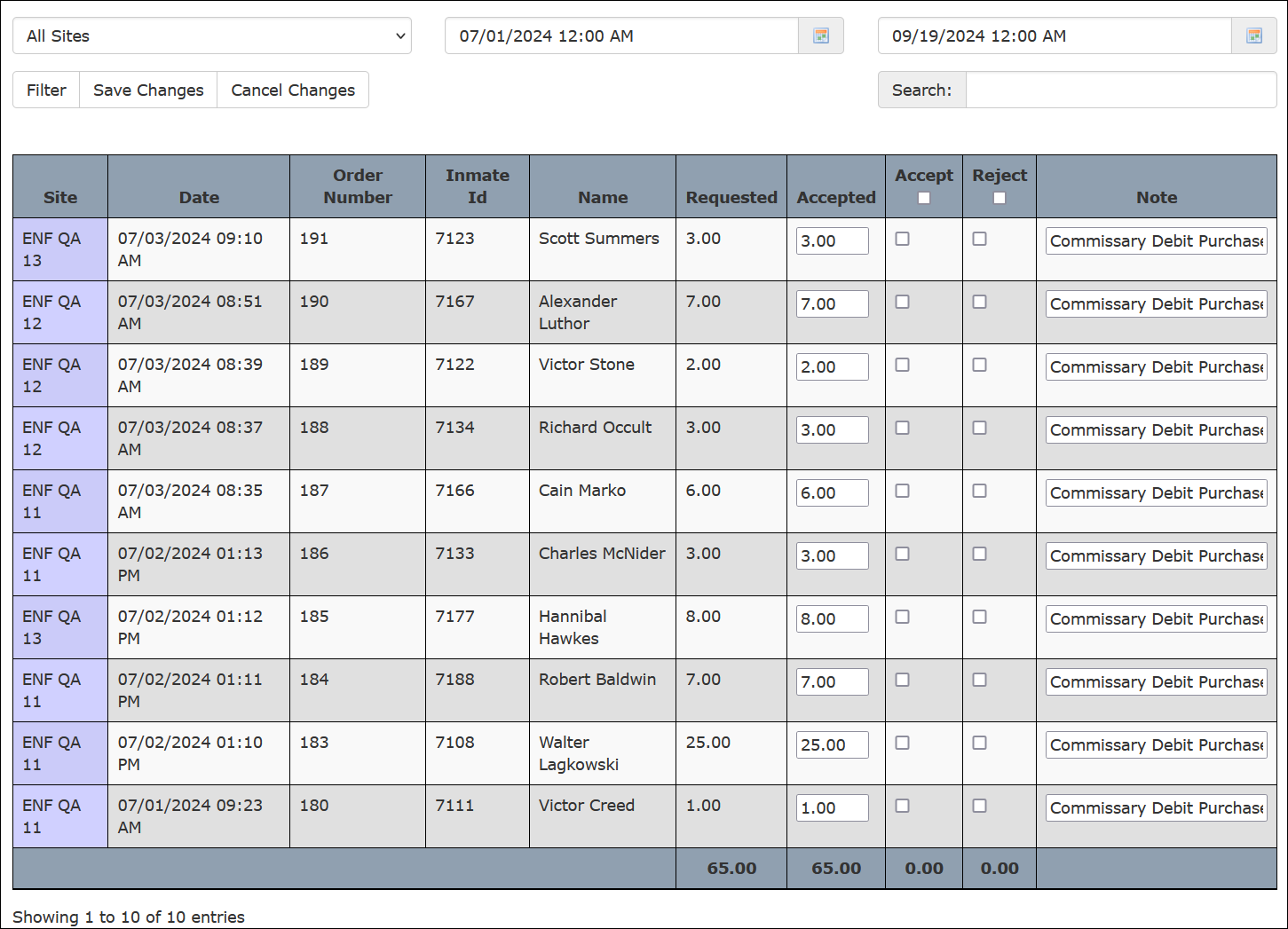
The Debit / Commissary Transfers page is shown in the following example. From one location, this screen enables an authorized user to view, annotate, and either approve or reject each inmate funds transfer request. This sample shows requests from all sites or facilities across a multiple-site agency but can be narrowed down by site.
How to approve or reject funds transfer requests
- Select Debit / Commissary Transfers under the Accounts tab.
The ENFORCER® displays the page shown in the following example. The list shows all debit funding requests that have been submitted by inmates by calling the commissary.
- If you are using The ENFORCER® at a multiple-site facility, the dropdown site list displays all sites in alphabetical order. Select your site from the Choose Site dropdown list, or leave the default All Sites to select all requests from all sites.

The ENFORCER® displays a list of all pending inmate funds transfer requests for the selected site.
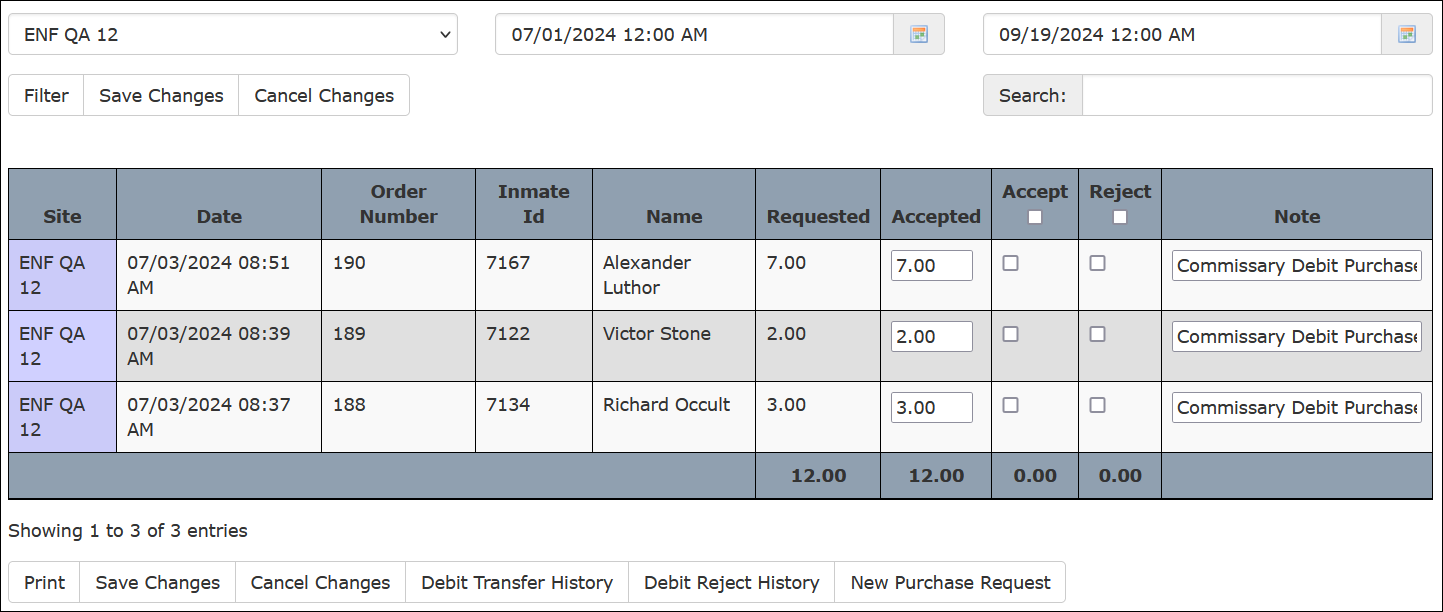
- For each inmate request, select either the Accept checkbox or the Reject checkbox.
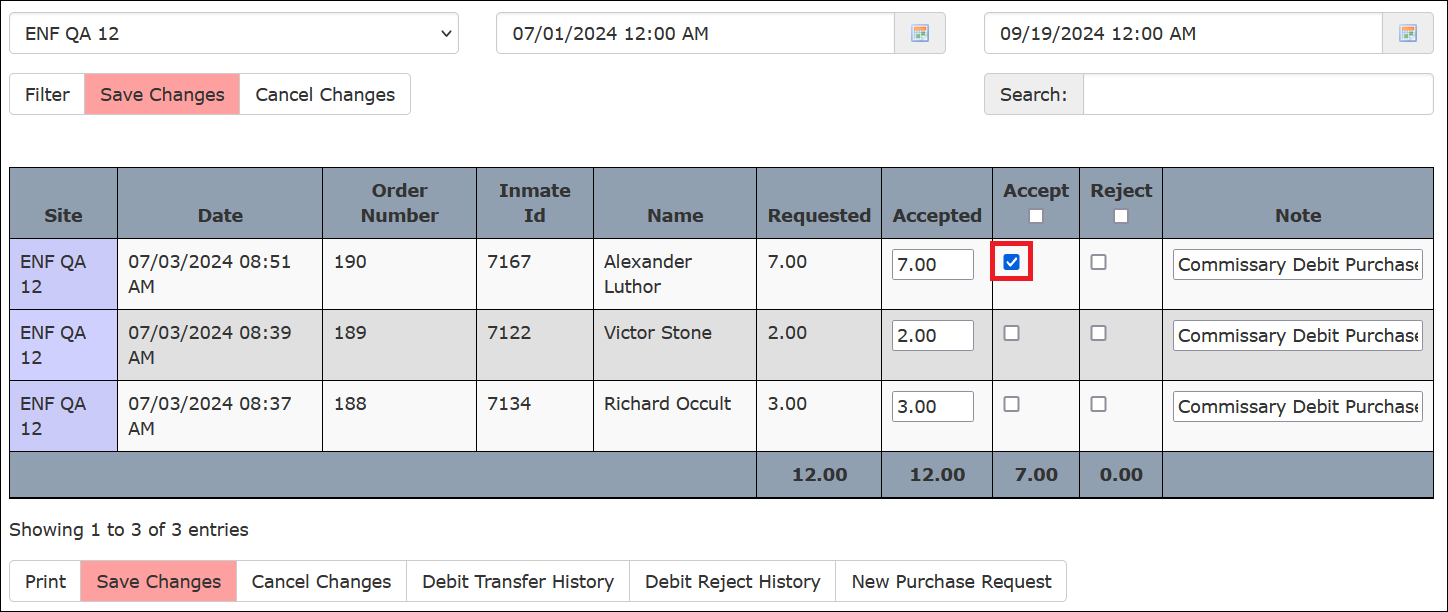
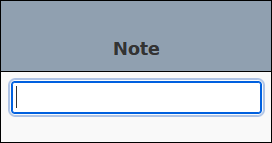
- If desired, you can use the Note column to enter any information that may be required to assist with the manual entry of the debit amount into your online Commissary system. You can also enter any information that may be needed for historical purposes.
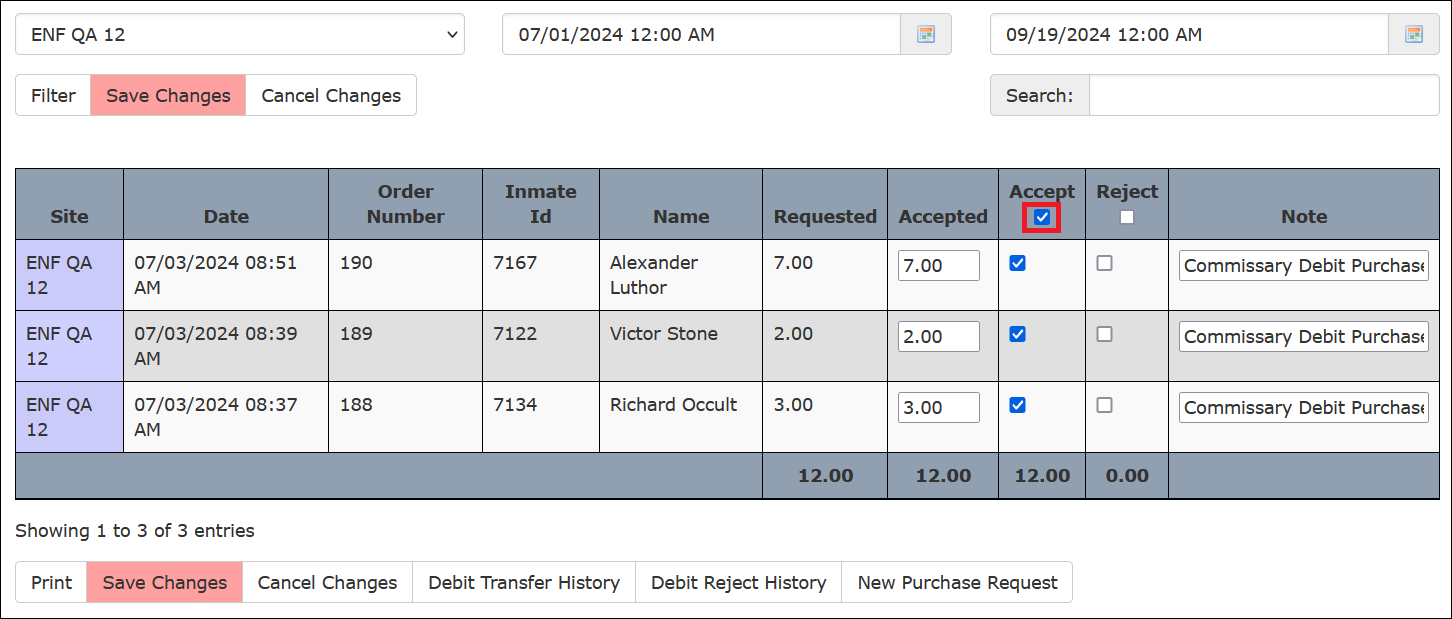
- To accept all requests in the list or to reject all requests on the list, click the checkbox in the Accept or Reject column heading.
- Click Save Changes to remove all accepted/rejected entries from the pending list.
- If desired, click Print to print the list to your local printer.
- Access your online Commissary product application and refer to The ENFORCER® inmate request list to enter the amounts to be debited in accordance with the amounts you approved in The ENFORCER®. You can complete this task in one of two ways:
- By using a printed copy of the inmate request list as a check-off list.
- By toggling between The ENFORCER® list and pages in your facility’s online Commissary application.
Generating Reports
You can select one of two reports from the Debit / Commissary Transfers page by clicking either button in the following example.
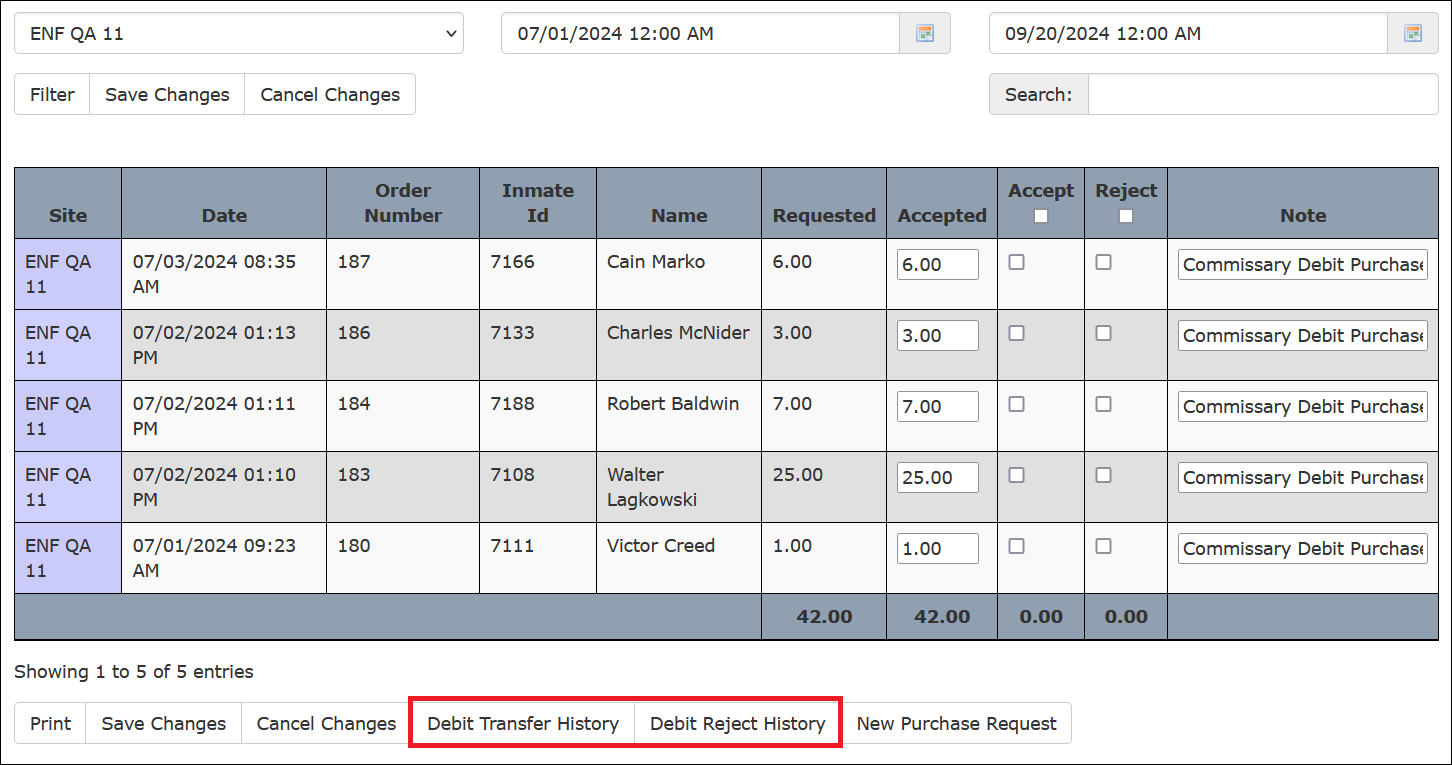
How to generate the Debit Transfer History report
- Click Debit Transfer History. The following page is displayed.
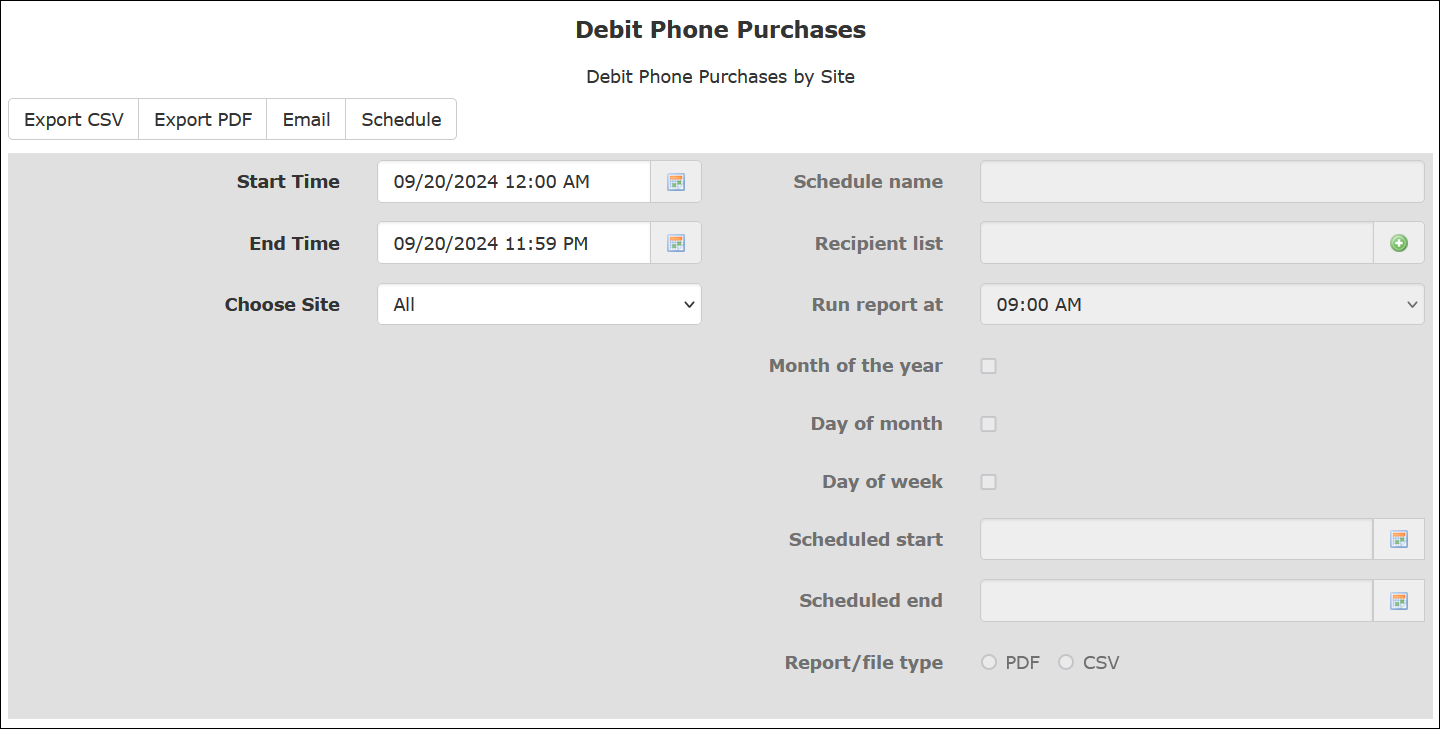
- Select a date range for the report and select a site from the dropdown list if desired.
- Depending on the desired output type, click Export CSV or Export PDF. A PDF sample of the Debit Transfer History report is shown in the following example.
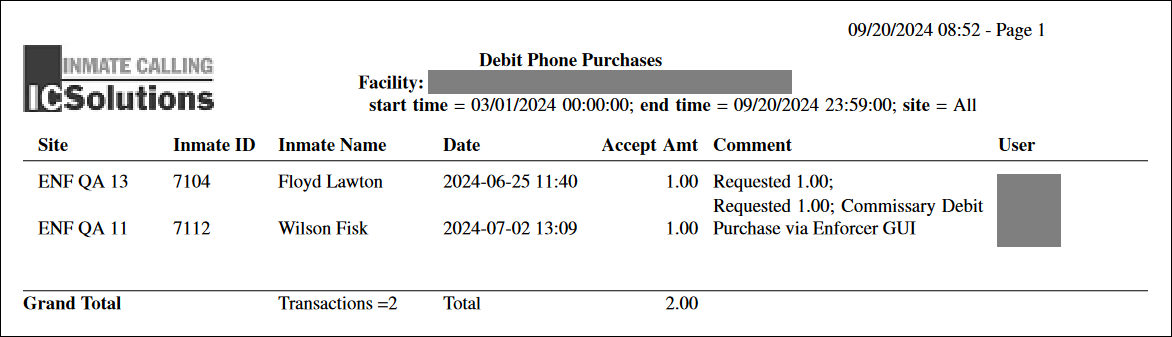
If you selected All Sites, the report will display transactions for each site in alphabetical order.
How to generate the Debit Reject History report
- Click Debit Reject History. The following page is displayed.
![[[placeholder | screenshot]]](/custwiki/_media/enforcer:7_inmate_accounts:7.2_debit_commissary_transfers:debit_reject_history.png "[[placeholder | screenshot]]")
- Select a date range for the report and select a site from the dropdown list if desired.
- Depending on the desired output type, click Export CSV or Export PDF. A PDF sample of the Debit Reject History report is shown in the following example.
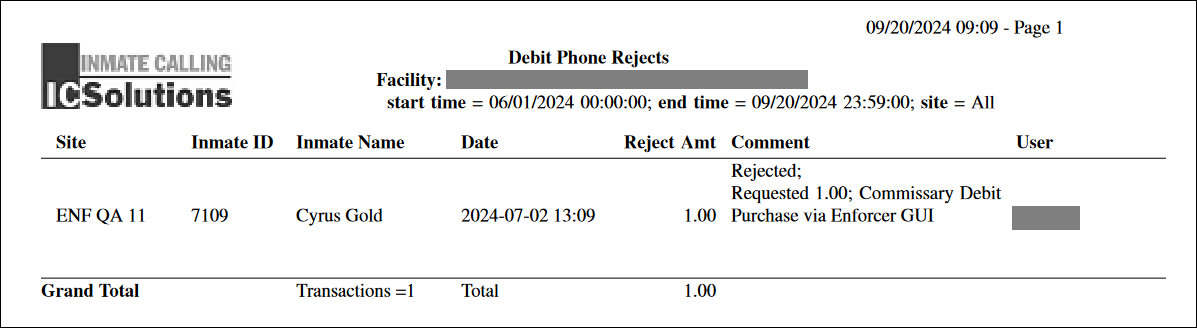
If you select All Sites, the report will display transactions for each site in alphabetical order.