Finding a Number Detail Record for a Global Number
You can locate a specific Number Detail Record in several ways, as described in the following sections.
Each called party number in the Global Numbers Library contains a unique, user-accessible record called a Number Detail Record. The Global Numbers function enables you to create and store called party phone numbers and to define one or more global settings that affect calling features when an inmate calls the number. Additionally, the Global Numbers function enables the setup and customization of phone numbers that support other functions in The ENFORCER®.
When you select Global Numbers under the Global Number tab, the Global Number Search dialog displays at the top of the page, as shown in the following example. Using this dialog, you can locate a specific Number Detail Record in several ways, as described in the following sections.

Finding a Specific Number
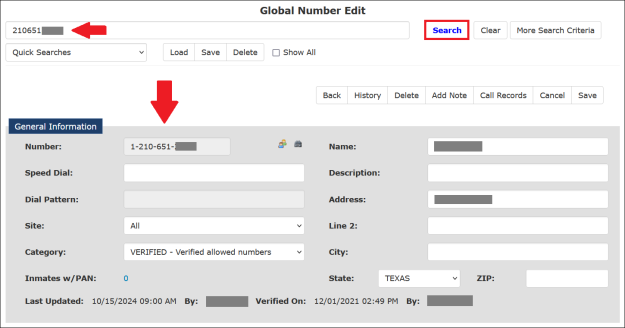
When you enter an existing 10-digit phone number in the main search field and click Search, The ENFORCER® displays the Number Detail Record for the number, with the existing number populated in the Number field.
Finding a Number with a Text Search
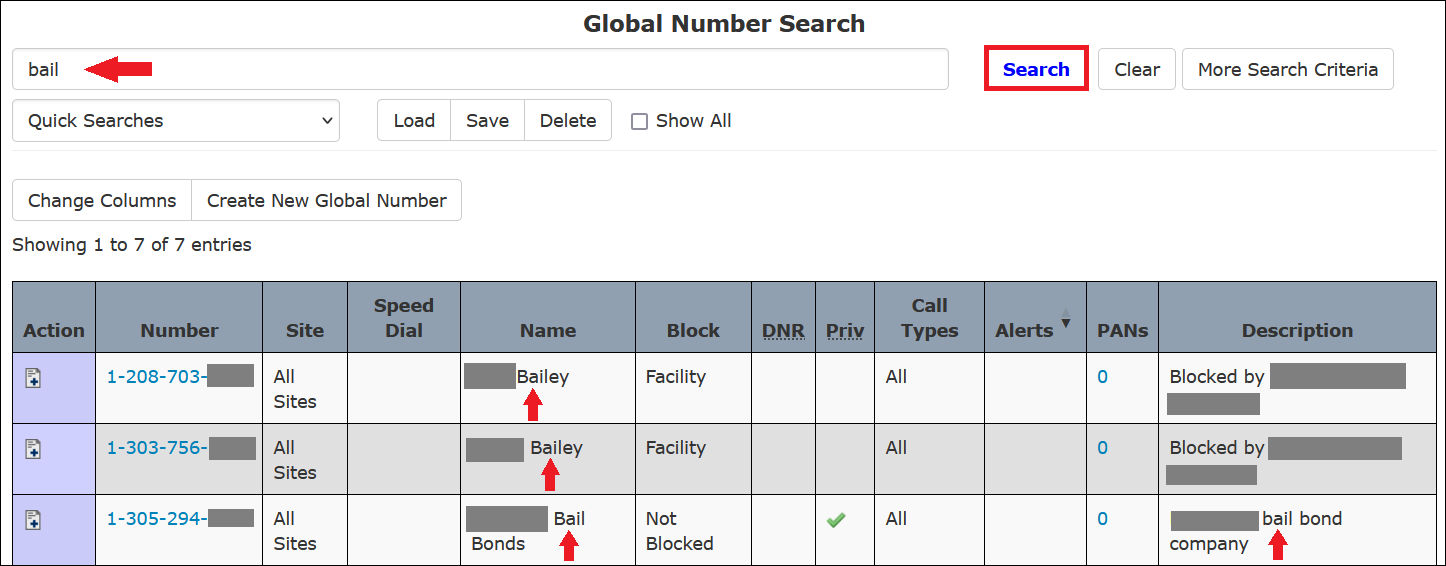
If you enter text in the main search field and click Search, The ENFORCER® displays all numbers containing the text in either the Name or Description fields in the Number Detail Record. This search method can be used to search for the last name of a called party or a common word, such as Attorney, in the Description field. In the following example, the Number Detail Records are displayed as the search results for the text bail, contained in the name Bailey and in the description Bail Bond.
Finding a Number with a Numeric Search
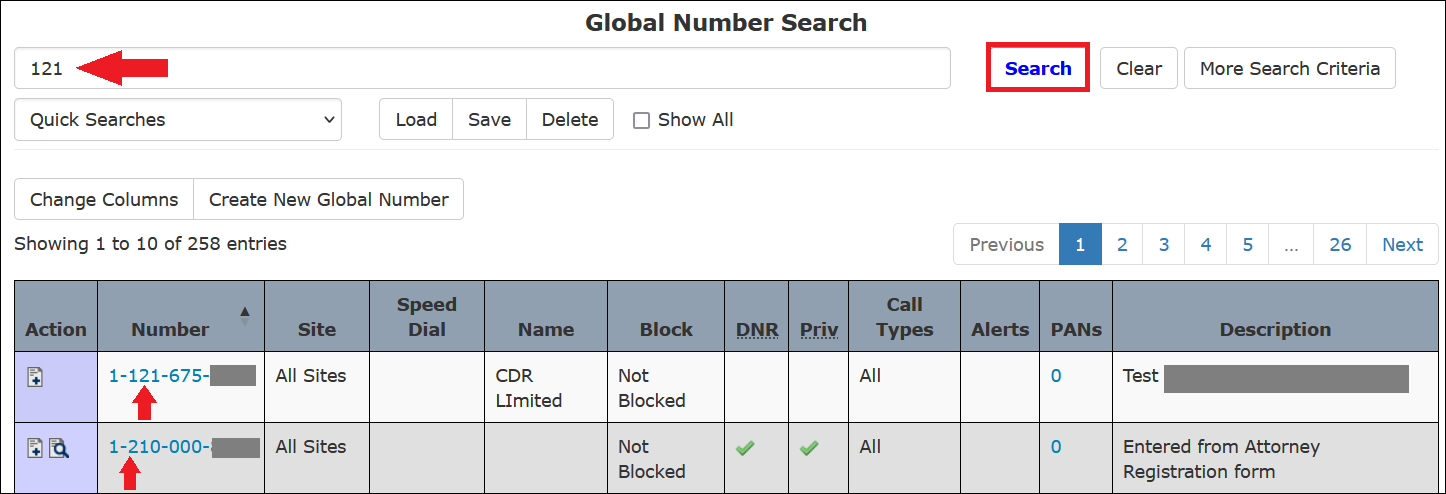
If you enter part of a phone number in the main search field and click Search, The ENFORCER® displays all phone numbers containing the numbers in the same sequence you entered them. The following example displays the Number Detail Record numbers as the search results for the number 121.
Finding a Number Using Global Number Search Results
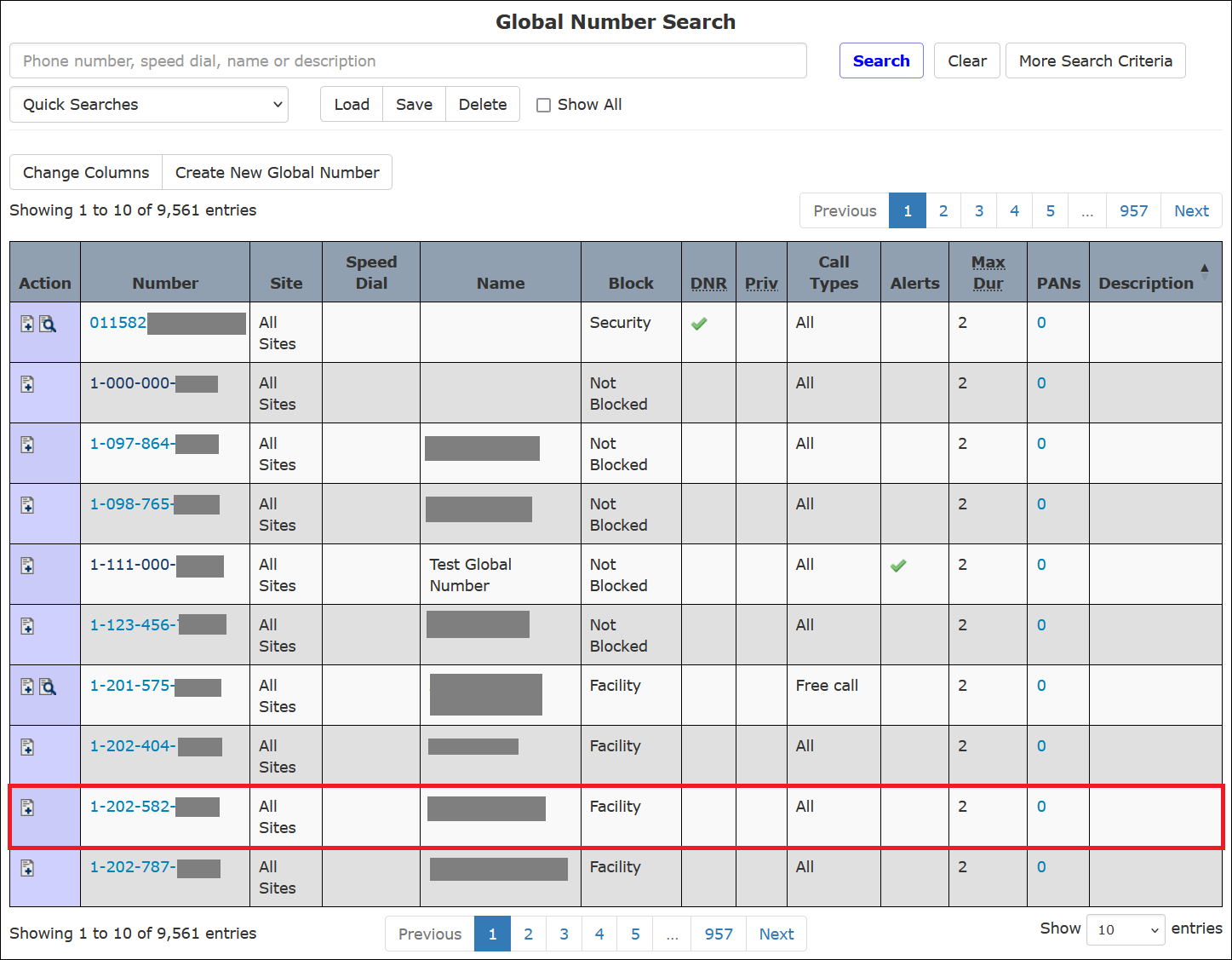
If your main search or Quick Search returns multiple results, you can click on any row in the search results to open the Number Detail Record for that number, as shown in the following example.
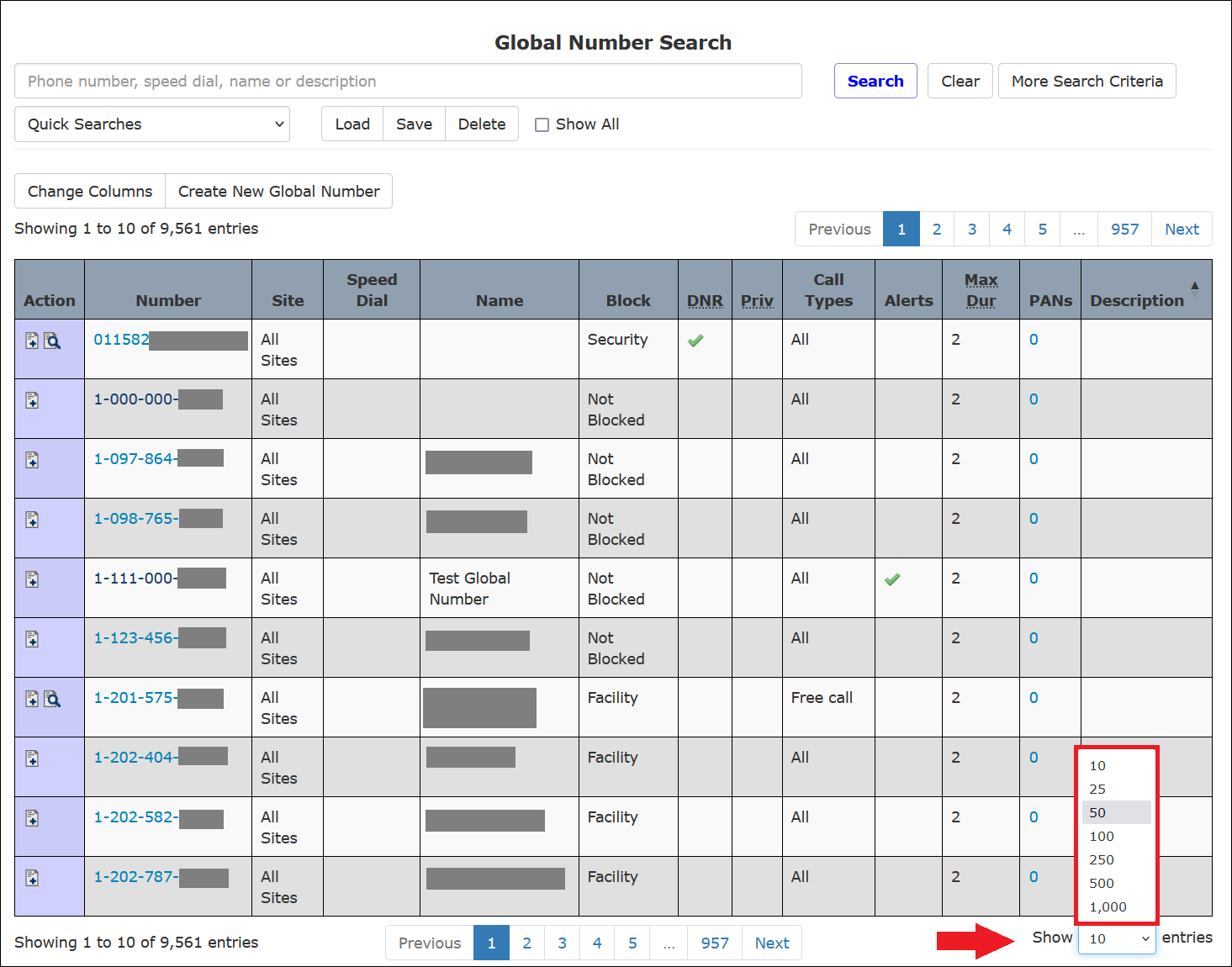
If the number you are searching for is not displayed on the first screen of a long list, you can select a different number of records to be displayed on each page, as shown in the following example.
Limiting a Search Using Additional Criteria
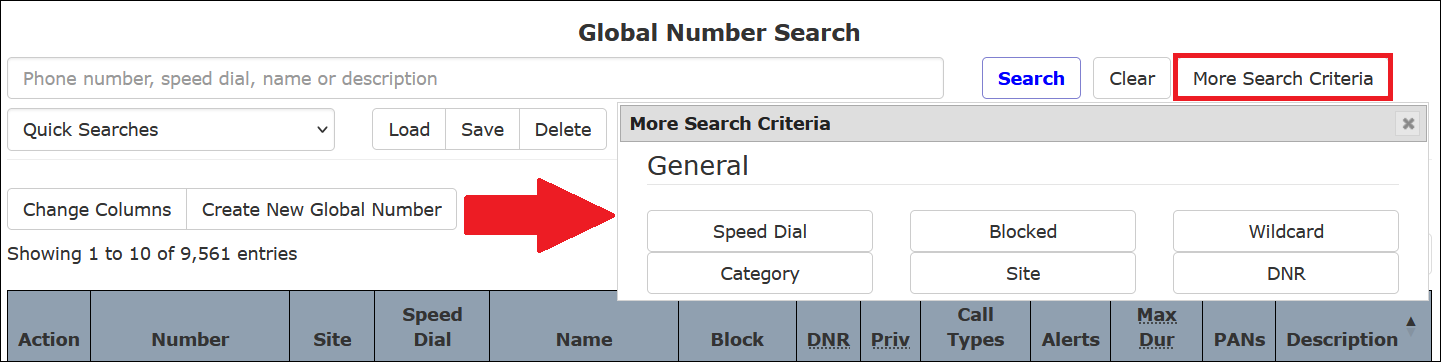
After you click More Search Criteria on the Global Numbers search page, a dialog box is displayed that lets you specify several additional search criteria. These criteria are shown in the following example.
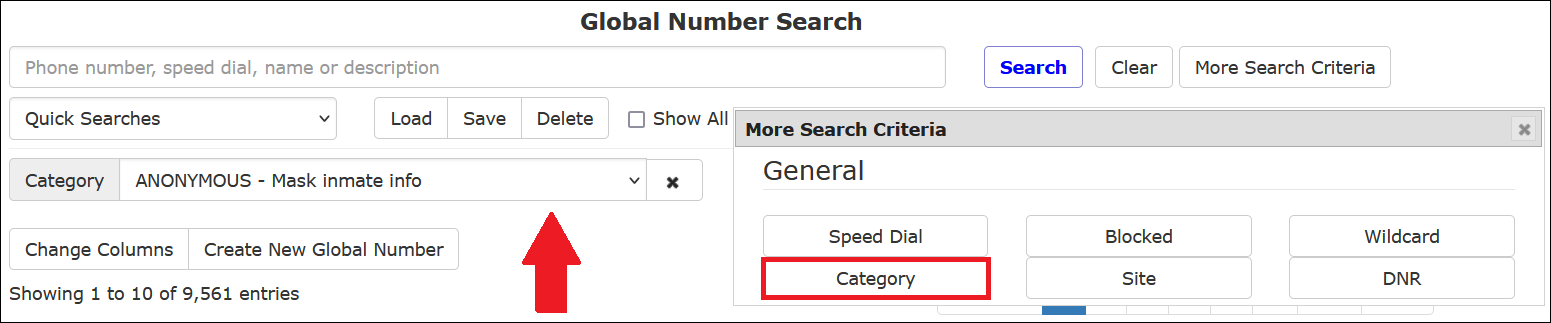
Each time you click on an additional criterion, a dialog box for that criterion is added to the Global Numbers search page, and the More Search Criteria box closes. In the following example, the user selected clicked Category. Afterward, the More Search Criteria box closed, and a dialog box was added to the display to enable the selection of a category.
The user selected all six additional search criteria in the following example. As a result, six boxes are displayed where the user specifies information to narrow down the search.
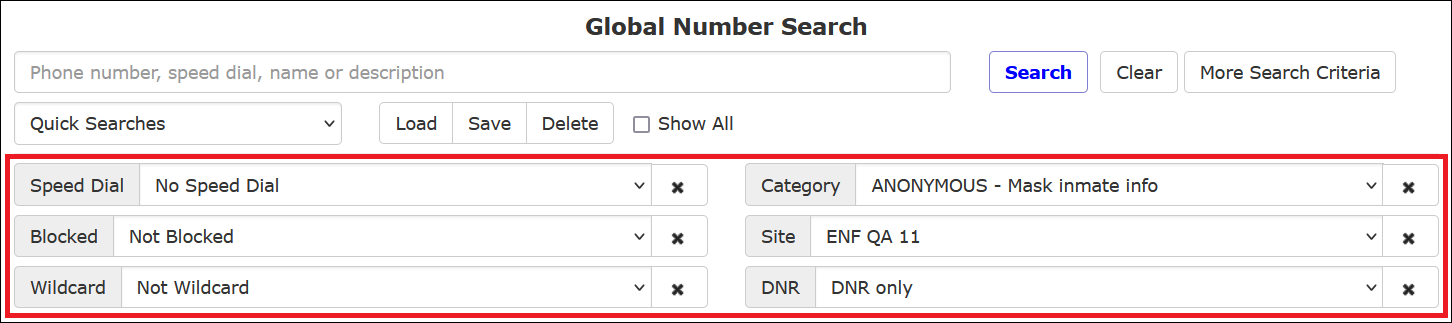
Each of the displayed criteria enables you to make one selection only. Click  to view a dropdown list from which you can select one option only.
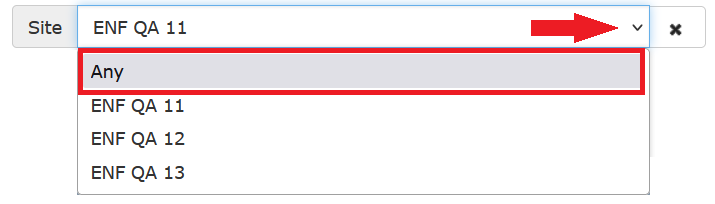
Table: Global Number Search – More Search Criteria Option Descriptions
The following table details selected options in the More Search Criteria box.
| Option | Description |
|---|---|
| Speed Dial | Limits the search to numbers with either a Speed Dial number defined or not. |
| Blocked | Limits the search to numbers that are either blocked or not blocked. |
| Wildcard | Limits the search to numbers that either use or do not use wildcards (???) in the actual phone number as a substitution. |
| Category | Limits the search to one Category, as listed in the Category field in the General Information pane on a Number Detail Record. |
| Site | If an agency has multiple sites, this limits search to Global Numbers set up for a specific site. This is only if a Site is specified in the Site field in the General Information pane on a Number Detail Record. |
| DNR | Limits search to Global Numbers with the Do Not Record (DNR) check box selected in the Features pane in the Number Detail Record. |
Using Preset Quick Searches
You can click anywhere in the Quick Searches field to display three preset quick searches you can perform to limit the number of records returned by the search.
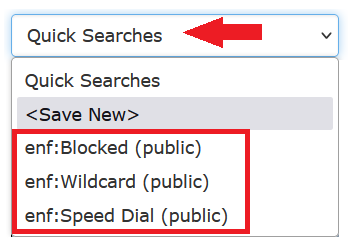
Available options include:
- Show All Blocked Numbers – All stored phone numbers that have some type of block enabled.
- Show All Speed Dial Numbers – All stored phone numbers that have a speed dial entry assigned to the phone number.
- Show All Wildcard Numbers – All stored phone number entries with a wildcard character (*).
You can also use the More Search Criteria button to include or exclude blocked numbers, speed dial numbers, and/or wildcard numbers.
Finding Blocked Phone Numbers
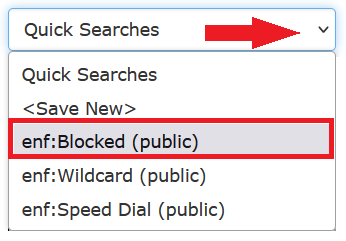
If you click enf:Blocked (public) from the Quick Searches dropdown list, The ENFORCER® displays a list of all phone numbers with a block placed on them, as shown in the following example.
TheBlock column displays the specific block type.
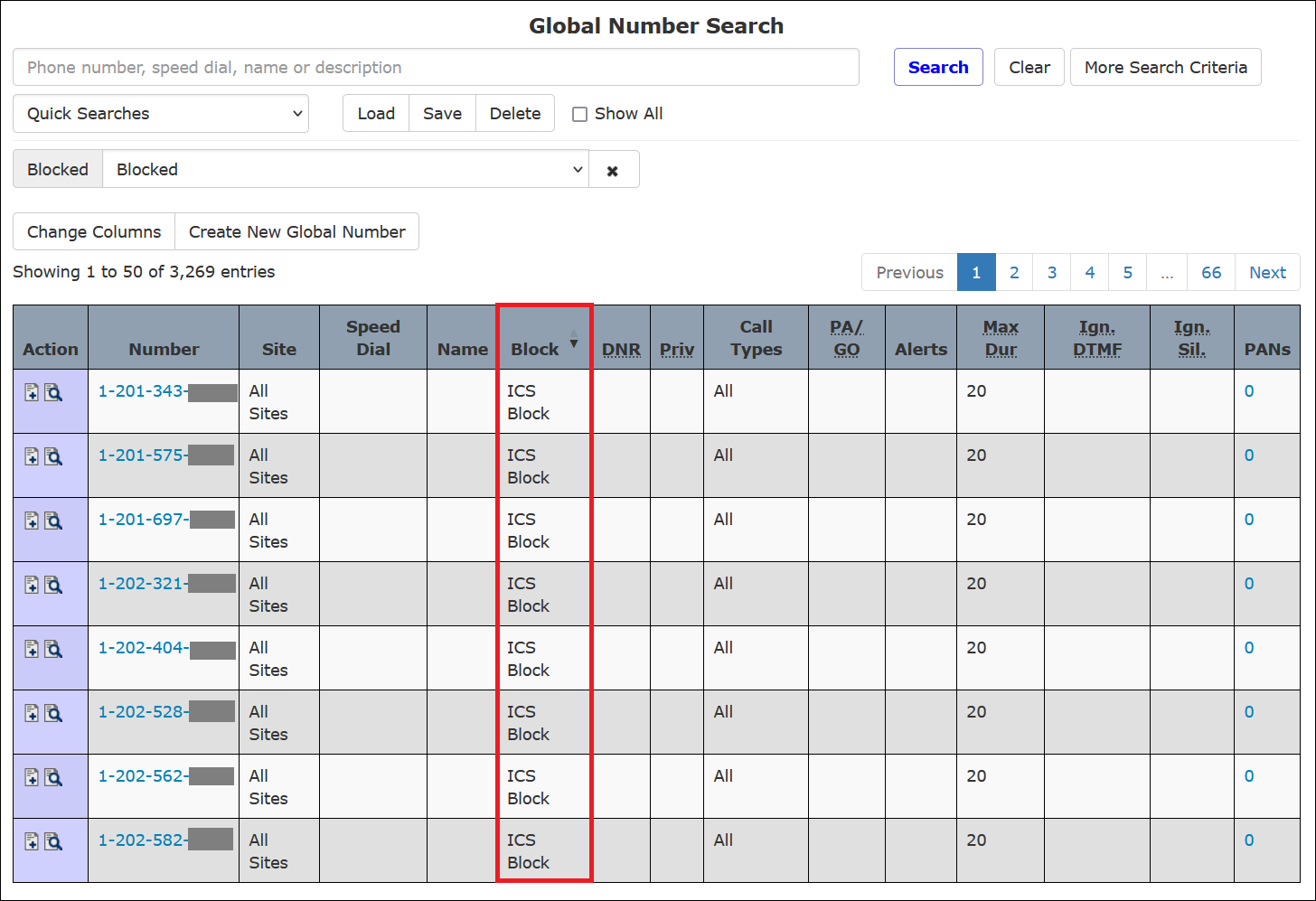
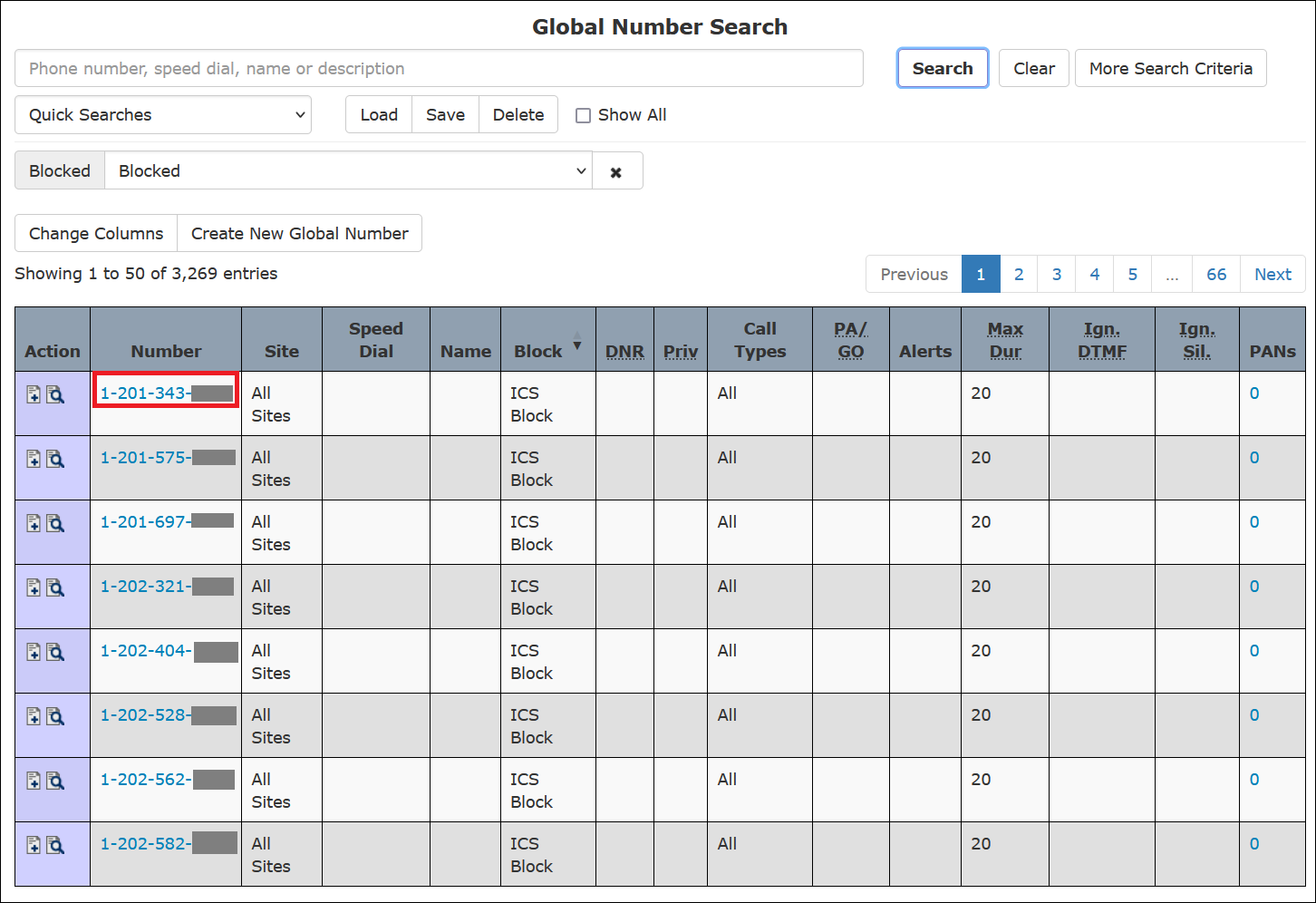
Click on any phone number to access the Number Detail Record for the blocked number.
Finding Speed Dial Phone Numbers
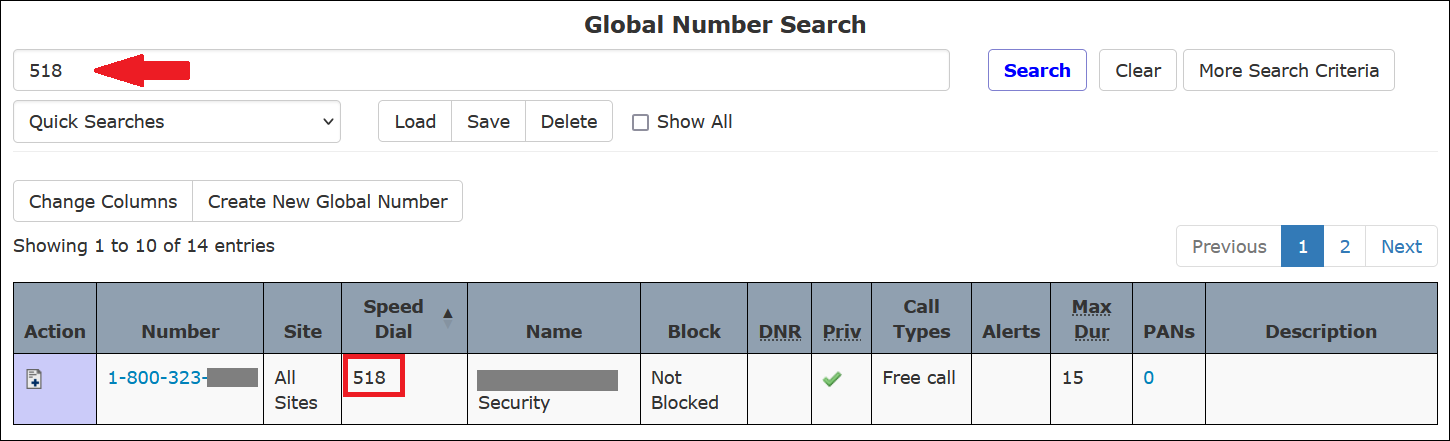
If you enter a speed dial number in the main search field and click Search, the Number Detail Record for the speed dial number is displayed.
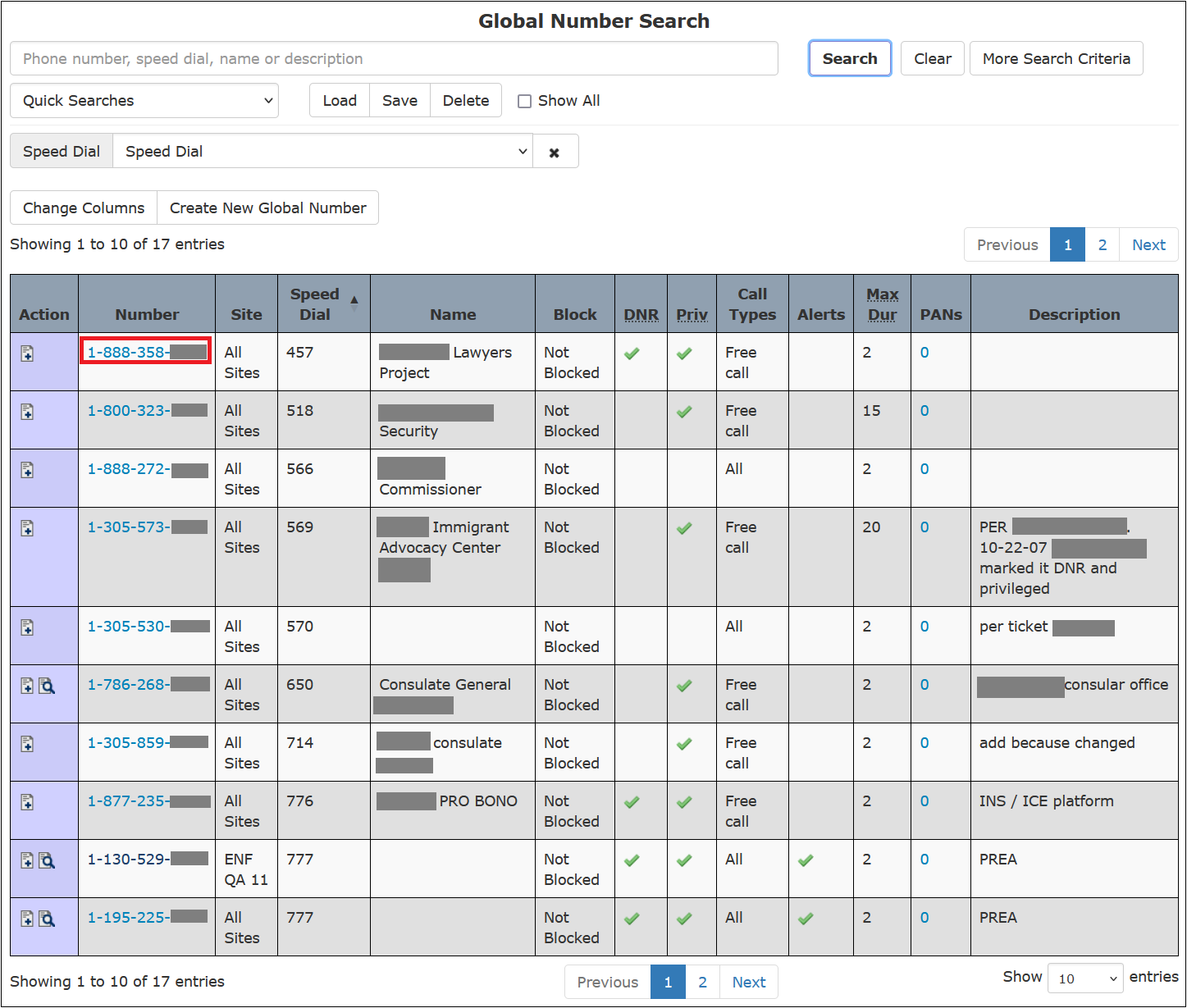
If you select enf:Speed Dial (public) from the Quick Searches dropdown list, The ENFORCER® displays a list of all phone numbers for which a speed dial shortcut has been defined.
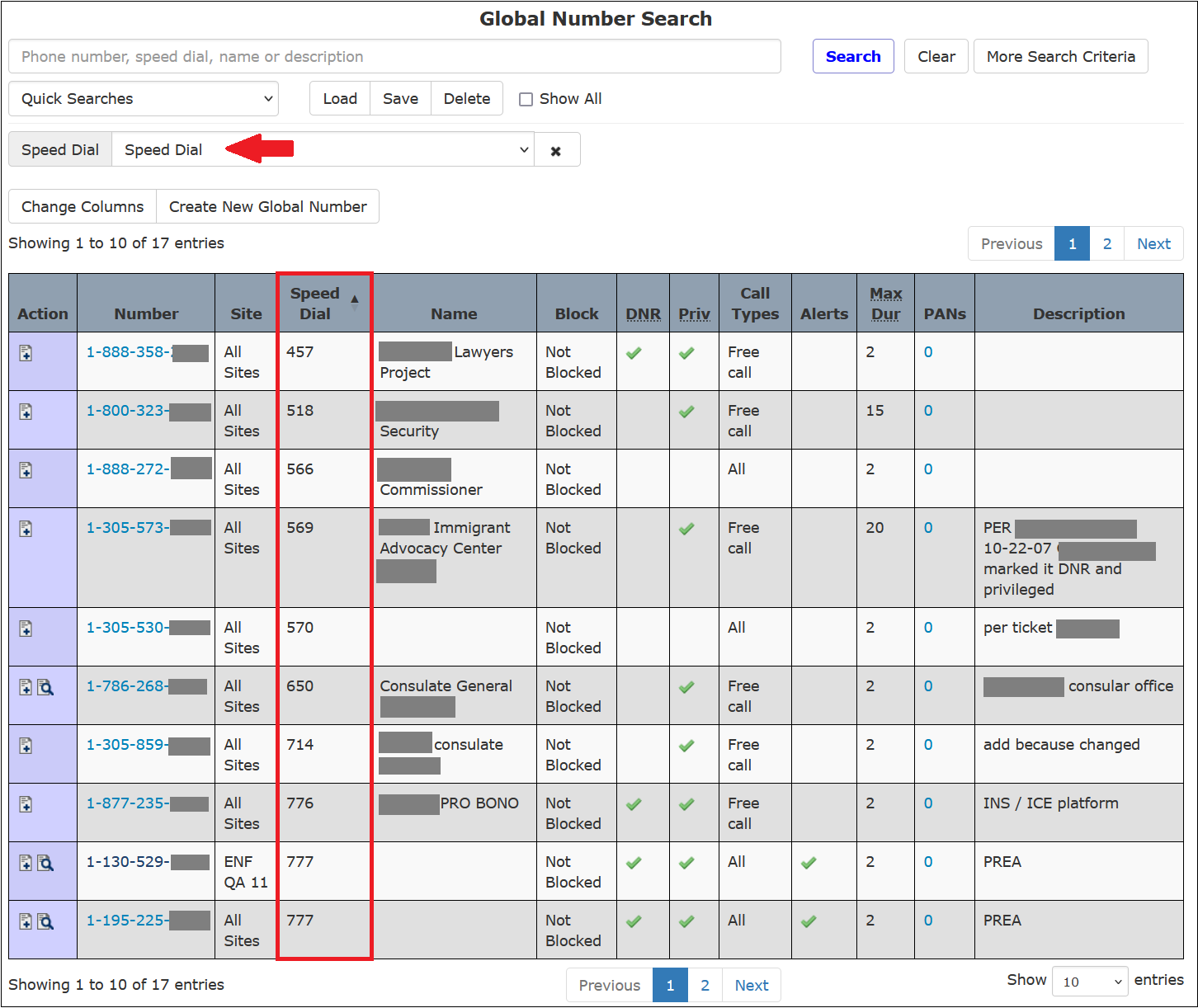
Click on any phone number to access the Number Detail Record for the speed dial number.
Finding Wildcard Phone Numbers
If you select enf:wildcard (public) from the Quick Searches dropdown list, The ENFORCER® displays a list of all phone numbers that use wildcards (???) in the actual phone number as a substitution.
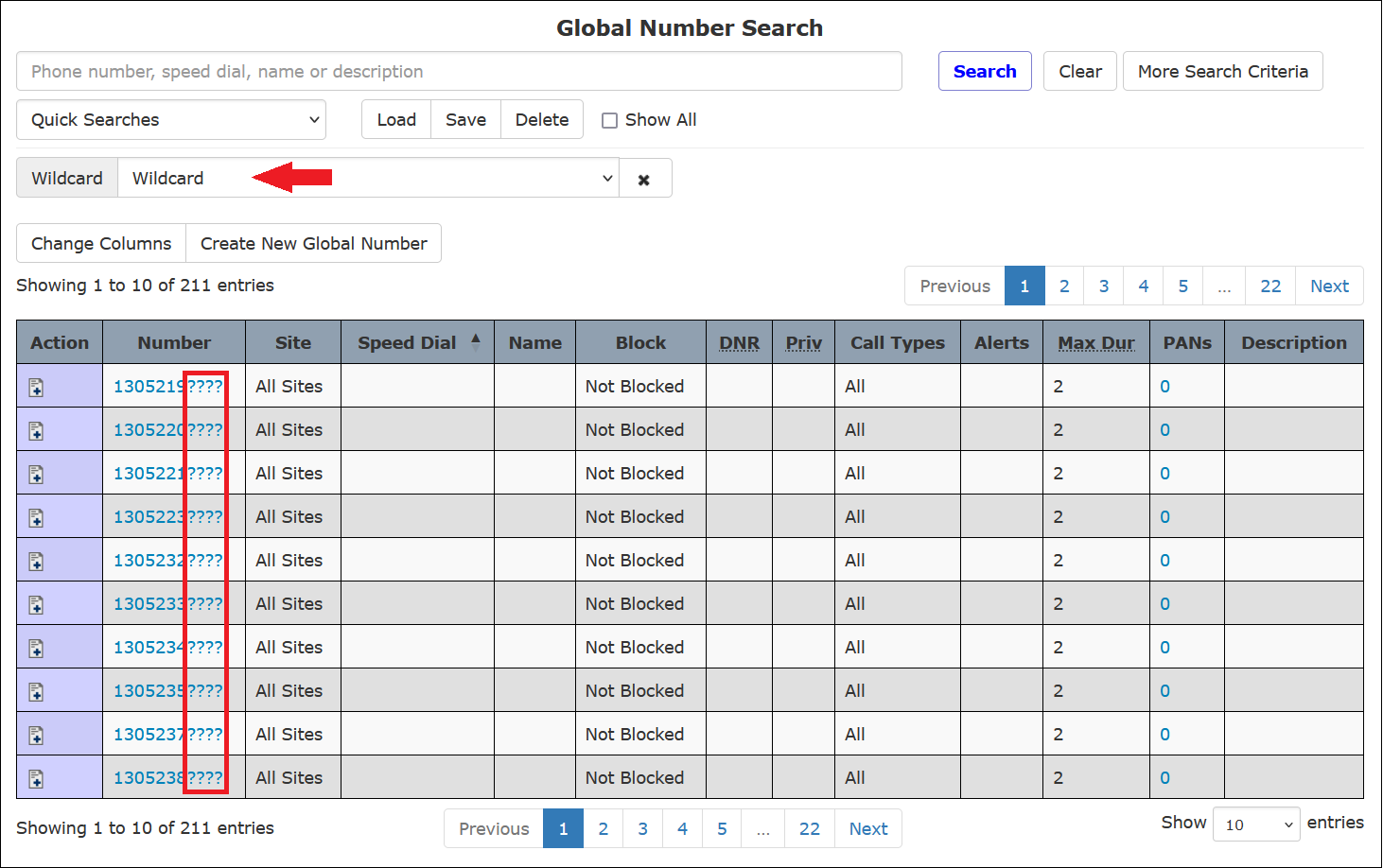
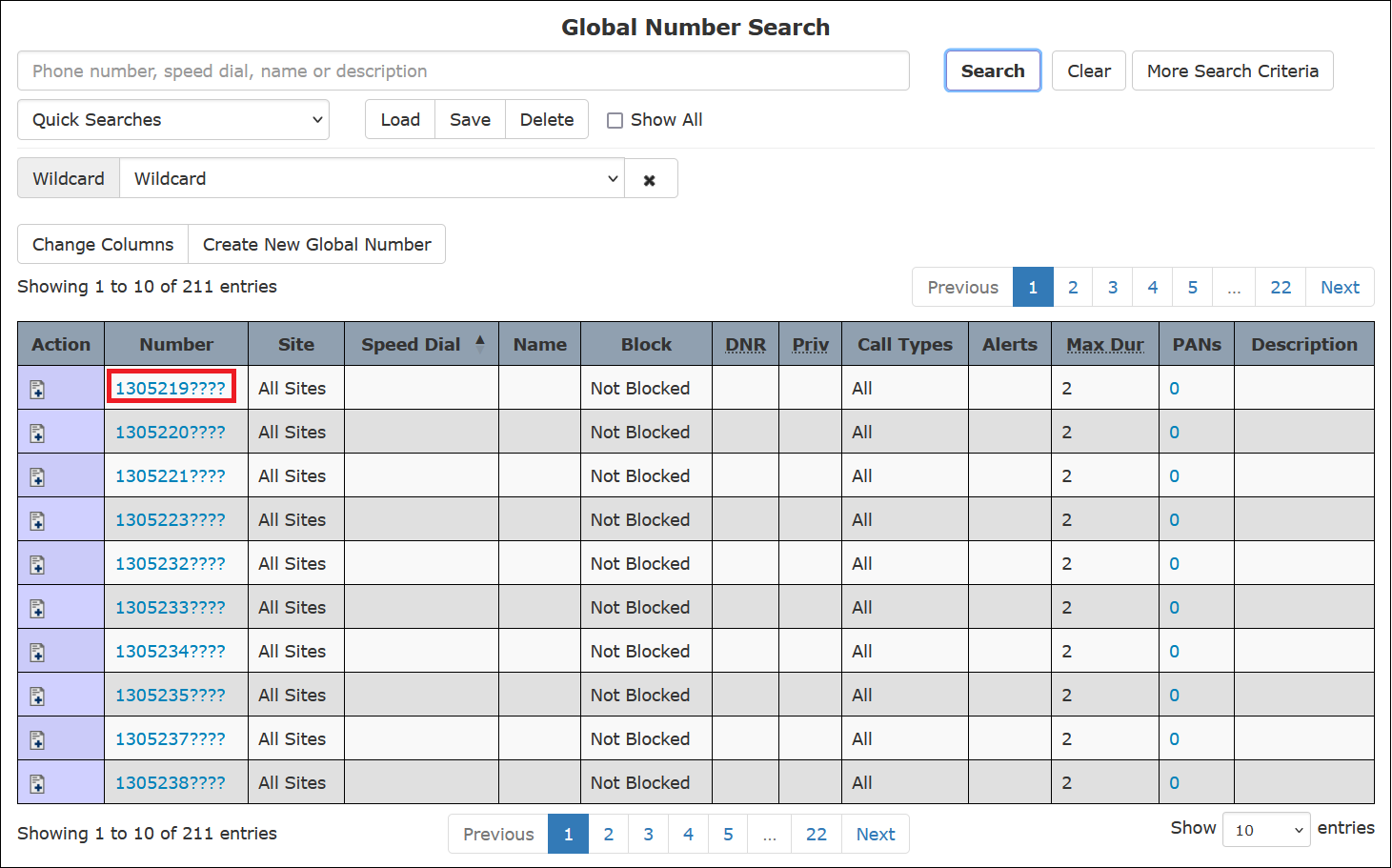
Click on any phone number to access the Number Detail Record for the Wildcard Number.
Finding the Name and Address of a Called Party
If you access an existing Number Detail Record with no information displayed in the Name field, you can use the Reverse Number Lookup feature to view the name and address of the called party. After you click  to the right of the Number field on the Number Detail Record, a Reverse Number Lookup pop-up dialogue box displays the name and address of the called party as well as a map showing the location.
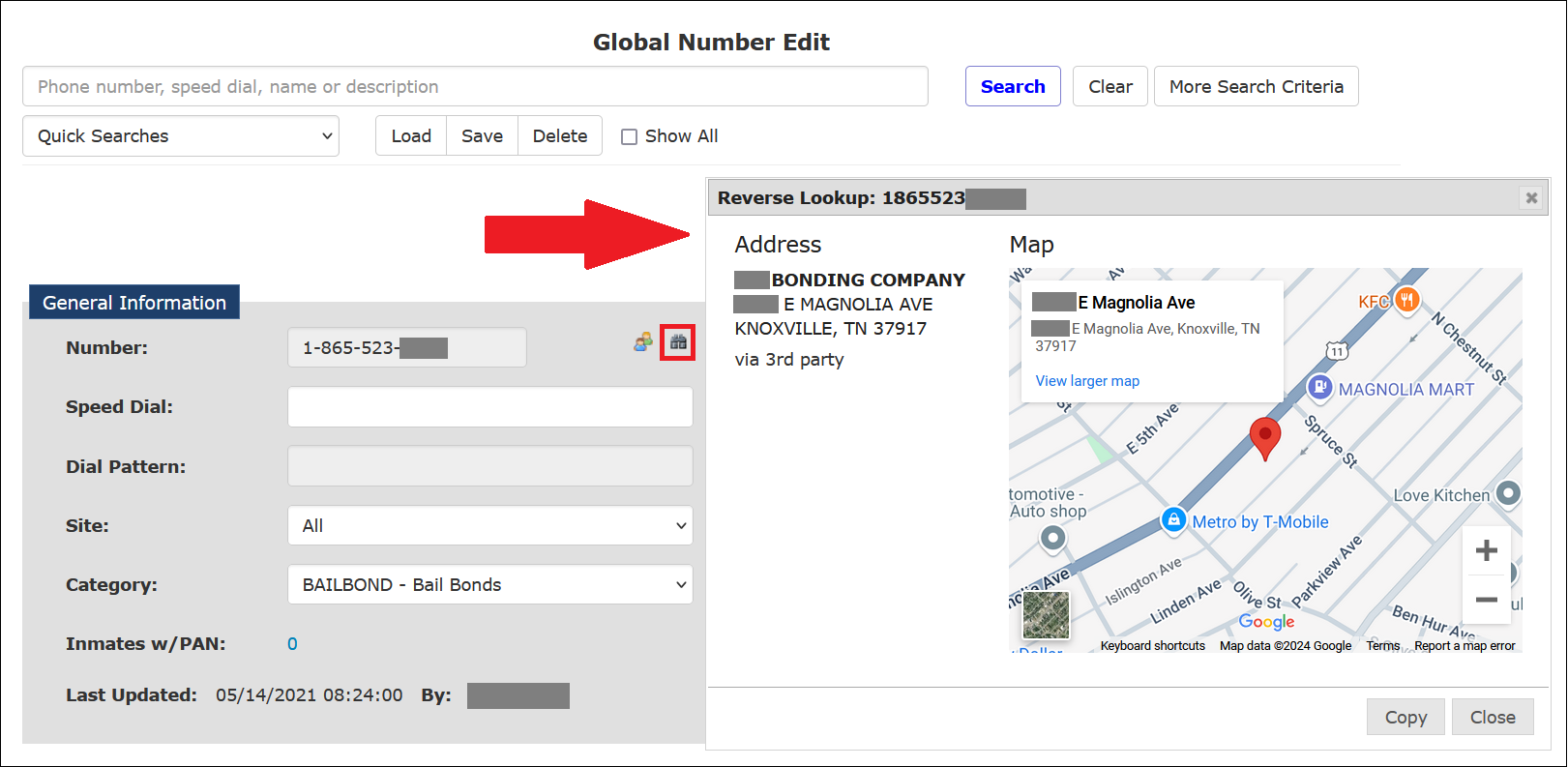
You can use  on the map to zoom in or out on the address.
If desired, you can use the address on the map to complete the Name and Address fields on the Number Detail Record by clicking Copy in the Reverse Lookup dialogue. You must then click Save Changes to save this information to the Number Detail Record.
Performing a Wildcard Search
Because the Global Numbers Library can contain thousands of records at a larger facility, the asterisk (*) character can be used to perform a wildcard search to limit the search results.
Example:
- If you enter 204* in the search field and click Search, the results list all phone numbers with a 204 area code.
- If you enter *2204 in the search field and click Search, the results list all phone numbers that end in 2204.
- If you enter *4333* in the search field and click Search, the results list all phone numbers that contain 4333 anywhere in the 10-digit number.
Saving Search Criteria for a Future Search
After you have set up specific search criteria for a Global Numbers search, you can save the criteria for a future search by clicking <Save New> in the Quick Searches box or by clicking Save.
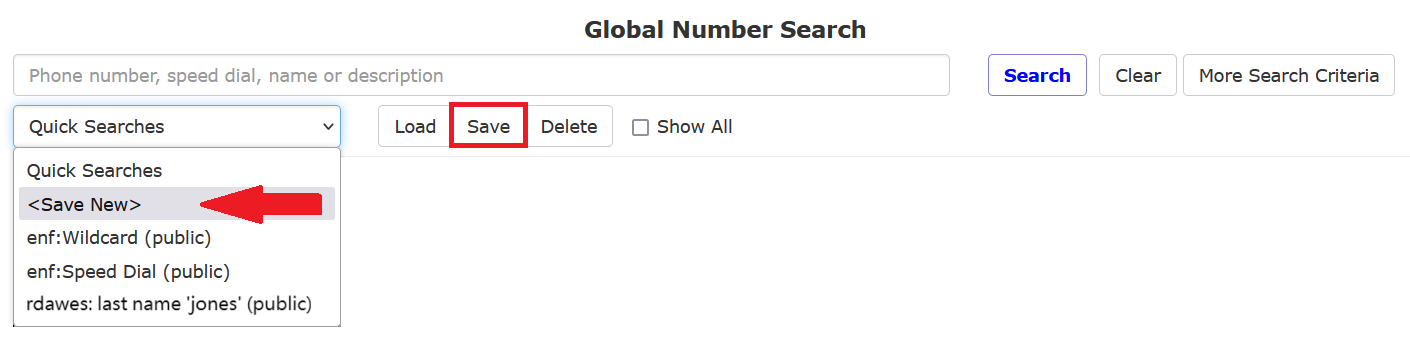
You can then select the same search criteria for a future call search without re-entering the criteria you specified.
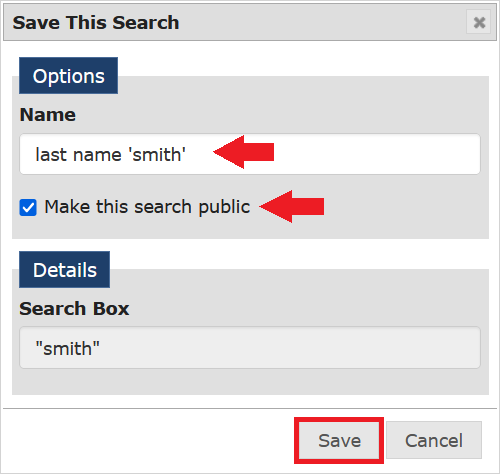
After you use one of the options to begin the process, The ENFORCER® displays the Save This Search dialog box, which includes the details about your search in the Details pane, as shown in the following example. For this example, the user named the search, selected it for use by other users, and clicked Save.
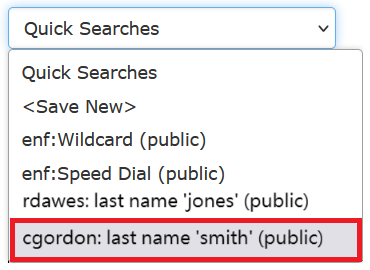
After the search has been saved, it will now be accessible from the Quick Searches dropdown list, as shown in the following example. The search name is preceded by The ENFORCER® user ID of the person who created it and also displays the word(public) if the search was made available to other users.
How to save a Global Numbers search
- Perform a Global Numbers search based on desired criteria.
- Click <Save New> in the Quick Searches box or click Save.
- In the Save This Search dialog box, enter a meaningful name for the saved criteria in the Name field. Be sure to include any information, such as an inmate’s ID or name, which may help to clearly identify the saved criteria to other ENFORCER® users.
- To make the search criteria available to other ENFORCER® users, select the Make this search public checkbox.
- In the Save This Search dialog box, click Save. The new search criteria name is added to the Quick Searches dropdown list and is preceded by the username of the person who created it. If you have clicked the Make this search public checkbox, the search name will display to other users. If you do not click this checkbox, it will be displayed to you only.
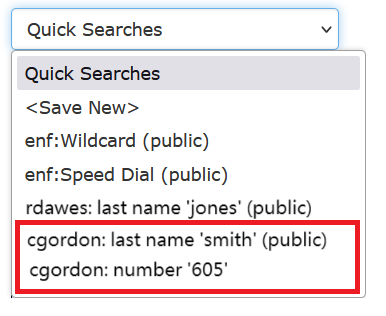
The following example shows a Quick Searches dropdown list of all saved searches. For both saved searches in this list, the user named cgordon selected the Make this search public checkbox when the last name 'smith' search was created. However, the user cgordon did not elect to make the number '605' search public, so the saved search cannot be viewed by users other than cgordon.
How to use a saved Global Numbers search
- Click Global Numbers under the Global Numbers tab.
- Select the desired search name from the Quick Searches dropdown list.
- Click Load to load the search criteria for the selected search name.
- Click Search. The ENFORCER® displays the search results.
How to edit and save an existing Global Numbers search
- Click Global Numbers under the Global Numbers tab.
- Select the desired search name from the Quick Searches dropdown list.
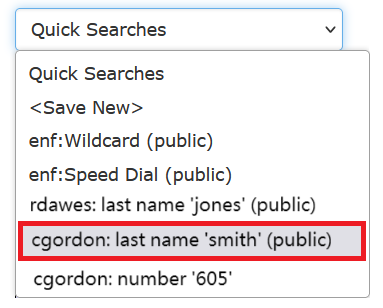
- Click Load.

- Add or edit any desired search criteria on the Global Numbers search page.
- Click Save.

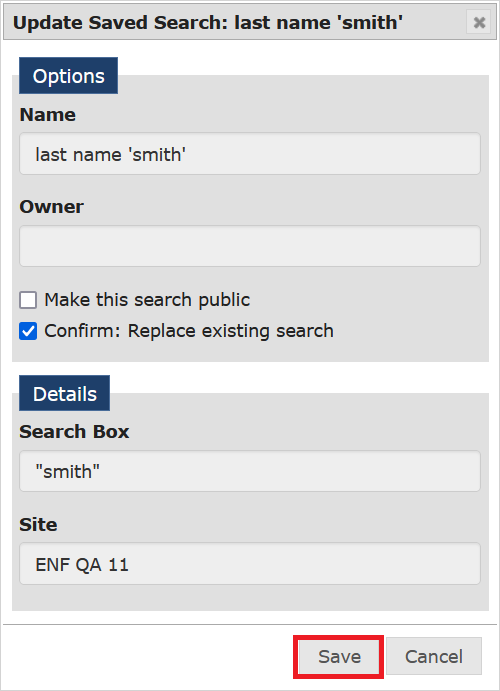
- The Update Saved Search dialog box is displayed and lists any added or changed search criteria, as shown in the following example.
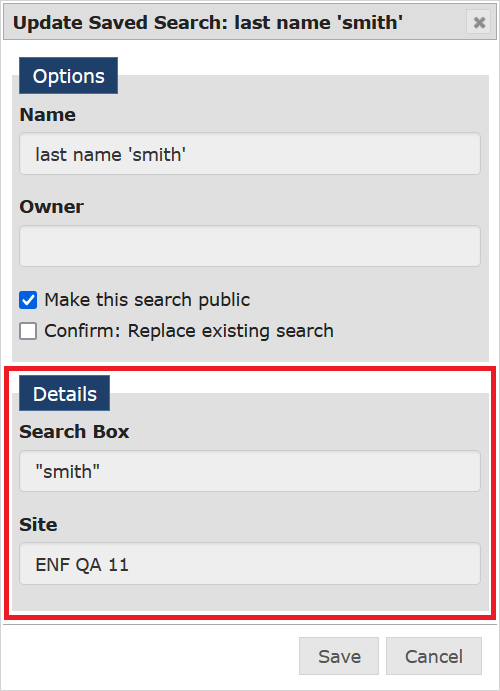
- Select the Confirm: Replace existing search checkbox. Optionally, you can change whether other users can use the search by selecting or deselecting the Make this search public checkbox.
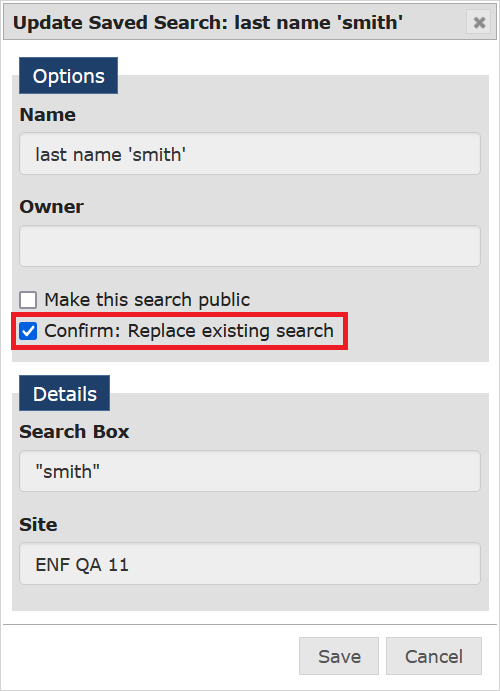
- In the Update Saved Search dialog box, click Save. The search is saved under the same name but with the modified criteria.