Performing Actions on Displayed Calls/Stations
Call/Station Action Buttons
You can perform several actions on a call or station by clicking one or more action buttons described in the following table. Most of these actions require selecting a call or station from the Call/Station List pane by clicking on the line with your mouse pointer.
Table: The Observer℠ – Call/Station Action Button Descriptions
| Button | Description |
|---|---|
 | Click this button to pause the list of displayed calls (displays point-in-time list and “freezes” the dynamic display of call activity). |
 * * | Click this button to add a comment (note) to the call record for the call. |
 * * | If fraudulent activity or threatening behavior is detected on the call, click this button to cut off (disconnect) the call. When you click Cut off, you temporarily disable the phone station. |
 * * | Click this button to disable the phone station temporarily. If a call is currently in progress when you click Disable, the inmate can complete the call before the station is disabled. If you want to cut off the call before disabling the station, click Cut off before you click Disable. After you click Disable, the station will remain in a disabled state until you select the station and then click Enable. |
 * * | This button displays only for a selected call you have disabled by clicking the Disable button. Click Enable to re-enable the phone station. |
 * * | Click this button to connect yourself or another user directly to the call as a third party. |
 | Click this button to display a map of the locations of the site/facility and all called party numbers displayed in the Call/Station List pane. |
 | Click this button to access the Carousel℠ live call listening function. |
* Using these buttons requires first selecting a call/station from the Call/Station List pane.
How to listen to an inmate call
- If you are accessing The Observer℠ from a multi-facility agency, select the facility for which you want to view calls from the dropdown list.
- If you want to limit the display to a station group, select the station group from the dropdown list.
- Select the desired call in the Call/Station List.
- Click
 . The ENFORCER® launches the Web Player, where you can listen to the call recording from the call-in-progress point (active call) or the call start point (completed call).
 - If
 is displayed, The Imposter module has identified a suspected imposter. If desired, click . The ENFORCER® launches the Web Player, where you can view detailed imposter-related information about the call.
 - If you want to show a Google Map of the called party address, click Show Map.
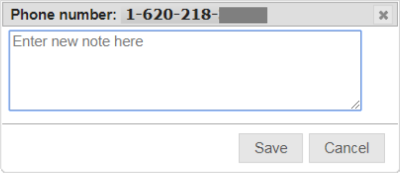
- If you want to add a comment (note) to the call record for the call, click Comment. A dialog box is displayed where you can enter and save a comment.
- If you want to disconnect the call, click Cut off.
How to disable a phone station
- Select All Phones in the Call Type dropdown list.
- If you are working at a multi-facility agency, select the facility name from the dropdown list.
- From the dropdown list, select the station group to which the station is mapped.
- Click on the desired phone station in the Call/Station List.
- Click Disable. If a call is in progress on the station, The ENFORCER® disables the station after the call is completed.
- To re-enable the station, click on the phone station in the Call/Station List, then click Enable.
How to monitor or “barge in” on a call
- Click on the desired phone station in the Call/Station List.
- Click Add Listener. The following dialog box is displayed:
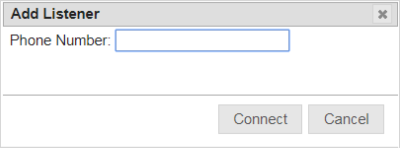
- Enter the 10-digit number of the phone on which you want yourself or another user to be connected to the call.
- Click Connect. The ENFORCER® IVR will immediately call the provided number.
- Answer the phone to be connected to the call. Initially, the inmate and called party are not notified and are not aware that you are monitoring the call.