Using The Observer℠ Map Functions
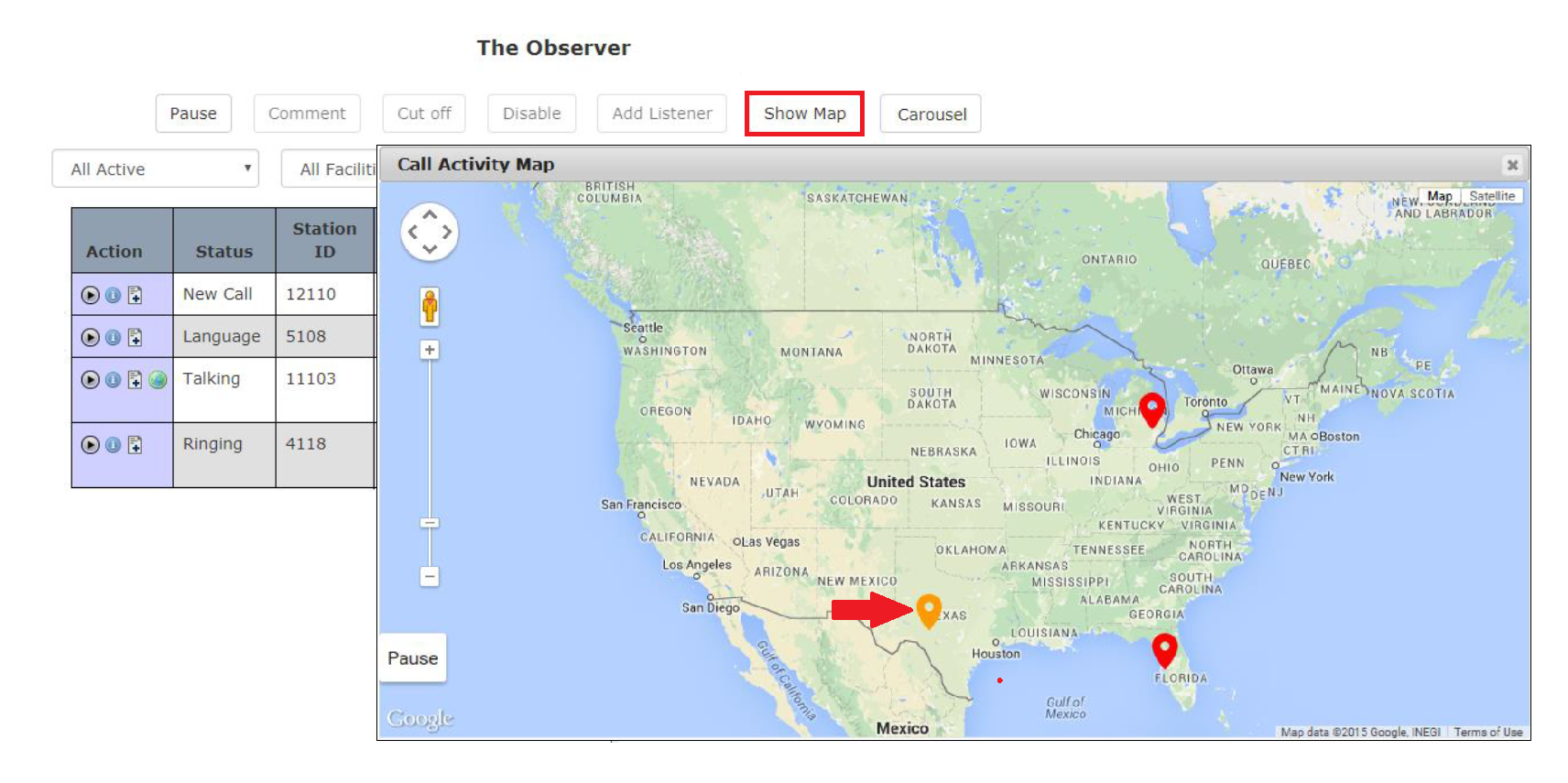
When you click the Show Map action button, The Observer℠ displays a map that shows one or all calls, depending on whether you selected an individual call.
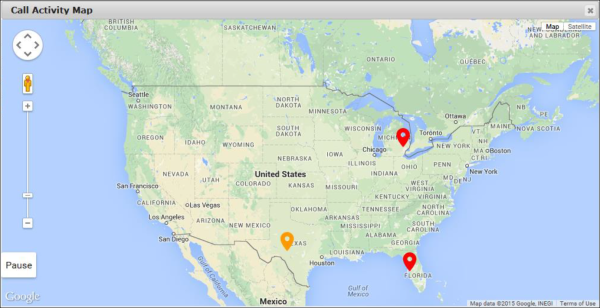
The Call Activity Map displays all calls in real-time and changes dynamically. If you have the map open and a new call is initiated when an inmate begins dialing it, a call icon is added to the map automatically. Additionally, if you only have Active calls displayed in the Call/Station List, the icon associated with the call disappears automatically from the map when the inmate hangs up a call.
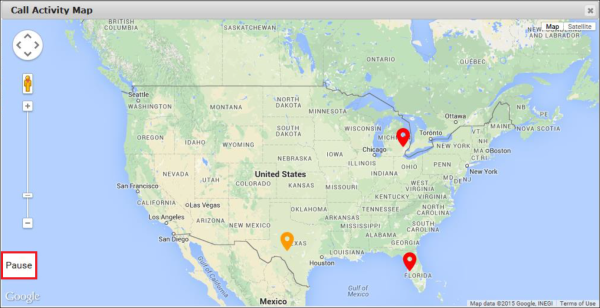
If you have the Call Activity Map open and want to freeze the display and prevent any dynamic changes while you view it, click the Pause button on the map, as shown in the following example.
Viewing a Map for All Displayed Calls
If you click Show Map without selecting a specific call in the Call/Station List, the Call Map function shows all displayed calls. In the following example map, three calls are in progress.
The red  icon denotes a call to a landline, and the amber
  icon denotes a call to a cell phone.
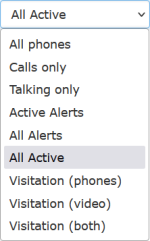
To simplify the map and reduce the number of calls displayed, you may want to limit the displayed calls by using the Call Types dropdown list.
Viewing a Map for a Selected Call
The following example shows you can view a map for a selected call. To view a map for a single call only, click on the desired line item in the Call/Station List. Next, click Show Map.
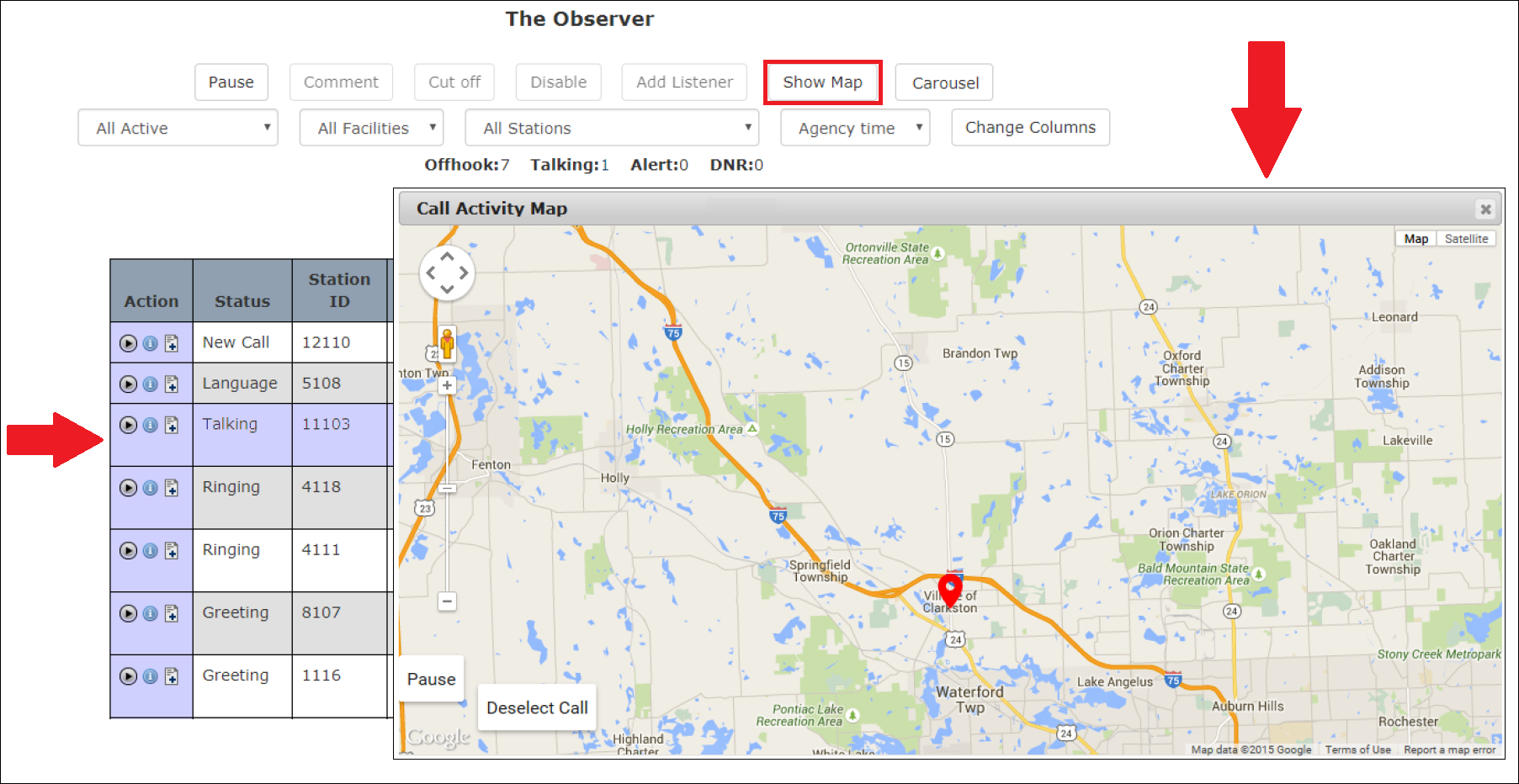
Using Call Map Icons
This section describes the various map icons and how you can use them.
Accessing Call Details
By clicking on a call icon, you can access the Call Details for the call while the map continues to display, as shown in the following example.
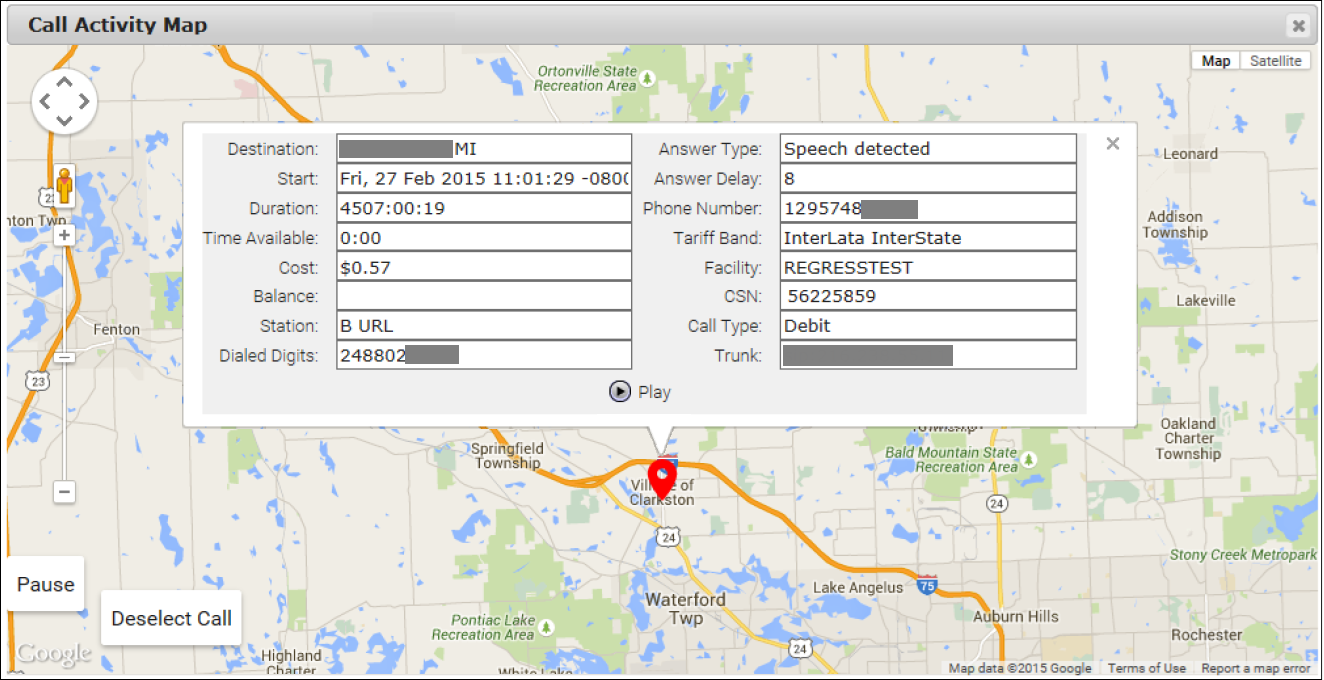
Additionally, you can click  in the Call Details pane to play the call recording.
Using the Call Activity Map for a Large Quantity of Calls
When you click Show Map from The Observer℠ with many displayed calls without selecting a specific call, the Call Activity Map may display additional icons that indicate groupings of calls, as shown in the following example.
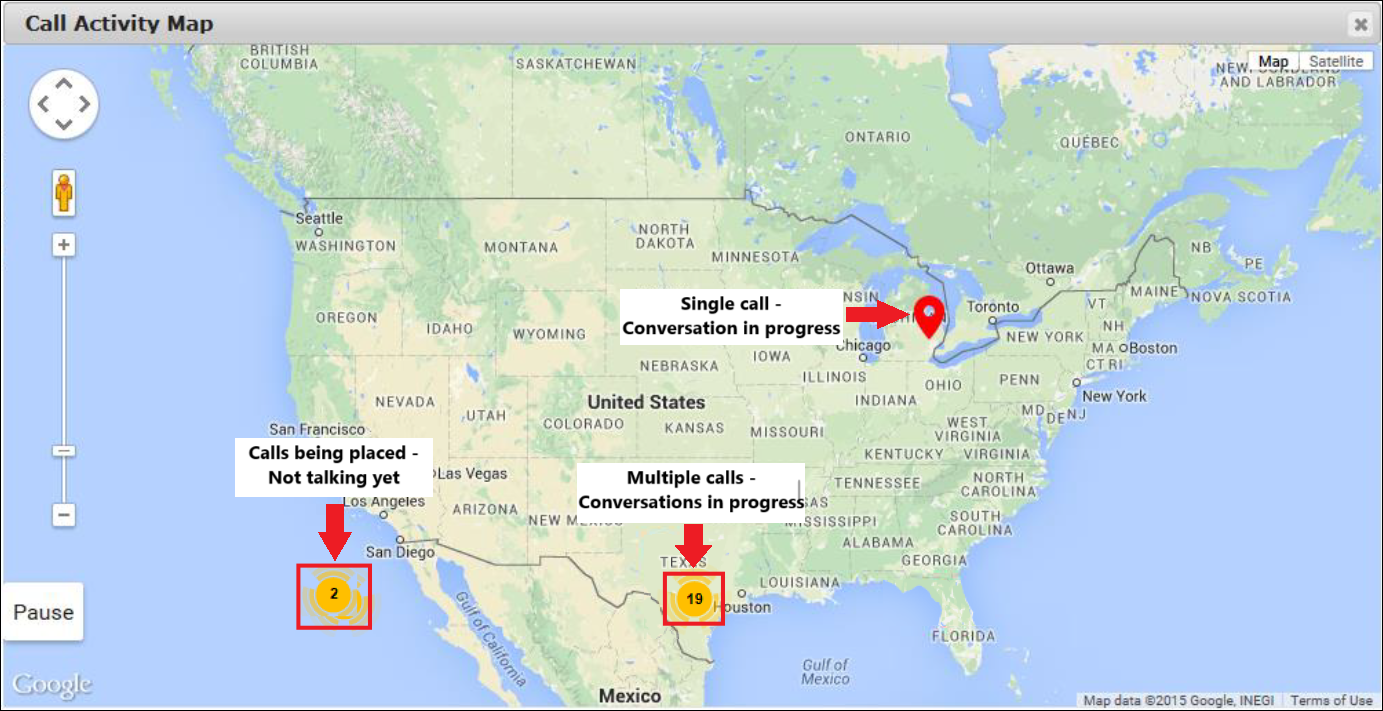
In the example above,  indicates that 19 calls are currently in a Talking status or later. Typically, this icon corresponds to the correctional facility's geographical location and indicates that the calls are to local phone numbers in the San Antonio, TX, area.
denotes a single call to a landline phone number. If any calls are shown on the map for cell phone calls, the map displays .
 displayed on the left of the map, in the Pacific Ocean, also denotes multiple calls, two calls in the above example. However, it does not represent a geographical location. Instead, it enables you to access a list of displayed calls where conversations have not begun yet with a status beforeTalking, as shown in the diagram here.
Using the Pre-Conversation Call Icon
When you click on the icon in the Pacific Ocean from the following example, the Call Activity Map displays the CSN and call status for all calls for which conversation has not begun yet. By clicking on the desired call from the list, you can view the Call Details pane for the call.
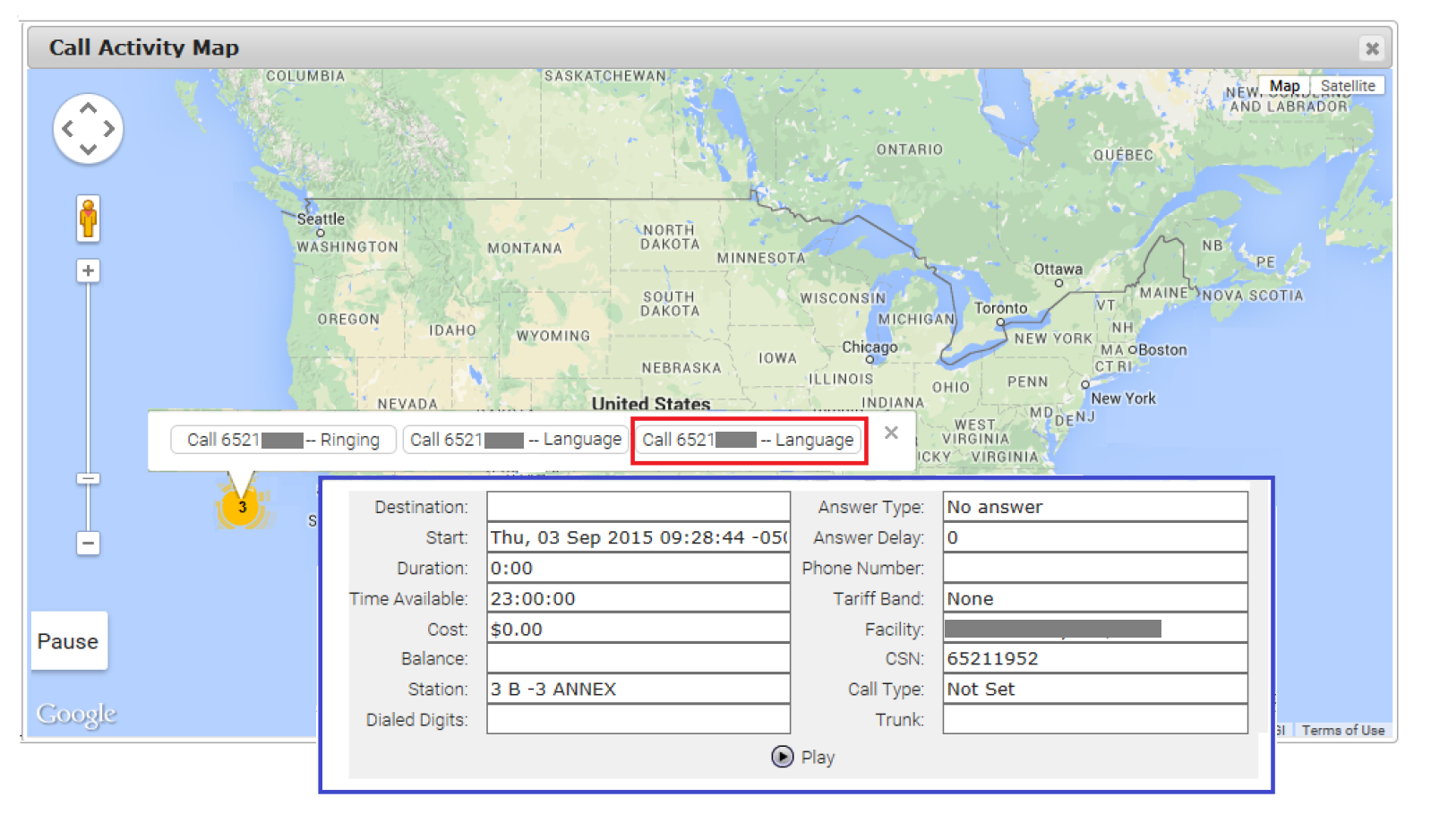
Since the calls shown above are not in progress yet, you cannot view a map for a specific call location. When you click a desired call,  is displayed on the map.
Using the Local Calls Icon
When you click on the icon in the continental U.S., the Call Activity Map displays the called party phone number and call status for all calls in a Talking or later status, as shown in the following screenshot. All the calls are being placed within the local geographical area. You can view the Call Details pane for the call by clicking on the desired call from the list.
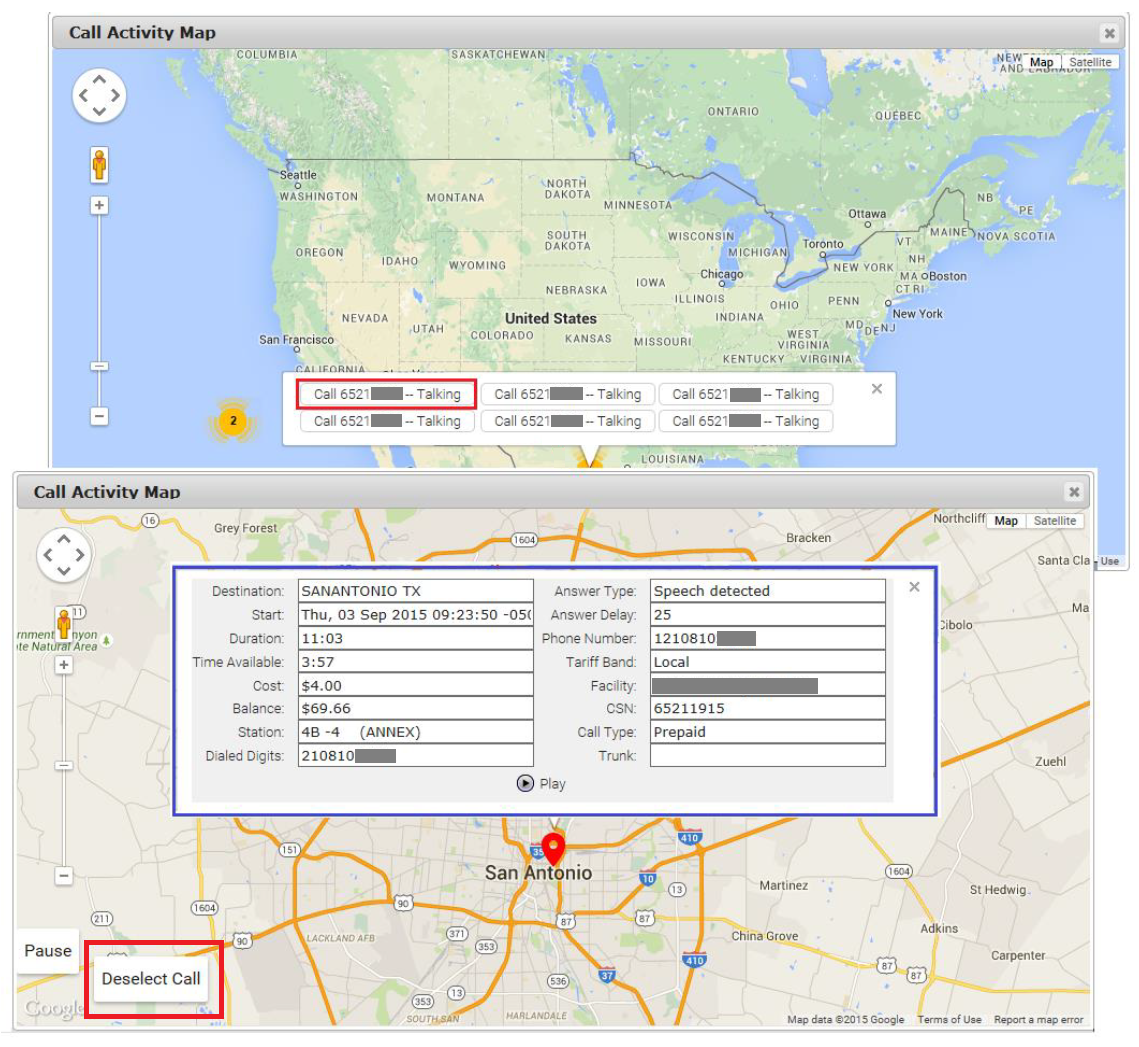
Additionally, the Call Activity Map zooms into the selected call. The map will show either or for the call. To return to the list of calls for the geographical area, click the Deselect Call button on the map.
Viewing the Location of a Cell Phone Call
In the Call Details pane, when a call is in progress to a cell phone,  is displayed in the Action column. To view a map for a cell phone call, click . The Call Activity Map shows the current geographical location of the cell phone to which the call is being placed, as denoted by .
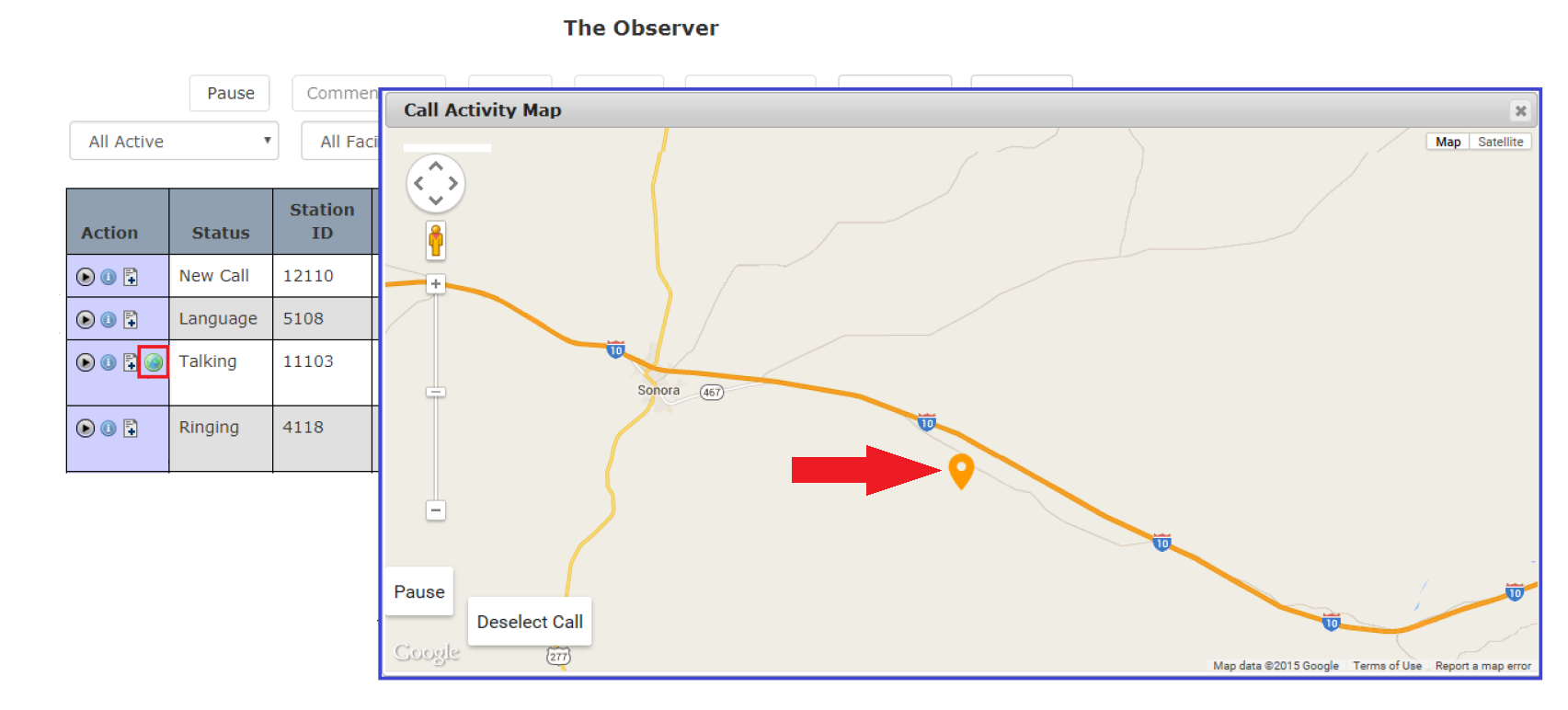
Alternatively, you can click Show Map for the entire displayed list. Any cell phone is denoted by .