Monitoring Live Recordings Using the Carousel℠
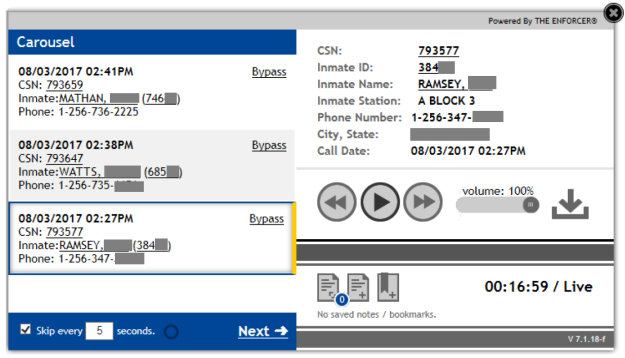
The Carousel℠ is a live call listening tool that provides a rotating view and listen-in capability for all inmate calls in progress. As shown in the following example, the Carousel℠ window shares similarities with the ICSolutions® Web Player. The Carousel℠ is an abridged version of the Web Player that lets you rotate through and listen in on all ongoing conversations between inmates and called parties.
✔Carousel℠
✔Web Player
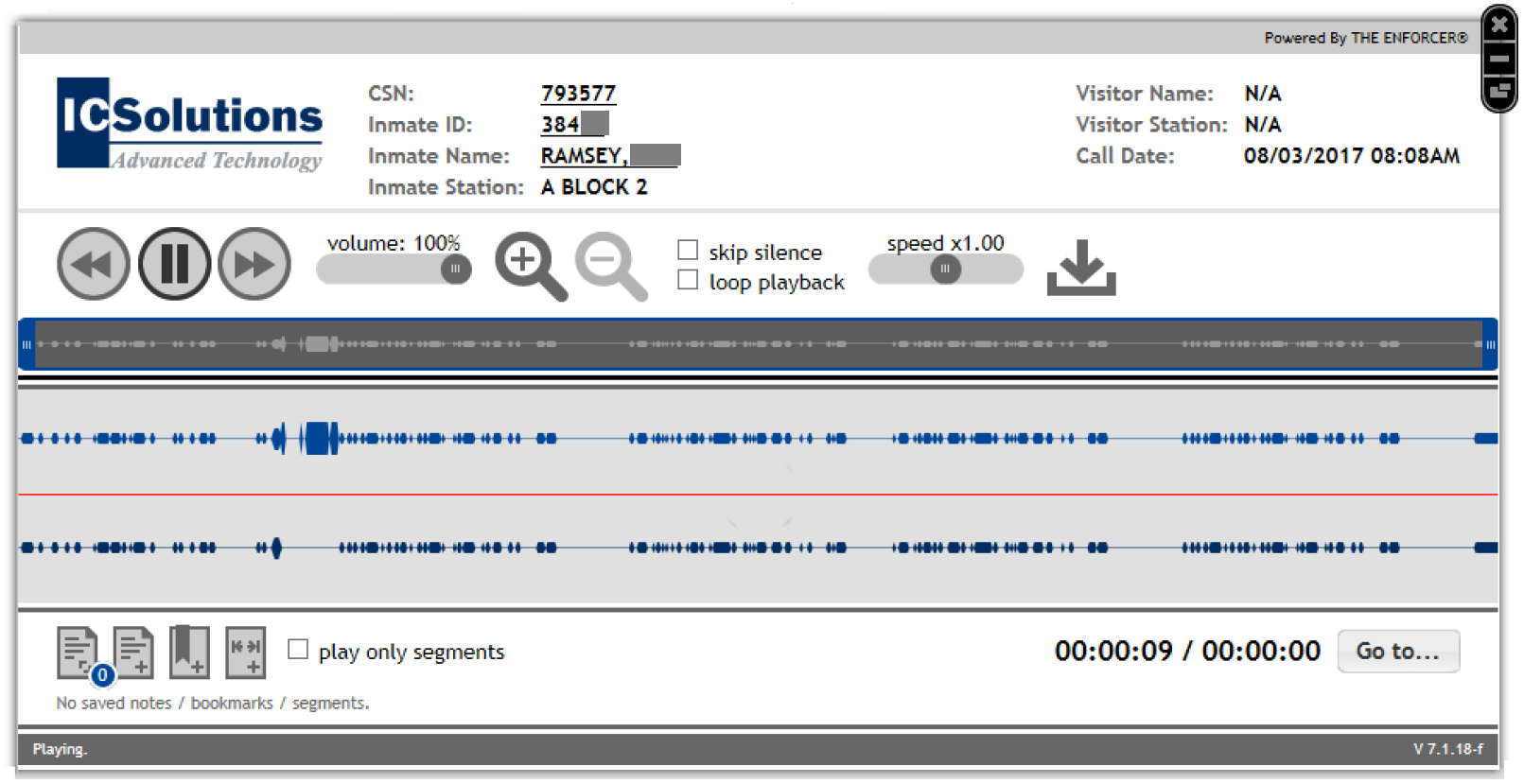
Each call played in the Carousel℠ displays the date and time the call began, the CSN that will be assigned to the call record after the call is saved, the inmate name and ID, the station from which the call is being placed, the called phone number, and the city and state associated with the number.
The Carousel℠ Window
The Carousel℠ window is divided functionally into several panes. The following example describes the purpose of each pane in the Carousel℠ window.
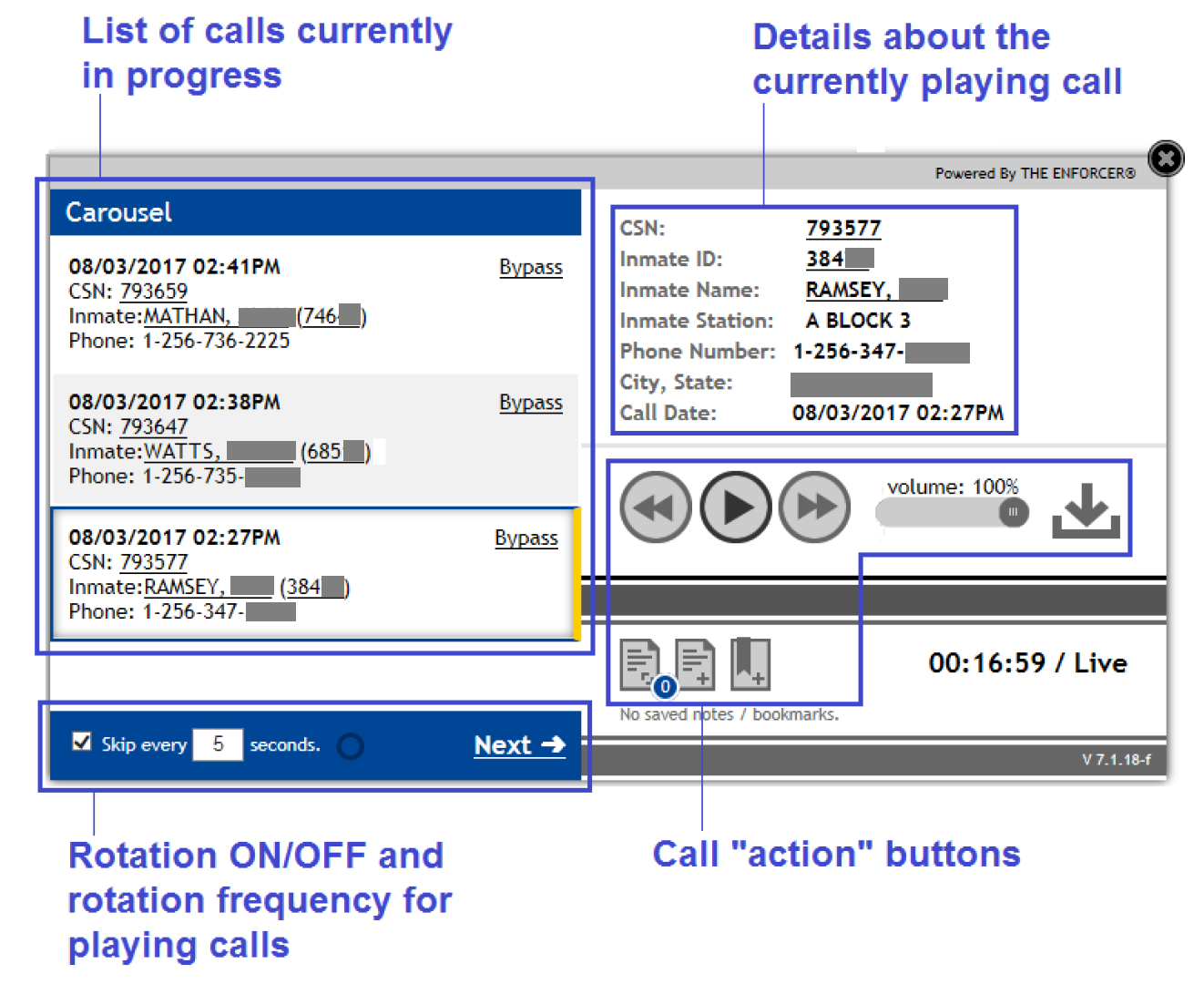
Access the Carousel℠
When you click Carousel at the top of The Observer℠, the Carousel℠ opens and begins playing back the oldest (first initiated) call in progress, as shown in the following example.
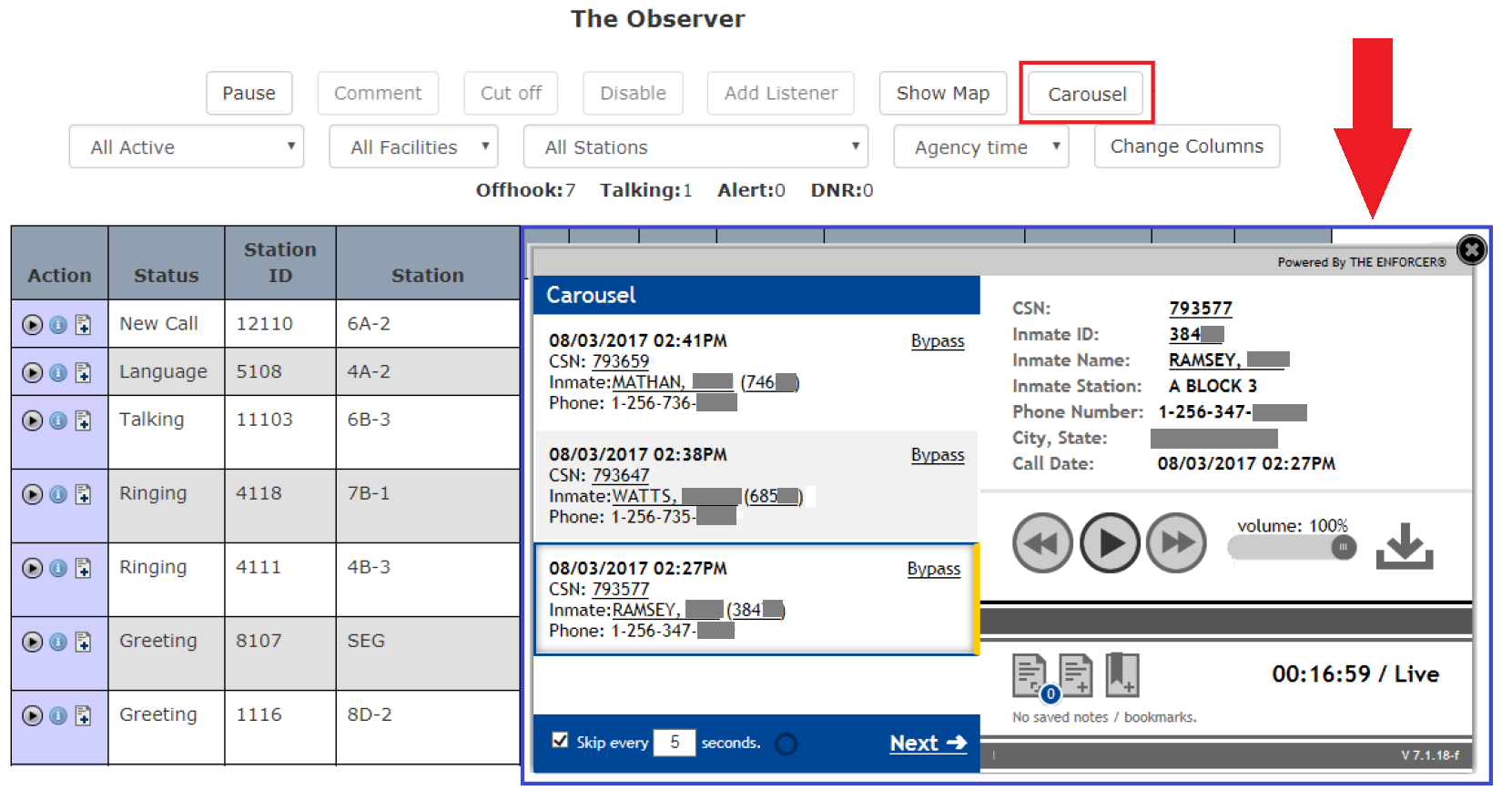
The call being played is highlighted by the yellow bar that displays immediately to the right of the call information in the left column.
Use the Carousel℠
The following table describes fields and functions available in the Carousel℠ when accessed from The Observer℠. The sections following this table provide more detail on using the available functions.
Table: The Carousel℠ Features and Descriptions
| Feature | Description |
|---|---|
| List of Live Calls (left column) | Displays a list of calls in progress. This list is sorted with the oldest call on the bottom and the most recent call at the top. |
| Skip (checkbox) | This checkbox is selected by default when you open the Carousel℠. When checked, the Skip feature enables the auto-rotation of the Carousel℠ through active calls in the same sequence as displayed in the left column (from bottom to top). If you deselect this checkbox, the Carousel℠ will continue to play the current call until certain events happen, as described below. |
| Seconds (field) | When you open the Carousel℠, this field is set to 5 by default. By entering a different value, you can change how long each call is played before the Carousel℠ rotates to the next call. |
| Next link | Enables you to manually advance to the next call on the list for playback. |
| Blue Border | When a call is being played, the information about the call in the left column will be highlighted by a blue border. |
| Yellow Line | In the left column, a yellow vertical line displays immediately to the right of the call information, indicating that at least part of the call has been played since the Carousel℠ was opened. |
| Bypass Include | In the left column, you can click Bypass to skip the playback of the current call if you are not interested in that conversation. If you click Bypass while the call is playing, the Carousel℠ will skip to the next call in the list. You can exclude as many calls as desired. After you click Bypass, the word Include is displayed. To place a call back in the playing queue, click Include. |
Listen to Live Calls
When you open the Carousel℠, it immediately plays the oldest active call (the call that started first). By default, the Carousel℠ plays a five-second sample of each call, rotates to the next call, plays it for five seconds, and continues with all calls in the list. If you turn off this auto-rotation by deselecting the Skip check box, the current call being played will continue to play until one of the following events occurs:
- The call ends either by the call dropping or the parties hanging up.
- You click
 to play the next call in the list.
 - You click inside the call information for any other call displayed in the left column.
- You click Bypass to advance to the next call in the list.
Listen to a Specific Live Call
The list of currently active calls is displayed in the left column in the Carousel℠. These calls are sorted in order by the time the calls began, with the newest call on top and the oldest call on the bottom. When a new call begins after you open the Carousel℠, The Observer℠ automatically adds the call information to the top of the Carousel℠ call list. If a call ends while you have the Carousel℠ open, it is removed from the list of in-progress calls on The Observer℠ and from the Carousel℠ list.
Since the call list is sorted from the bottom up, the next call in line moves physically up the list.
To select a specific call to listen to in the Carousel℠, click anywhere except on the underlined inmate name/ID in the call information shown in the left column, as shown in the following example. The Carousel℠ immediately begins playing that call at the current point in time, not at the start or at a previous point in the call.
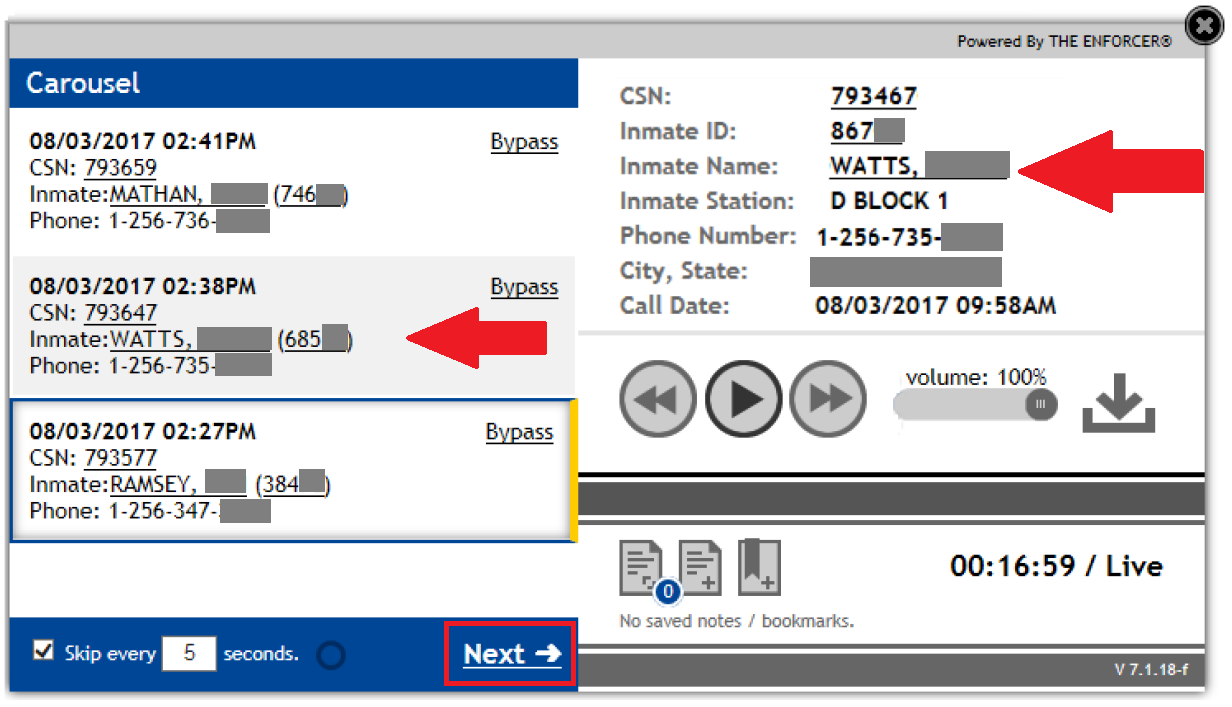
If the call you want to play happens to be the next in the list, click as shown in the example above.
Change the Rotation Frequency of Playback
To make the Carousel℠ rotate through calls more frequently or less frequently, you can change the numeric value in the Skip every 5 secondsfield.
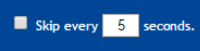
After you click this checkbox, the Carousel℠ will jump to the next call based on the number of seconds you specify. It will continue rotating live calls each time the interval is reached. To modify the number of seconds a live call is played before rotating, click in the field and type in the desired number of seconds.
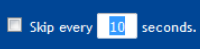
If the Carousel℠ has reached the end of the list of live calls, it will start over with the oldest call in progress and continue rotating toward the most recently started call.
Bypass a Live Call
The Carousel℠ continues to rotate through calls as long as there are calls in progress and the Carousel℠ is open. If you no longer want to listen to specific calls in progress while rotating through live calls, click Bypass in the left column. The line containing the call details will darken, and the link will change from Bypass to Include, as shown in the following example.
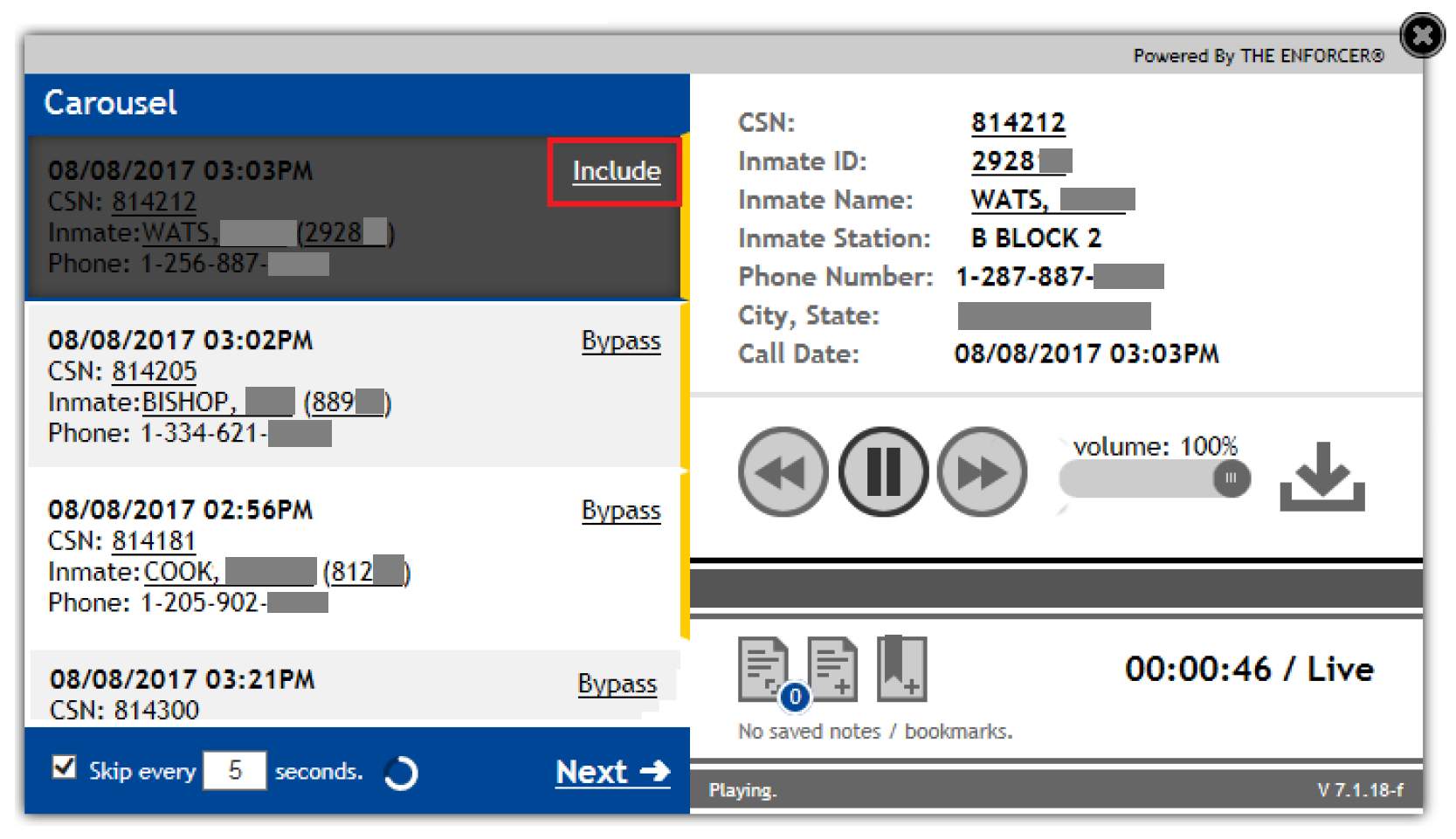
If you bypass a live call like this, you cannot click it in the left column to play it. Also, you cannot select it to be played by clicking in the call information for the call immediately below it. You must click Include to reactivate the call and place it back in the playing sequence.
Access Detailed Inmate Information
If you click on an underlined inmate name or inmate ID in the left column, The ENFORCER® opens the Inmate Detail page for the inmate on the call in a separate window under the Inmate function. After opening and viewing an Inmate Detail page, you must close its window separately from the Carousel℠ window. The Carousel℠ continues to play in the original window until you close it.