Exporting and Printing Call Records
After performing a Call Records search, you can export and print call records using the task buttons highlighted below.

These buttons can be used to:
- Export call records to an Excel® file to save call records to your local computer.
- Print call records.
How to export Call Records in Excel format
- Perform a search based on desired criteria.
- In the
 column, click the checkbox for each call record you want to export. If you want to select an entire page of call records, a range of call records, or the whole search results, do not select any call records.
 - Click Export CDR to File.

The following popup window is displayed.
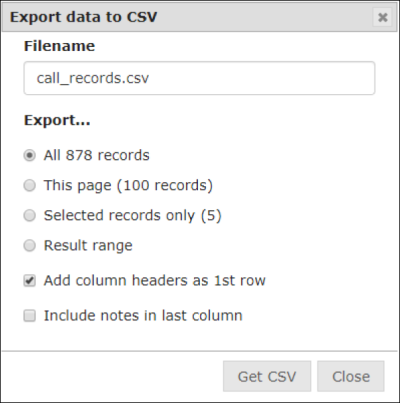
- If you want to change the file name from the displayed default, tag it with your mouse and enter a different file name.
- Click one of the radio buttons to select the call records you want to download.
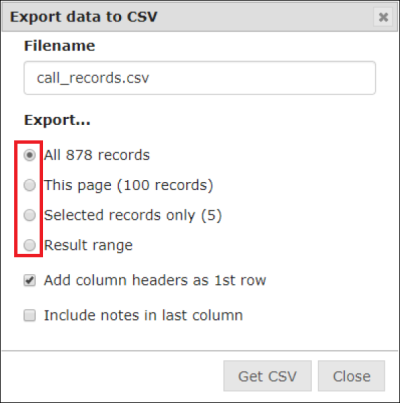
- Select which visitation records you want to export by selecting a radio button.
The All # records radio button displays the number of call records returned by the search results.
The Selected records radio button will be selectable only if you selected certain call records by clicking the checkbox in the Action column for those records before clicking Export.
The Result range radio button lets you select a range of rows from the search results, even if those rows are not displaying on the first page of the search results. - By default, the column headings on the Visitation Schedule search results will display as the top row of the exported CSV file. If you do not want the column headings, deselect the Add column headers as 1st row checkbox.

- If you want to include any notes saved for the call records you selected, click the Include notes in last column checkbox.

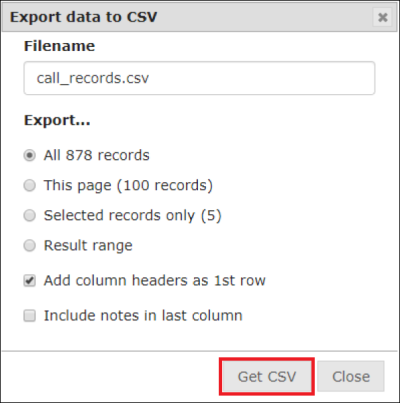
- Click Get CSV. A dialog box then prompts you to save or cancel the file.
If you click the radio button to export all records and there are more than 40,000 call records selected, you should save the file first, and then open it using Excel.
Additionally, if there are more than 1,000,000 records selected, an error message displays that indicates that The ENFORCER® cannot accommodate the request.When you access the Excel or PDF file, each call record is saved on a separate row. If you checked the Add column headers as 1st row checkbox, all column headings will be displayed on the first row of the exported file.
If you checked Include notes in last column, the Notes column in the Excel file will display only the most recently created note. To view all notes, double-click the cell containing the note.
How to print Call Records
- Perform a search based on desired criteria.
- Click Print.

- Print the search results from your Internet browser. The ENFORCER® will print the number of records specified in the call records per page field unless you change that number after running the search.
- If you want to view more records, click the page number at the bottom of the list.

- Print the next set of results from your Internet browser.