Working with Search Results
After performing a Call Records search, you can perform several tasks, summarized in the following example.
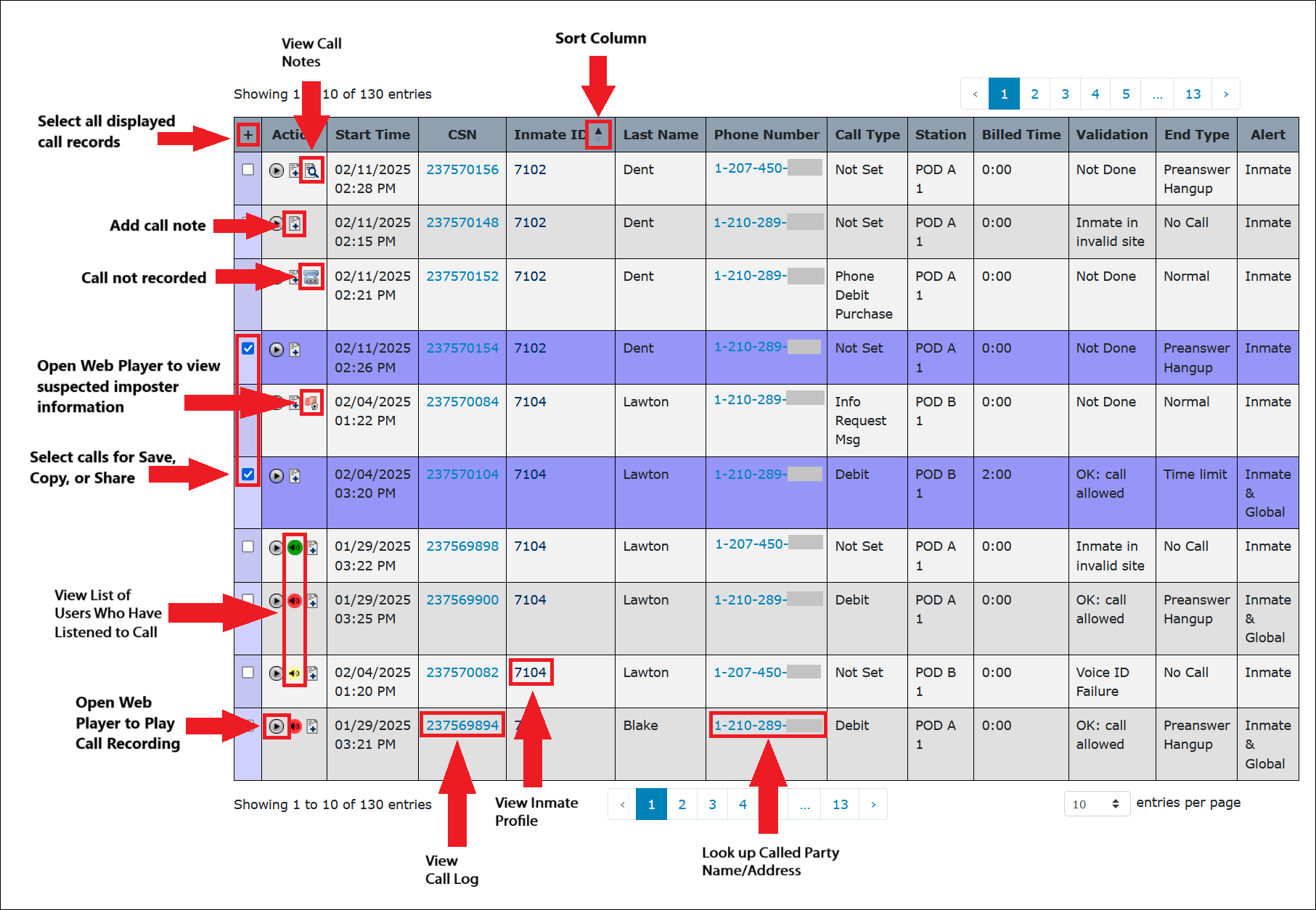
- Add Call Note – After you click
 in the Action column on a call record, The ENFORCER® opens a dialog box that lets you add a note to the call record.
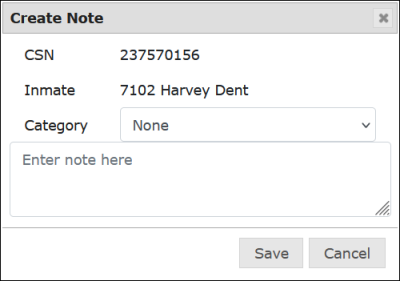
After you enter a note and click Save, is displayed to indicate that a note has been added to the call record. By adding a call note, you can bookmark selected call records for future reference and provide information that may be helpful to another user who accesses the call record later.
 - View transcript of a TDD call – Whenever a call is made by a deaf inmate using a TDD (Telecommunications Device for the Deaf) device, the ENFORCER® automatically adds to the call record. When you search using TDD Operator as the Call Type, is displayed for each call record. Click to display a text transcript of the call. Since there is no voice recording of the call, this feature lets you view the call conversation in a text format.
- View the Inmate Detail screen – After you click a number in the Inmate ID column, ENFORCER® displays the Inmate Detail page. This same information about inmates is available by clicking the ENFORCER® Inmate tab and searching for a specific inmate.
- Select and play a call recording – You can play a call recording by clicking
 in the Action column to open the Web Player.
 - View call log – This function requires administrator-level permissions. If you do not have this permission, numbers in the CSN column are displayed in black type and are not hyperlinks.
- View list of users who have listened to a call – If a colored speaker
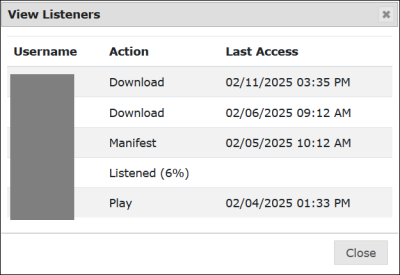
 icon is displayed on a call record, you can click it to display a list of users who have listened to the call recording and the date and time of access.
  (Yellow) - Only you have listened to the recording.
 (Red) - Other user(s) has listened to the recording.
 - (Green) - You and other user(s) have listened to the recording.
When you click on an icon, a pop-up box displays the user name of the person or persons who listened to the call recording and the date and time they began playback.
- Look up the name/address of a called party – When you click a blue number in the Phone Number column, the ENFORCER® displays a Reverse Lookup window, which shows the name and address of the called party as well as a geographical map of the location.
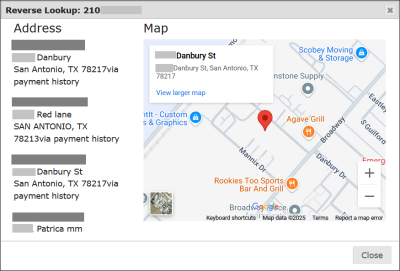
By clicking on the map link, you can also access an aerial map of the address. - View suspected imposter information for a call – You can view suspected imposter information on a call recording by clicking
 in the Action column to open the Web Player. For more information about imposter detection in a call recording, click here.
 - Select one or more calls for a local download or burn to a CD or DVD – When you select one or more calls by selecting the checkbox in the leftmost column, you are selecting these call records or the call recordings as the first step in downloading, burning to a CD, exporting, or sharing.
- Add/Change categories for displayed results – You can add columns to display desired information in the results by clicking Change Columns. This function is discussed in the following section.
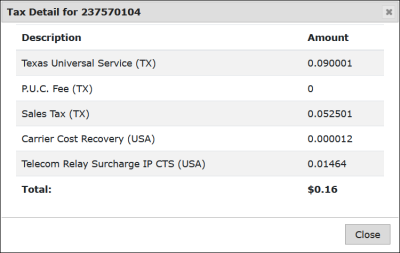
- View tax or fee detail – If you add the Tax or Fee column to the search results by clicking Change Columns, you can click on a blue hyperlink in the Tax or Fee column to view details for the tax or fee that was charged on the call.

- Sort by column or re-sort column order – This function is discussed in this article.